
wordpress installation

System Requirements for WordPress

  • Database − MySQL 5.0 +
  • Web Server −
    • WAMP (Windows)
    • LAMP (Linux)
    • XAMP (Multi-platform)
    • MAMP (Macintosh)
  • Operating System − Cross-platform
  • Browser Support − IE (Internet Explorer 8+), Firefox, Google chrome, Safari, Opera
  • PHP Compatibility − PHP 5.2+

Download WordPress

When you open the link https://wordpress.org/download/
you will get to see a screen as the following snapshot −
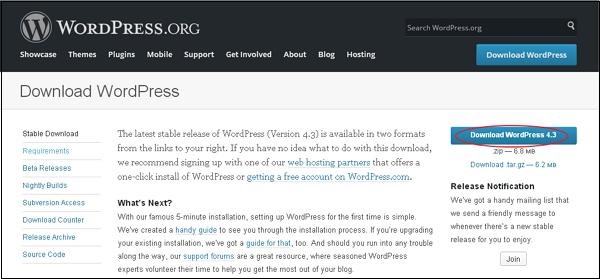
WordPress Installation

Create Store Database

  • WordPress requires MySQL database. So create a new empty database with user/password (for example, user as “root” and password as “root” or else you can set as per your convenience).
  • Then, you can continue with the installation process as discussed further.

Set Up Wizard

It’s very easy to set up WordPress into your system. The following steps describe how to set up WordPress locally on your system.
Step (1) − Extract the downloaded WordPress folder and upload it into your web server or localhost.
Step (2) − Open your browser and navigate to your WordPress file path, then you will get the first screen of the WordPress installer as shown in the following screen. In our case, the path is localhost/.
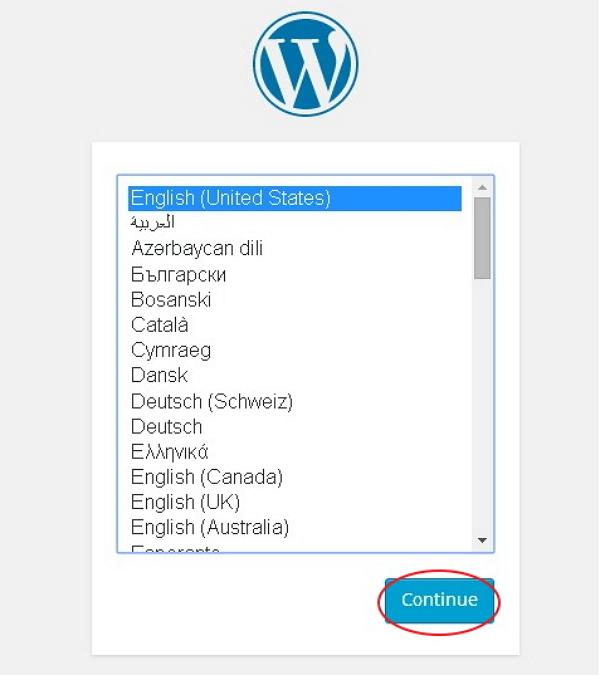
WordPress Installation

Select your language for the WordPress and click on Continue.
Step (3) − In this step, you can view the information needed for the database before proceeding with WordPress installation.
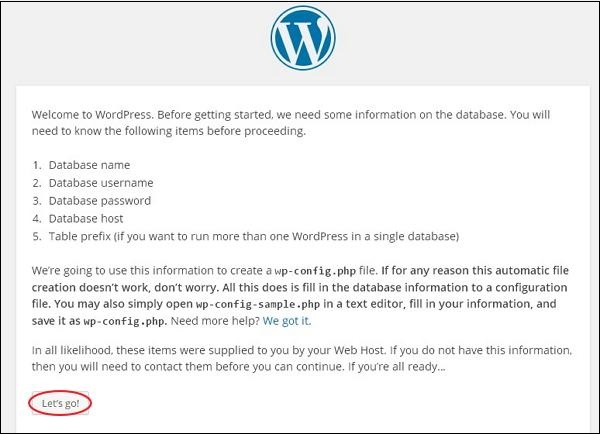
WordPress Installation

Click on Let’s go!
Step (4) − Here, you have to enter the information about the MySQL database as described in the following screen.
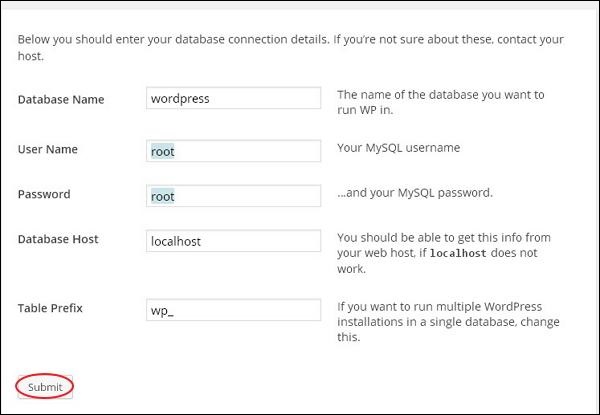
WordPress Installation

  • Database Name − Enter the database name which you have created in MySQL database for WordPress.
  • Username − Enter the user name of your MySQL database.
  • Password − Enter the password which you had set for MySQL database.
  • Database Host − Write the host name, by default it will be localhost.
  • Table Prefix − It is used to add prefix in the database tables which helps to run multiple sites on the same database. It takes the default value.
After filling all information, click on Submit button.
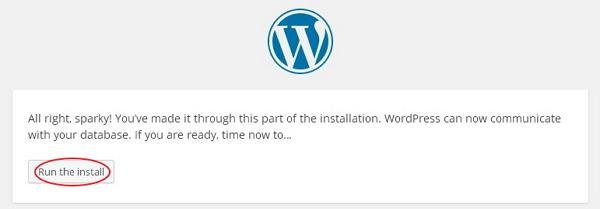
Step (5) − WordPress checks the database setting and gives you the confirmation screen as shown in the following snapshot.
WordPress Installation

Click on Run the install
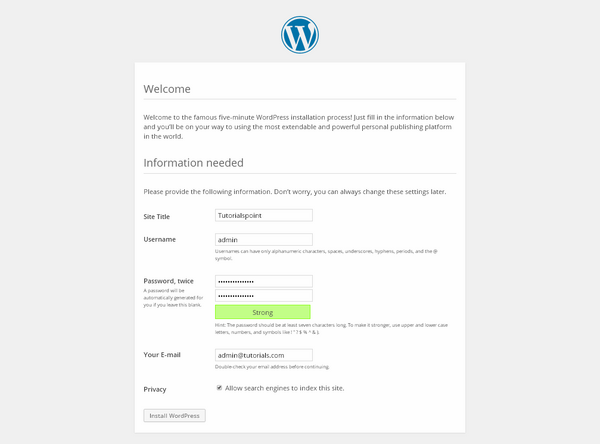
Step (6) − Enter administrative information.
WordPress Installation

It contains the following fields −
  • Site Title − Enter the name of the site which you are going to create in WordPress.
  • Username − Enter the username as per your choice while logging in the WordPress.
  • Password twice − Enter password two times to protect your site.
  • Your E-mail − Enter your e-mail address which helps to recover the password or any update.
  • Privacy − It allows the search engine to index this site after checking the checkbox.
After filling all the information, click on the Install WordPressbutton.
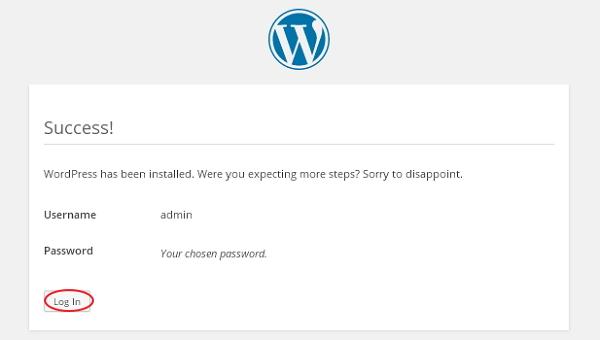
Step (7) − After installation being successful, you will get a screen of the stating success as seen in the following screen.
WordPress Installation

You can view your username and password detail added in WordPress.
Click on Log In button.
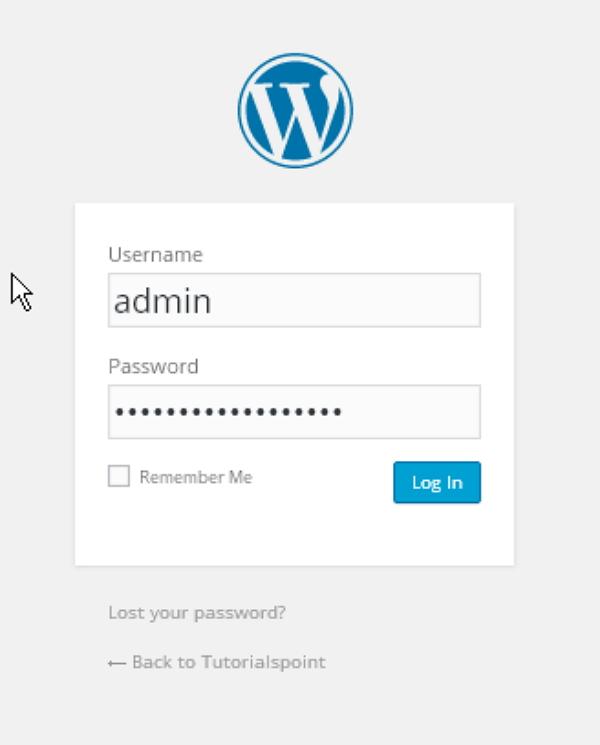
Step (8) − After clicking on login, you will get a WordPress Admin Panel as depicted in the following screen.
WordPress Installation

Enter the username and password which you had mentioned during installation as shown in step 6 and click on the Log In button.

wordpress overview

WordPress is an open source Content Management System (CMS), which allows the users to build dynamic websites and blogs. WordPress is the most popular blogging system on the web and allows updating, customizing and managing the website from its back-end CMS and components.

What is Content Management System (CMS)?

The Content Management System (CMS) is a software which stores all the data such as text, photos, music, documents, etc. and is made available on your website. It helps in editing, publishing and modifying the content of the website.
WordPress was initially released on 27th May, 2003 by Matt Mullenweg and Mike Little. WordPress was announced as open source in October 2009.

Features

  • User Management − It allows managing the user information such as changing the role of the users to (subscriber, contributor, author, editor or administrator), create or delete the user, change the password and user information. The main role of the user manager is Authentication.
  • Media Management − It is the tool for managing the media files and folder, in which you can easily upload, organize and manage the media files on your website.
  • Theme System − It allows modifying the site view and functionality. It includes images, stylesheet, template files and custom pages.
  • Extend with Plugins − Several plugins are available which provides custom functions and features according to the users need.
  • Search Engine Optimization − It provides several search engine optimization (SEO) tools which makes on-site SEO simple.
  • Multilingual − It allows translating the entire content into the language preferred by the user.
  • Importers − It allows importing data in the form of posts. It imports custom files, comments, post pages and tags.

Advantages

  • It is an open source platform and available for free.
  • CSS files can be modified according to the design as per users need.
  • There are many plugins and templates available for free. Users can customize the various plugins as per their need.
  • It is very easy to edit the content as it uses WYSIWYG editor (What You See Is What You Get is a user interface that allows the user to directly manipulate the layout of document without having a layout command).
  • Media files can be uploaded easily and quickly.
  • It offers several SEO tools which makes on-site SEO simple.
  • Customization is easy according to the user’s needs.
  • It allows creating different roles for users for website such as admin, author, editor and contributor.

Disadvantages

  • Using several plugins can make the website heavy to load and run.
  • PHP knowledge is required to make modifications or changes in the WordPress website.
  • Sometimes software needs to be updated to keep the WordPress up-to-date with the current browsers and mobile devices. Updating WordPress version leads to loss of data, so a backup copy of the website is required.
  • Modifying and formatting the graphic images and tables is difficult.

WordPress Home

WordPress is an open source Content Management System (CMS), which allows the users to build dynamic websites and blog. WordPress is the most popular blogging system on the web and allows updating, customizing and managing the website from its back-end CMS and components. This tutorial will teach you the basics of WordPress using which you can create websites with ease. The tutorial is divided into various sections for convenience. Each of these sections contain related topics with screenshots explaining the WordPress admin screens.

Audience

This tutorial has been prepared for those who have a basic knowledge of HTML and CSS and has an urge to develop websites. After completing this tutorial, you will find yourself at a moderate level of expertise in developing sites or blogs using WordPress.

Prerequisites

Before you start with this tutorial, we are assuming that you are already aware about the basics of HTML and CSS. If you are not aware of these concepts, then we suggest you go through our short tutorial on HTML and CSS.


<<<   Back to WordPress Home

Web Development

What is Roadmap
What is HTTP
What is HTML
What is CSS
What is Responsive
What is JavaScript
What is ES5
What is HTML DOM
What is Google Maps
What is Google Fonts
What is Google Charts
What is XML
What is AJAX
What is JSON
What is CSS Icons
What is Bootstrap
What is W3.CSS
What is CLI
What is npm
What is GitHub
What is jQuery
What is AngularJS
What is React
What is Vue.js
What is W3.JS
What is Fullstack
What is Fullstack JS
What is SQL

web template

  • W3.CSS
  • W3.CSS HOME
  • W3.CSS Intro
  • W3.CSS Colors
  • W3.CSS Containers
  • W3.CSS Panels
  • W3.CSS Borders
  • W3.CSS Cards
  • W3.CSS Fonts
  • W3.CSS Text
  • W3.CSS Round
  • W3.CSS Padding
  • W3.CSS Margins
  • W3.CSS Display
  • W3.CSS Buttons
  • W3.CSS Notes
  • W3.CSS Quotes
  • W3.CSS Alerts
  • W3.CSS Tables
  • W3.CSS Lists
  • W3.CSS Images
  • W3.CSS Inputs
  • W3.CSS Badges
  • W3.CSS Tags
  • W3.CSS Icons
  • W3.CSS Responsive
  • W3.CSS Layout
  • W3.CSS Animations
  • W3.CSS Effects
  • W3.CSS Bars
  • W3.CSS Dropdowns
  • W3.CSS Accordions
  • W3.CSS Navigation
  • W3.CSS Sidebar
  • W3.CSS Tabs
  • W3.CSS Pagination
  • W3.CSS Progress Bars
  • W3.CSS Slideshow
  • W3.CSS Modal
  • W3.CSS Tooltips
  • W3.CSS Grid
  • W3.CSS Code
  • W3.CSS Filters
  • W3.CSS Trends
  • W3.CSS Case
  • W3.CSS Material
  • W3.CSS Validation
  • W3.CSS Versions
  • W3.CSS Mobile

  • W3.CSS Colors
  • W3.CSS Color Classes
  • W3.CSS Color Material
  • W3.CSS Color Flat UI
  • W3.CSS Color Metro UI
  • W3.CSS Color Win8
  • W3.CSS Color iOS
  • W3.CSS Color Libraries
  • W3.CSS Color Schemes
  • W3.CSS Color Themes
  • W3.CSS Color Generator

  • Examples
  • W3.CSS Examples
  • W3.CSS Demos
  • W3.CSS Templates

  • References
  • W3.CSS Reference
  • W3.CSS Downloads