WordPress – Overview
WordPress is an open source Content Management System (CMS), which allows the users to build dynamic websites and blogs. WordPress is the most popular blogging system on the web and allows updating, customizing and managing the website from its back-end CMS and components.
What is Content Management System (CMS)?
The Content Management System (CMS) is a software which stores all the data such as text, photos, music, documents, etc. and is made available on your website. It helps in editing, publishing and modifying the content of the website.
WordPress was initially released on 27th May, 2003 by Matt Mullenweg and Mike Little. WordPress was announced as open source in October 2009.
Features
-
User Management − It allows managing the user information such as changing the role of the users to (subscriber, contributor, author, editor or administrator), create or delete the user, change the password and user information. The main role of the user manager is Authentication.
-
Media Management − It is the tool for managing the media files and folder, in which you can easily upload, organize and manage the media files on your website.
-
Theme System − It allows modifying the site view and functionality. It includes images, stylesheet, template files and custom pages.
-
Extend with Plugins − Several plugins are available which provides custom functions and features according to the users need.
-
Search Engine Optimization − It provides several search engine optimization (SEO) tools which makes on-site SEO simple.
-
Multilingual − It allows translating the entire content into the language preferred by the user.
-
Importers − It allows importing data in the form of posts. It imports custom files, comments, post pages and tags.
Advantages
-
It is an open source platform and available for free.
-
CSS files can be modified according to the design as per users need.
-
There are many plugins and templates available for free. Users can customize the various plugins as per their need.
-
It is very easy to edit the content as it uses WYSIWYG editor (What You See Is What You Get is a user interface that allows the user to directly manipulate the layout of document without having a layout command).
-
Media files can be uploaded easily and quickly.
-
It offers several SEO tools which makes on-site SEO simple.
-
Customization is easy according to the user’s needs.
-
It allows creating different roles for users for website such as admin, author, editor and contributor.
Disadvantages
-
Using several plugins can make the website heavy to load and run.
-
PHP knowledge is required to make modifications or changes in the WordPress website.
-
Sometimes software needs to be updated to keep the WordPress up-to-date with the current browsers and mobile devices. Updating WordPress version leads to loss of data, so a backup copy of the website is required.
-
Modifying and formatting the graphic images and tables is difficult.
WordPress – Installation
System Requirements for WordPress
-
Database − MySQL 5.0 +
-
Web Server −
-
WAMP (Windows)
-
LAMP (Linux)
-
XAMP (Multi-platform)
-
MAMP (Macintosh)
-
Operating System − Cross-platform
-
Browser Support − IE (Internet Explorer 8+), Firefox, Google chrome, Safari, Opera
-
PHP Compatibility − PHP 5.2+
Download WordPress
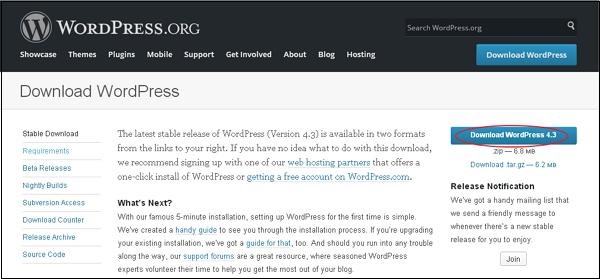
Create Store Database
-
WordPress requires MySQL database. So create a new empty database with user/password (for example, user as “root” and password as “root” or else you can set as per your convenience).
-
Then, you can continue with the installation process as discussed further.
Set Up Wizard
It’s very easy to set up WordPress into your system. The following steps describe how to set up WordPress locally on your system.
Step (1) − Extract the downloaded WordPress folder and upload it into your web server or localhost.
Step (2) − Open your browser and navigate to your WordPress file path, then you will get the first screen of the WordPress installer as shown in the following screen. In our case, the path is localhost/.
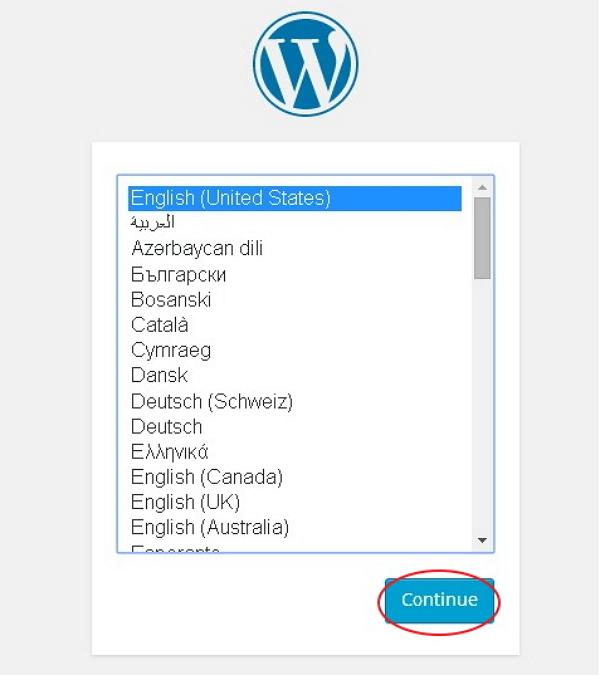
Select your language for the WordPress and click on Continue.
Step (3) − In this step, you can view the information needed for the database before proceeding with WordPress installation.
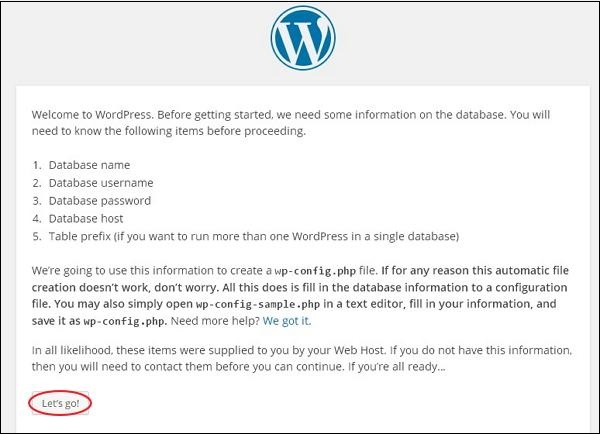
Click on Let’s go!
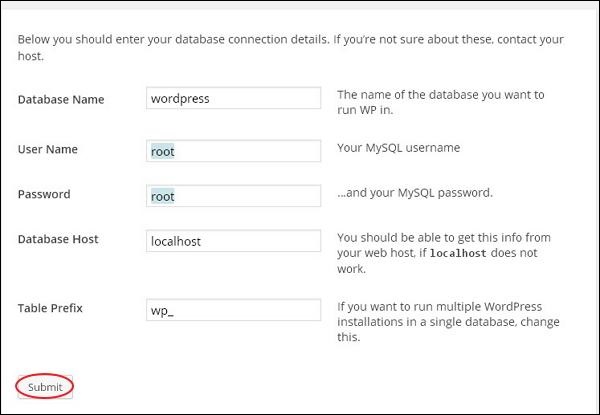
Step (4) − Here, you have to enter the information about the MySQL database as described in the following screen.
-
Database Name − Enter the database name which you have created in MySQL database for WordPress.
-
Username − Enter the user name of your MySQL database.
-
Password − Enter the password which you had set for MySQL database.
-
Database Host − Write the host name, by default it will be localhost.
-
Table Prefix − It is used to add prefix in the database tables which helps to run multiple sites on the same database. It takes the default value.
After filling all information, click on Submit button.
Step (5) − WordPress checks the database setting and gives you the confirmation screen as shown in the following snapshot.
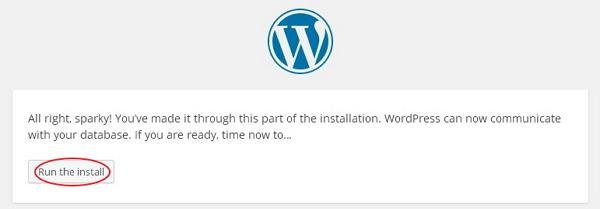
Click on Run the install
Step (6) − Enter administrative information.
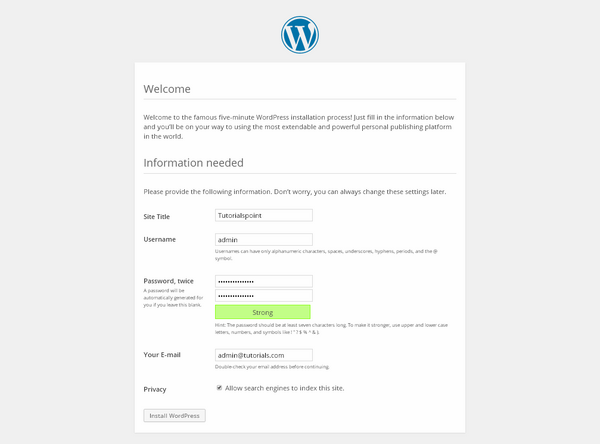
It contains the following fields −
-
Site Title − Enter the name of the site which you are going to create in WordPress.
-
Username − Enter the username as per your choice while logging in the WordPress.
-
Password twice − Enter password two times to protect your site.
-
Your E-mail − Enter your e-mail address which helps to recover the password or any update.
-
Privacy − It allows the search engine to index this site after checking the checkbox.
After filling all the information, click on the Install WordPressbutton.
Step (7) − After installation being successful, you will get a screen of the stating success as seen in the following screen.
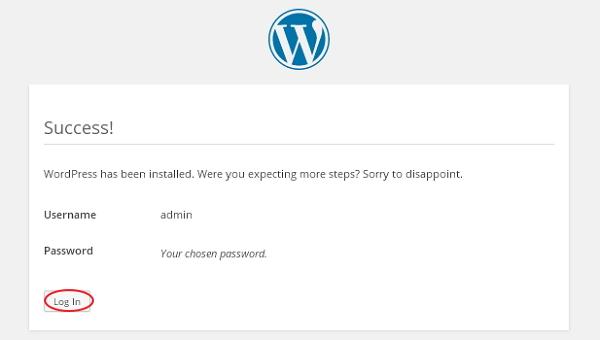
You can view your username and password detail added in WordPress.
Click on Log In button.
Step (8) − After clicking on login, you will get a WordPress Admin Panel as depicted in the following screen.
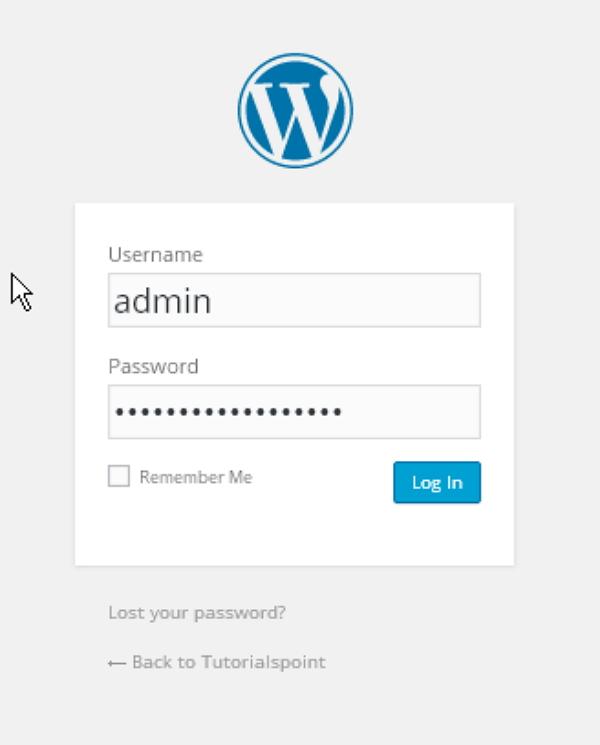
Enter the username and password which you had mentioned during installation as shown in step 6 and click on the Log Inbutton.
WordPress – Dashboard
The WordPress Dashboard is a first screen which will be seen when you log into the administration area of your blog which will display the overview of the website. It is a collection of gadgets that provide information and provide an overview of what’s happening with your blog. You can customize your needs by using some quick links such as writing quick draft, replying to latest comment, etc.
Dashboard can be categorized as shown in the following snapshot. Each of these categories are discussed in the following sections −
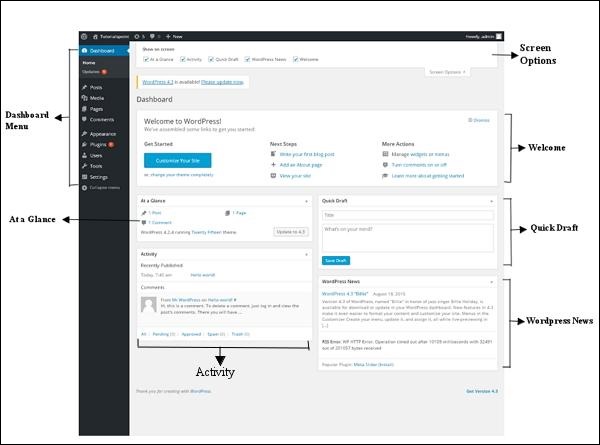
Dashboard Menu
The WordPress Dashboard provides navigation menu that contains some menu options such as posts, media library, pages, comments, appearance options, plugins, users, tools and settings on the left side.
Screen Options
The dashboard contains different types of widgets which can be shown or hidden on some screens. It contains check boxes to show or hide screen options and also allows us to customize sections on the admin screen.
Welcome
It includes the Customize Your Site button which allows customizing your WordPress theme. The center column provides some of the useful links such as creating a blog post, creating a page and view the front end of your website. Last column contains links to widgets, menus, settings related to comments and also a link to the First Steps With WordPress page in the WordPress codex.
Quick Draft
The Quick Draft is a mini post editor which allows writing, saving and publishing a post from admin dashboard. It includes the title for the draft, some notes about the draft and save it as a Draft.
WordPress News
The WordPress News widget displays the latest news such as latest software version, updates, alerts, news regarding the software etc. from the official WordPress blog.
Activity
The Activity widget includes latest comments on your blog, recent posts and recently published posts. It allows you to approve, disapprove, reply, edit, or delete a comment. It also allows you to move a comment to spam.
At a Glance
This section gives an overview of your blog’s posts, number of published posts and pages, and number of comments. When you click on these links, you will be taken to the respective screen. It displays the current version of running WordPress along with the currently running theme on the site.
WordPress – General Setting
In this chapter, we will study about General Settings in WordPress. WordPress general setting is used to set the basic configuration settings for your site. In the setting administration screen, it is a default setting screen.
Following are the steps to access the general settings −
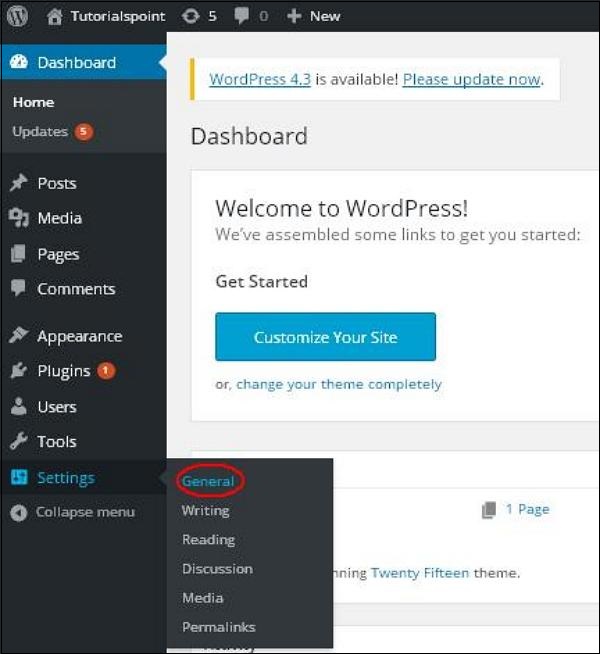
Step 1 − Click on Settings → General option in WordPress.
Step 2 − The General Setting page is displayed as shown in the following snapshot.
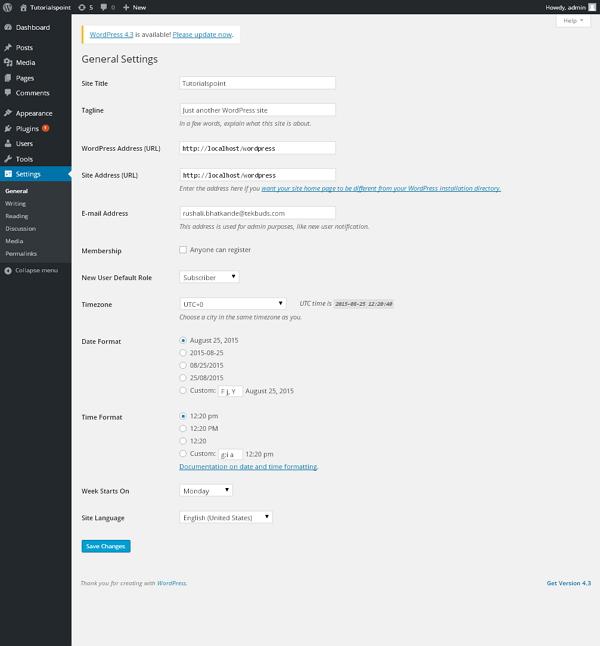
Following are the details of the fields on general settings page.
-
Site Title − It displays the name of the site in the template header.
-
Tagline − Displays a short sentence about your site.
-
WordPress Address (URL) − It is the URL of WordPress directory where your all core application files are present.
-
Site Address(URL) − Enter the site URL which you want your site to display on the browser.
-
E-mail Address − Enter your e-mail address which helps to recover your password or any update.
-
Membership − Anyone can register an account on your site after you check this checkbox.
-
New User Default Role − The default role is set for the newly registered user or members.
-
Timezone − Sets the time zone based on the particular city.
-
Date Format − Sets the date format as you need to display on the site.
-
Time Format − Sets the time format as you need to display on the site.
-
Week Starts On − Select the week day which you prefer to start for WordPress calendar. By default it is set as Monday.
-
Site Language − Sets the language for the WordPress dashboard.
Step3 − After filling all the information about general settings, click on Save Changes button. It saves all your general setting information.
WordPress – Writing Setting
The writing settings controls the writing experience and provides options for customizing WordPress site. These settings control the features in the adding and editing posts, Pages, and Post Types, as well as the optional functions like Remote Publishing, Post via e-mail, and Update Services.
Following are the steps to access the writing settings −
Step (1) − To change writing settings, go to Settings → Writing option.
Step (2) − The Writing Setting page is displayed as shown in the following screen.
Following are the details of the fields on the page.
-
Formatting − This field defines two sub options for better user experience.
-
The first option Convert emoticons like 🙂 and 😛 to graphics on display will turn text-based emoticons into graphic-based emoticons.
-
The second option WordPress should correct invalidly nested XHTML automatically corrects the invalid XHTML placed within the posts or pages.
-
Default Post Category − It is a category to be applied to a post and you can leave it as Uncategorized.
-
Default Post Format − It is used by themes to select post format to be applied to a post or create different styles for different types of posts.
-
Post via e-mail − This option uses e-mail address to create posts and publishes posts on your blog through e-mail. To use this, you’ll need to set up a secret e-mail account with a POP3 access, and any mail received at this address will be posted.
-
Mail Server − It allows reading the e-mails that you send to WordPress and stores them for retrieval. For this, you need to have POP3 compatible mail server and it will have URI address such as mail.example.com, which you should enter here.
-
Login Name − To create posts, WordPress will need its own e-mail account. The Login Name will use this e-mail address and should be kept as a secret as spammers will post links redirecting to their own websites.
-
Password − Set password for the above e-mail address.
-
Default Mail Category − It allows selecting custom category for all the posts that are published via Post by e-mail feature.
-
Update Services − When you publish a new post, WordPress will automatically notify the site update services in the box. See the Update Services on the codex for the long list of possible services.
Step (3) − After filling all the above information, click on Save Changes button to save your information.
WordPress – Reading Setting
In this chapter, we will study about Reading Settings in WordPress. Reading Setting is used to set the content related to the front page. You can set the number of post to be displayed on the main page.
Following are the steps to access the reading settings −
Step (1) − Click on Settings → Reading option in WordPress.
Step(2) − The Reading Settings page is displayed as shown in the following screen.
Following are the details of the fields on reading settings.
-
Front page displays − This section is used to display the front page in any of the following format −
-
Blog pages show at most − The number of posts to be displayed per page or site. By default, it is set as 10.
-
Syndication feeds show the most recent − The user can view the number of posts when they download one of the site feeds. By default, it is set as 10.
-
For each article in a feed, show − This section is used to display the post by selecting any of the following formats −
-
Search Engine Visibility − After clicking on the checkbox, Discourage search engines from indexing this site, your site will be ignored by the search engine.
Step(3) − After filling all the information, click on Save Changes button to save your Reading Setting information.
WordPress – Discussion Setting
In this chapter, we will study about Discussion settings in WordPress. WordPress discussion setting can be defined as the interaction between the blogger and the visitors. These settings are done by the admin to have a control over the posts/pages that come in through users.
Following are the steps to access the Discussion setting −
Step (1) − Click on Settings → Discussion option in WordPress.
Step (2) − The Discussion Settings page is displayed as shown in the following snapshot.
Following fields are seen in Discussion settings.
-
Default article settings − These settings are default to the new pages you create or new posts. This contains three more settings. They are −
-
Attempt to notify any blogs linked to from the article − When you publish articles then it sends a notification (sends pings and trackback) to other blogs.
-
Allow link notifications from other blogs (pingbacks and trackbacks) − Accepts pings from other blogs.
-
Allow people to post comments on new articles − You can allow or disallow other people to comment on your article using this setting.
You can change the settings as per your will for individual articles.
-
Other Comment Settings − This setting has the following options −
-
Comment author must fill out name and e-mail− When you check this box, it is mandatory for visitors to fill their name and email address.
-
Users must be registered and logged in to comment − If you check this box, only those registered visitors can leave comments, if not checked anyone can leave any number of comments.
-
Automatically close comments on articles older than days − This option allows you to accept comments only for a particular time period as per your wish.
-
Enable threaded (nested) comments − When you check this option, visitors can reply or have a discussion and get responses.
-
Break comments into pages with top level comments per page and the page displayed by default − If your pages are getting a lot of comments then you can split them into different pages by checking this box.
-
Comments should be displayed with the comments at the top of each page − You can arrange the comments in the form of ascending or descending order.
-
Email me whenever − This setting contains two options, namely −
-
Anyone posts a comment − When you check into this box, the author gets an e-mail for every single comment that is posted.
-
A comment is held for moderation − This is used in case you do not want your comment to be updated before it’s moderated by the admin.
-
Before a comment appears − This setting allows how your posts are controlled. There are two more settings as followed −
-
Comment must be manually approved − If you check this box then only the approved comments by the admin can be displayed on the posts or pages.
-
Comment author must have a previously approved comment − This can be checked when you want to approve a comment of an author whose has commented and his e-mail address matches the e-mail address of the previous posted comment. Otherwise the comment is held for moderation.
-
Comment Moderation − Contain only a specific number of links that are allowed into a comment.
-
Comment Blacklist − You can input your own spam words which you do not want your visitors to enter into the comments, URL, e-mail etc.; later it would filter the comments.
-
Avatars − Avatar is a small image that displays at the top-right-hand corner of the dashboard screen beside your name. It is like your profile picture. Here you have a few more options where you can set your avatar for WordPress site.
-
Avatar Display − It displays your avatar besides your name when it is checked.
-
Maximum rating − You have a four other options of avatars you can use. They are G, PG, R and X. This is the age section where you select according to which type of audience you want to display your posts.
-
Default Avatar − In this option, there are few more types of avatars with images; you can keep these avatars according to your visitors e-mail address.
Step (3) − Click on Save Changes button to save the changes.
WordPress – Media Setting
In this chapter, we will study about Media Settings in WordPress. It is used to set the height and width of the images which you’re going to use on your website.
Step (1) − Click on Settings → Media option in WordPress.
Step (2) − The Media Settings page is displayed as seen in the following screenshot.
Following are the details of the fields on Media settings −
-
Thumbnail size − Set the size of the thumbnail.
-
Medium size − Set the height and width of medium size images.
-
Large size − Set width and height of larger images.
-
Uploading files − After checking this checkbox, the uploaded image will be arranged into year and month based folder.
Step (3) − After setting the dimension in pixels, click on Save Changes button. It saves your media setting information.
WordPress – Permalink Setting
In this chapter, we will learn about Permalink settings in WordPress. Permalink is a permanent link to a particular blog post or category. It allows setting the default permalink structure. These settings are used to add permalinks to your posts in WordPress. Following are the steps to access permalink settings.
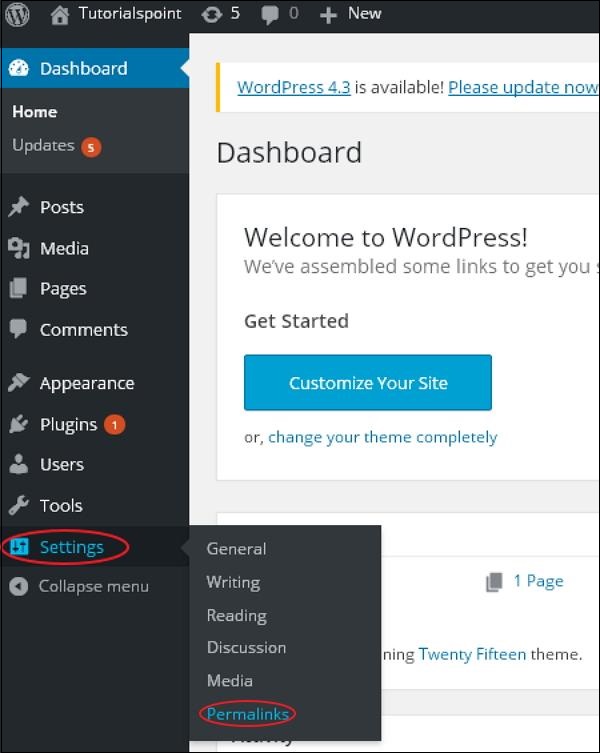
Step (1) − Click on Settings → Permalinks option from the left navigation menu.
Step (2) − When you click on Permalinks, the following page appears on the screen.
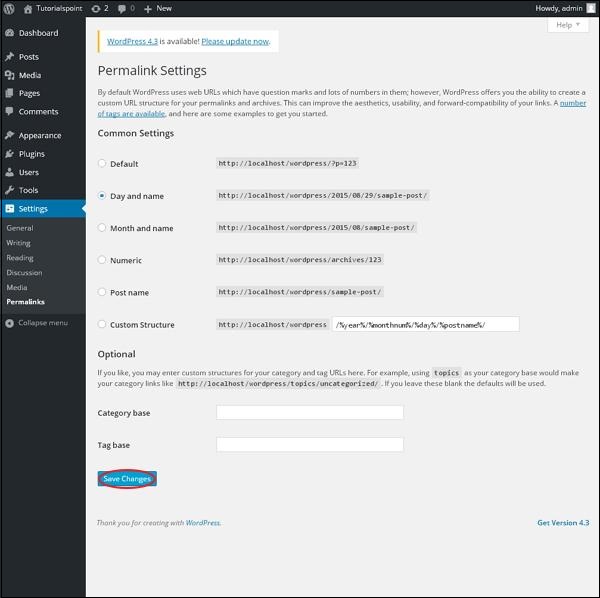
Here are a few settings you can make −
-
Common settings −
Check any of the radio buttons to choose your permalink structure for your blogs
-
Default − It sets the default URL structure in WordPress.
-
Day and name − It sets URL structure according to the date and name in your posts.
-
Month and name − It sets the URL structure according to the month and name in your post.
-
Numeric − It sets numbers in the URL structure in your post.
-
Post name − It sets post name in the URL structure in your post.
-
Custom Structure − It sets the URL structure of your choice by writing the desired name in the given text box.
-
Optional
These are optional. You can add custom structure for main category or tag URL. If your text box is empty then default settings is used. Here you have two options.
Step (3) − Once you are done with changes, click on Save Changes button to save the permalink settings.
WordPress – Plugin Setting
In this chapter, we will study how to use plugins in your WordPress site. Plugin allows to easily modify, customize or enhance WordPress blog or post. The WordPress Plugin is a software that can be uploaded to expand the functionality of the site. They add services or features to WordPress blog. Plugins are used to make your work easier. Following are the simple steps to add plugins.
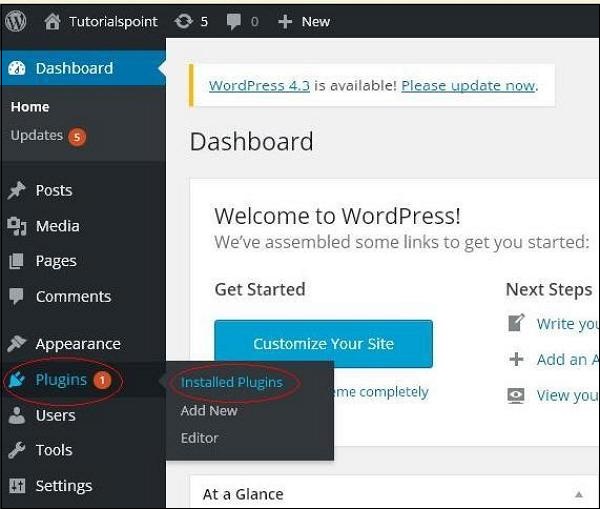
Step (1) − On the left side bar, Click on Plugins → Installed Plugins as shown in the screen.
Step (2) − The following page appears.
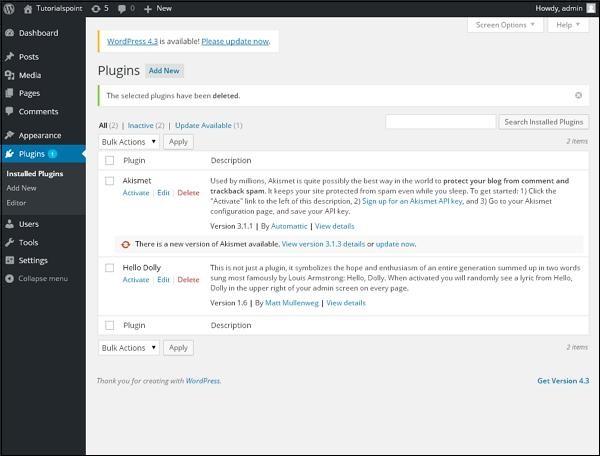
In this section, you can view the already installed plugins.
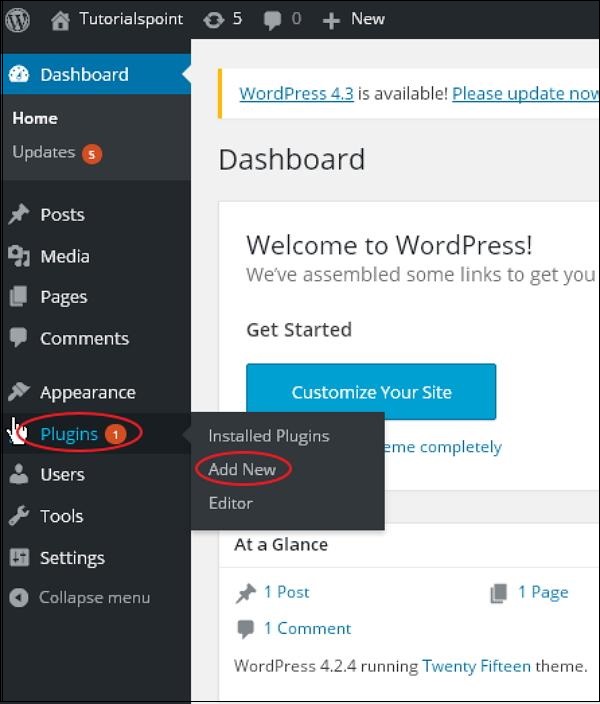
Step (3) − Click on → Plugins → Add New menu as shown in the following screen.
Step (4) − A list of plugins appears that are used in WordPress. Here you can directly install plugins from the available list or you can upload it by clicking on Upload Plugin.
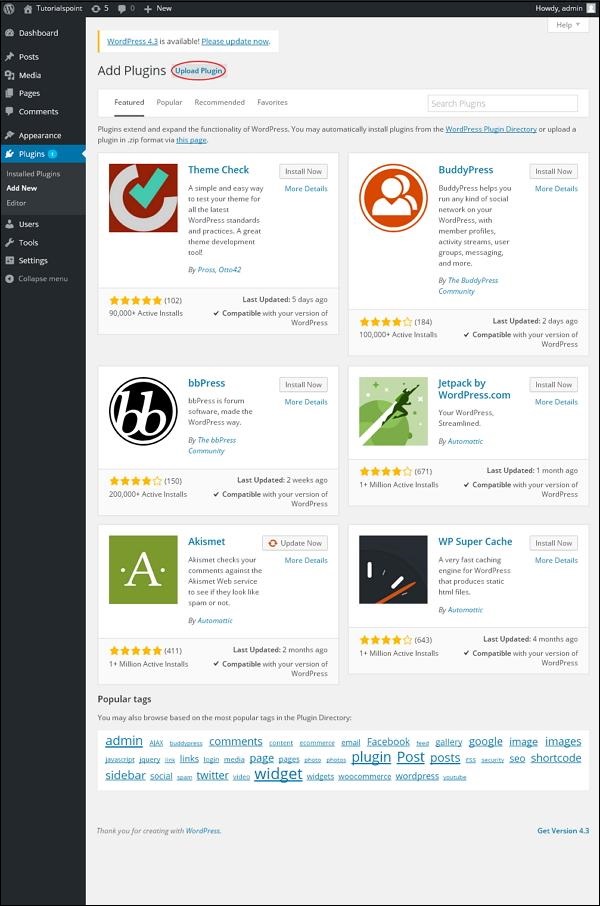
When you click on Upload Plugin you’ll get the following page.
.jpg)
Click on Browse, it goes back to the page where you can select plugins from WordPress site. And if you click on Choose File, you can add files from your system. Otherwise, you can directly choose the plugin that you need and click on Install now as seen in the following screenshot.
.jpg)
When you click on Install Now, the package starts to download and gets installed. Then, click on Activate plugin to active that plugin to use in WordPress as seen in the following screen.
.jpg)
After clicking on Activate Plugin you’ll get a message as Plugin activated and you can also find the installed plugin in the list.
.jpg)
Below the plugin activated message, you can view few options such as All, Active, Inactive and Update available.
When you click on Active the following page appears. Here you can view all the activated plugins.
.jpg)
When we click on Inactive, the plugins which are available but are not activated gets displayed. You can activate this plugin by clicking on Activate.
.jpg)
When you click on Update available, you’ll get a list of plugins that must be updated. Click on Update and you get a message as Updated.
.jpg)
Click on Bulk Actions and select any of the options. Click on Apply button to update, delete, activate or deactivate each of the plugins by checking the boxes.
.jpg)
In Search Installed Plugins you can just type your plugin name in the text box that is already installed and click on the Search Installed Plugins button.
.jpg)
When you click on the Search installed Plugin button you get the following page with your respective plugin.
.jpg)
Step (5) − Click on Plugins → Editor from the side bar.
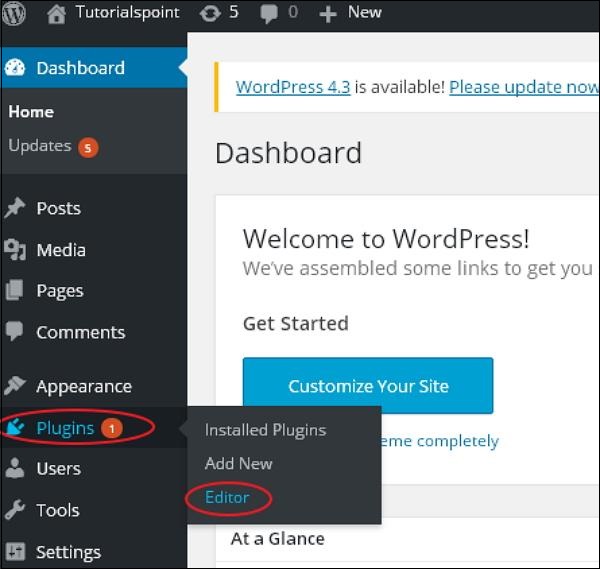
Step (6) − The following page gets displayed.
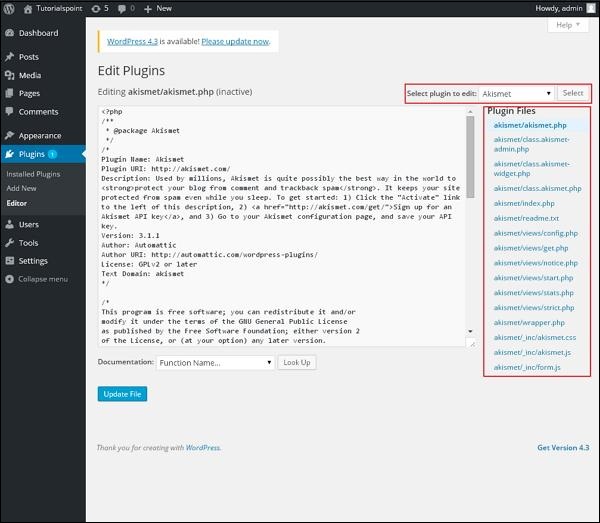
This page lets you edit your plugins. A few options are explained.
-
Select plugin to edit − Allows you to select a plugin from the dropdown and edit it.
-
Documentation − Allows you to select the tools from the dropdown to edit the plugin.
-
Plugin files − Allows you to select files from the list and edit accordingly.
Finally, after editing the plugin files, click on Update file.
WordPress – Add Category
In this chapter, we will study about how to Add Categories in WordPress. Category is used to indicate sections of your site and group related posts. It sorts the group content into different sections. It is a very convenient way to organize the posts.
To access the Category section, follows the mentioned steps −
Step (1) − Click on Posts → Categories option in WordPress.
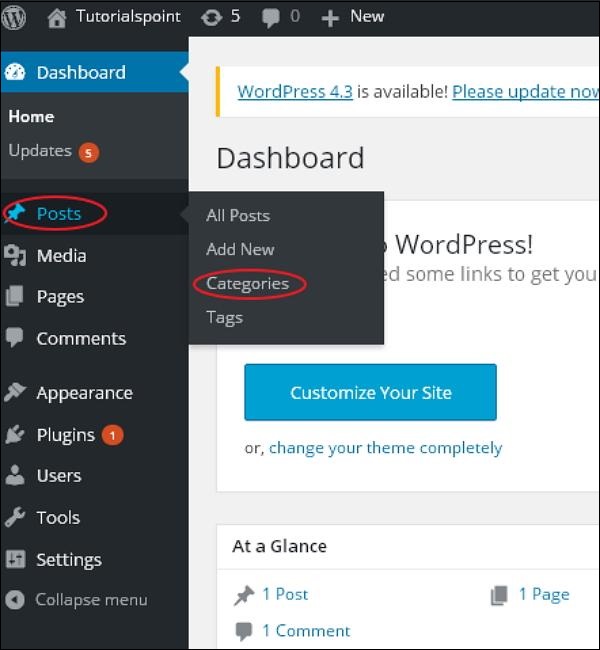
Step (2) − The Categories page is displayed as shown in the following screenshot.
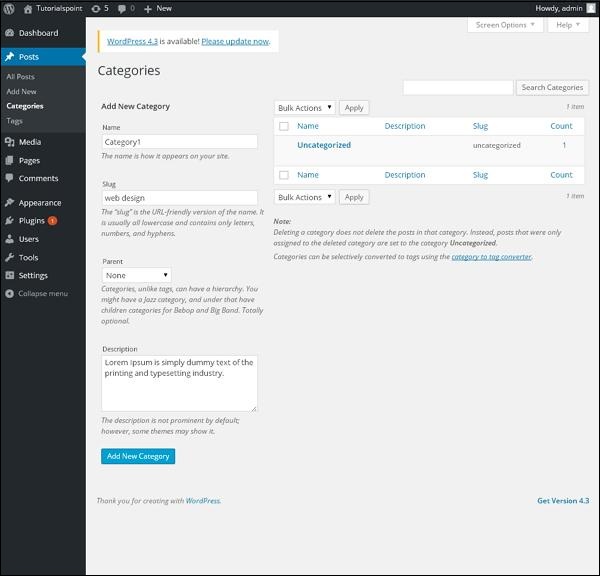
Following are the details of the fields on Categories.
-
Name − Enter the unique name of categories.
-
Slug − A word chosen to describe your post. It is specified in the tags URL.
-
Parent − By selecting the parent category from dropdown, you can set the particular category as sub-category or can keep it as None.
-
Description − Add brief description of your category. It is optional.
Step (3) − After filling all the information about Categories, click on Add New Category button.
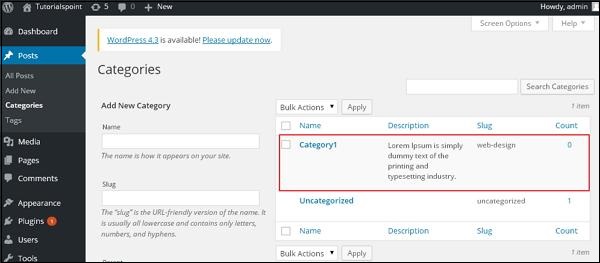
Step (4) − After clicking on Add New Category, the new created category will get displayed on the right side of the page as shown in the following screen.
WordPress – Edit Category
In this chapter, we will study the simple steps to Edit Categories in WordPress.
Following are the simple steps to edit categories in WordPress.
Step (1) − Click on Posts → Categories in WordPress.
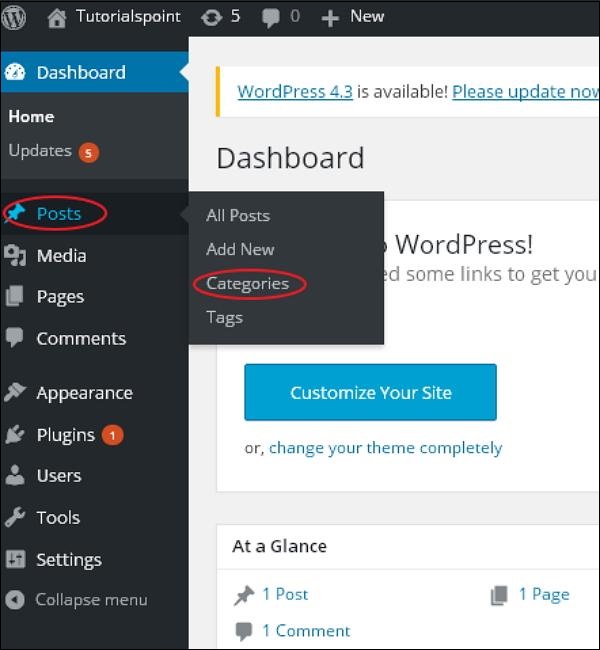
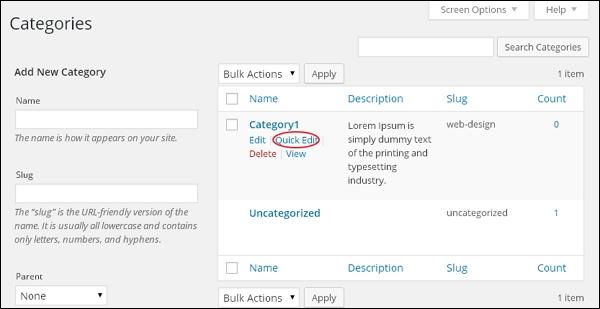
Step (2) − You can view Category1 (Category1 was created in the chapter WordPress – Add Category). When the cursor hovers on the Categories, then a few options get displayed below the Category name. There are two ways to edit the categories i.e. Edit and Quick Edit
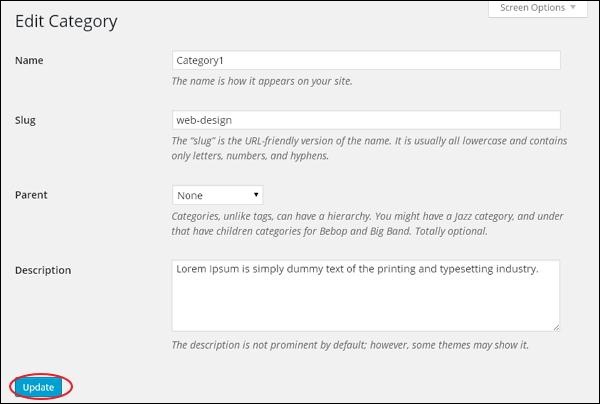
Edit − Click on Edit option in Categories section as seen in the following screenshot.
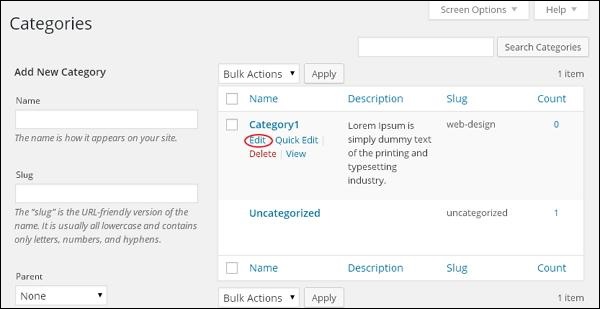
You can edit any of the required field, and then click Updatebutton as shown in the following screen.
Quick Edit − Click on Quick Edit option in Categories section as shown in the following screen.
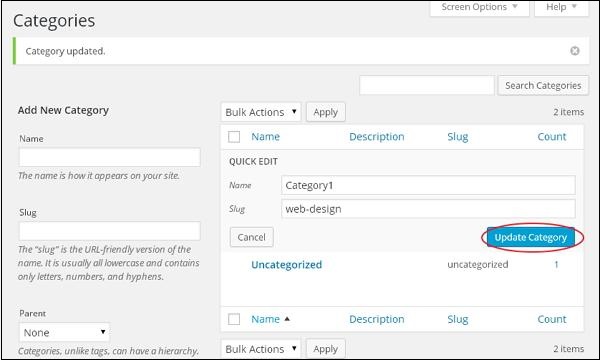
Here, you can only edit the Name and Slug of the category as seen in the following screen and then finally click on Update Category button.
WordPress – Delete Category
In this chapter, we will study about how to Delete Categories in WordPress.
Following are the simple steps to delete categories in WordPress.
Step (1) − Click on Posts → Categories in WordPress.
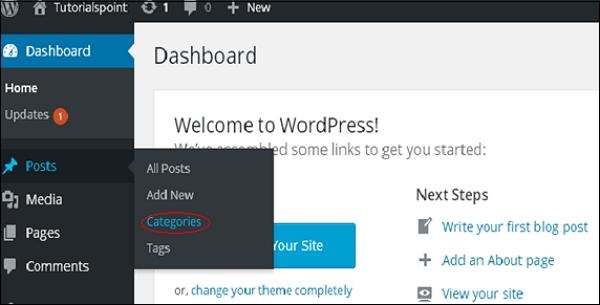
Step (2) − You can delete Category1 (Category1 was created in the chapter WordPress – Add Category). When the cursor hovers on the Categories, a few options get displayed below the Category name. Click on Delete button as shown in the following screen.
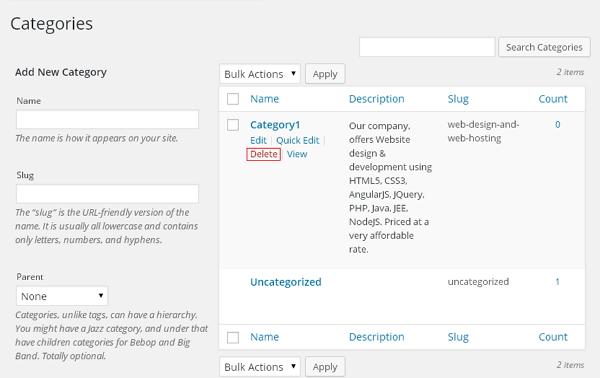
When you click on delete, you will get a pop message asking for confirmation to delete the particular category as shown in the following screenshot.
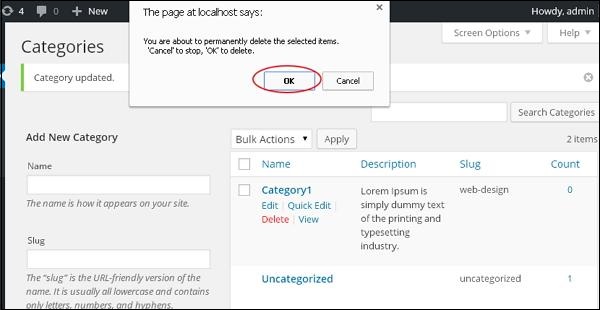
You can click on OK button and delete the category permanently.
WordPress – Arrange Categories
In this chapter, we will study about how to Arrange Categoriesin WordPress. You can’t arrange categories directly in WordPress. Hence, you will need to install Category Order plugin to arrange the created categories in a particular way.
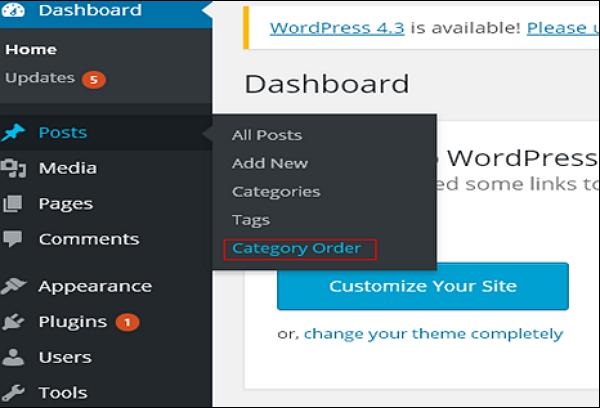
Step (1) − Click on Posts → Category Order in WordPress. The Category Order menu displays after adding the Category Order plugin. You can study how to install plugins in the chapter Install Plugins.
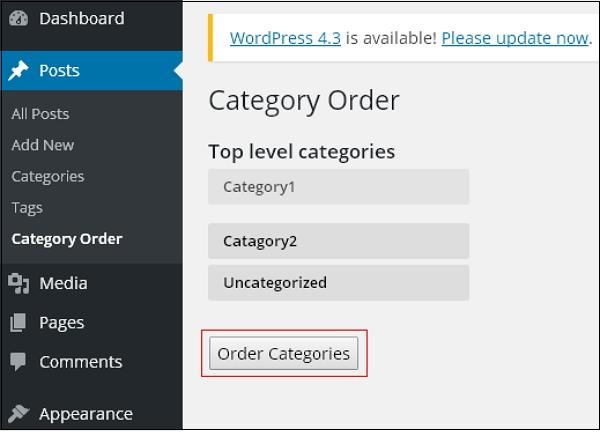
Step (2) − In the following screen, you can see that the create categories section are not in order.
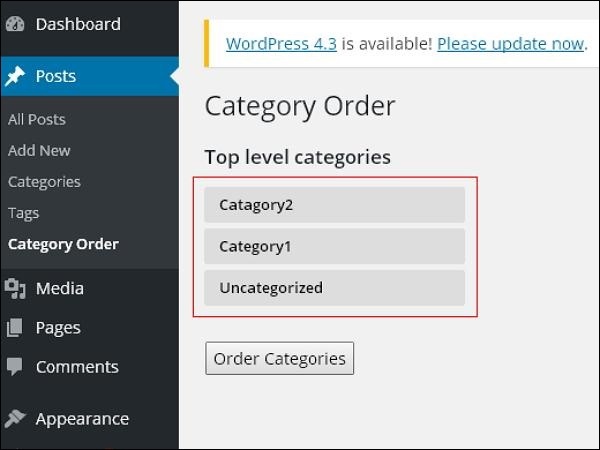
Step (3) − Now, you can rearrange your categories by just dragging the categories as per your choice. Click on Order categories button to save the ordered categories.
WordPress – Add Posts
In this chapter, we will study how to Add Posts in WordPress. Posts are also known as articles and sometimes referred as blogs or blog posts. These are used to popularize your blogs.
Following are the simple steps to Add Posts in WordPress.
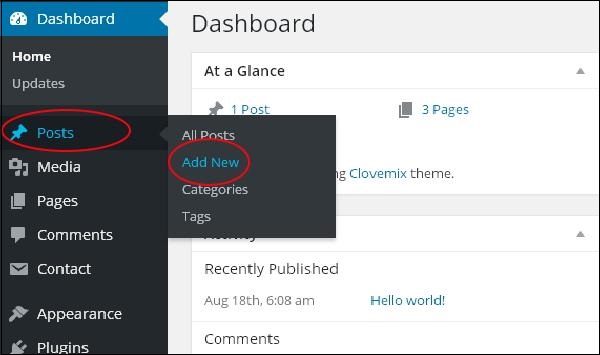
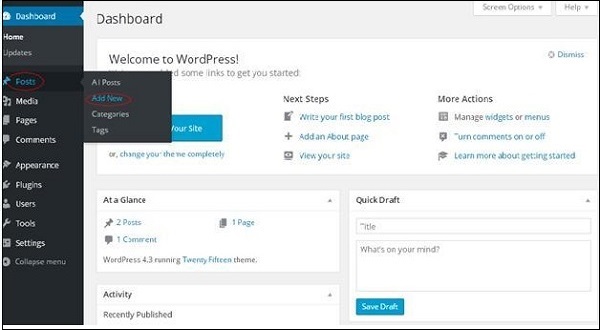
Step (1) − Click on Posts → Add New in WordPress.
Step (2) − You will get the editor page of the Post as shown in the following screen. You can use the WordPress WYSIWYG editor to add the actual content of your post. We will study in detail about WYSIWYG editor in the chapter WordPress – Add Pages.
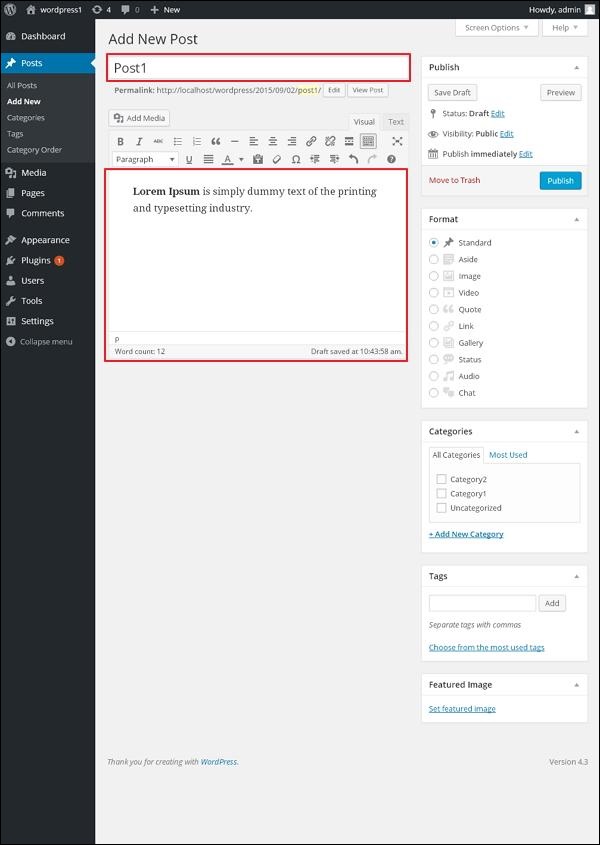
Following are the fields on the editor page of the Add Posts Page.
-
Post Title − Enter the title of the post, i.e., Post1.
-
Post Content − Enter the content of your post.
Step (3) − Click on Publish button to publish your respective post.
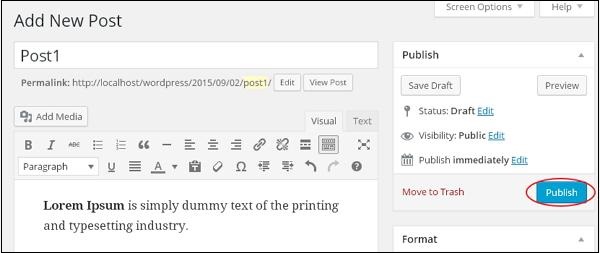
Following are the few other options present in the Publish section.
-
Save Draft − It saves the post as a draft.
-
Preview − You can preview your post before publishing.
-
Move to Trash − Deletes the post.
-
Status − Change the status of your post to Published, Pending, or Reviewer Draft.
-
Visibility − Change the visibility of the post to Public, Private or Password protected.
-
Published − Change the publishded post date and time.
WordPress – Edit Posts
In this chapter, we will study how to Edit Posts on WordPress.
Following are the simple steps to Edit Posts in WordPress.
Step (1) − Click on Posts → All Posts in WordPress.
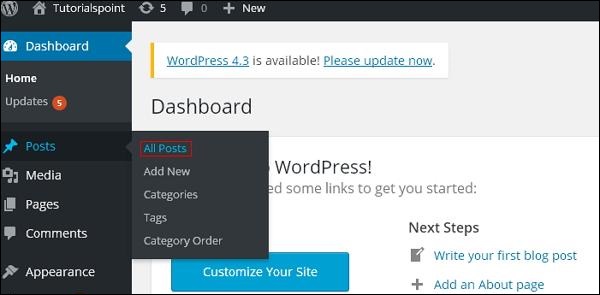
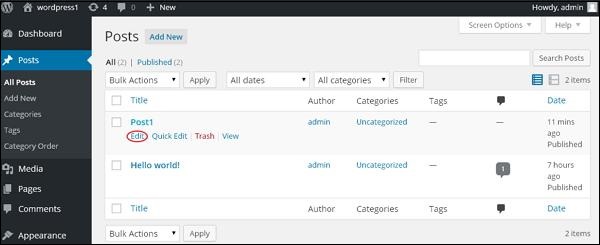
Step (2) − You can view Post1 (Post1 was created in the chapter WordPress – Add Posts). When the cursor hovers on the Post, few options get displayed below the Post name. There are two ways to edit the Post i.e. Edit and Quick Edit.
Edit − Click on Edit option in Post1 as shown in the following screen.
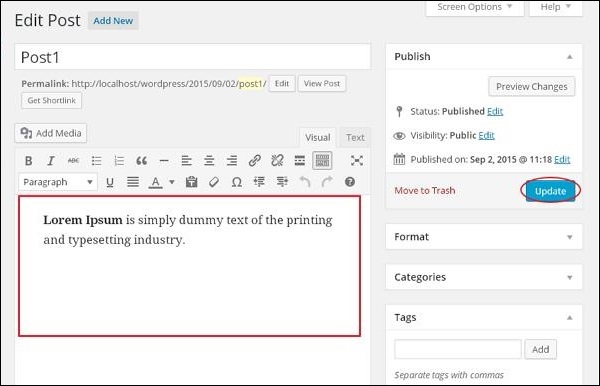
You can edit or change the content or title of the post as per your needs, and then click on Update button as shown in the following screen.
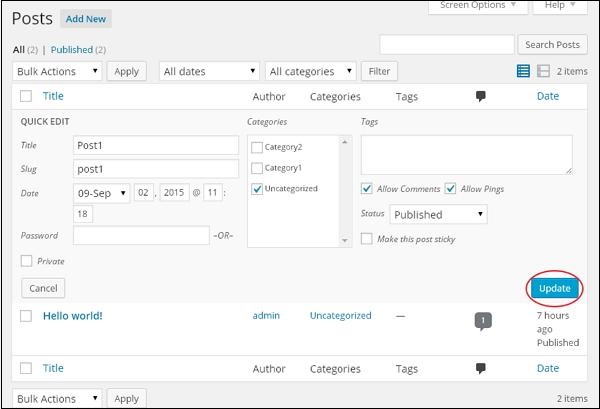
Quick Edit − Click on Quick Edit option in Post1 as shown in the following screenshot.
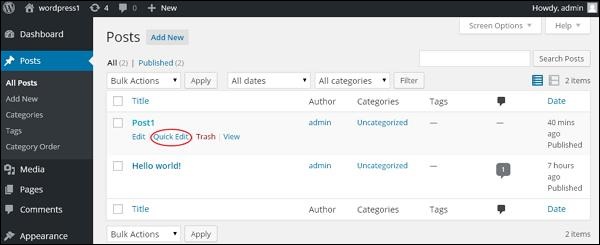
Here you can edit the Title, Slug and date of the posts and can also select the categories for your post as shown in the following screenshot and then click on Update button to confirm post edits.
WordPress – Delete Posts
In this chapter, we will study how to Delete Posts in WordPress.
Following are the steps to Delete Posts in WordPress.
Step (1) − Click on Posts → All Post in WordPress.
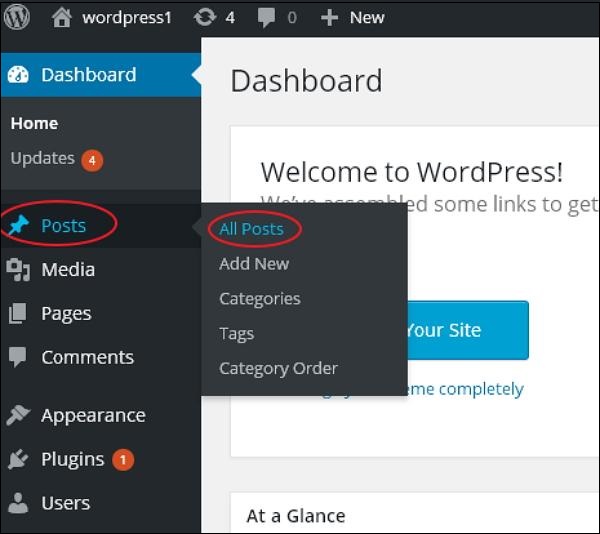
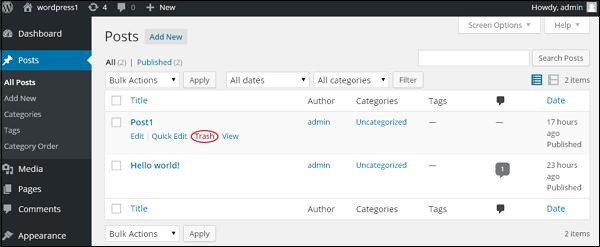
Step (2) − You can delete Post1 (Post1 was created in the chapter WordPress – Add Posts). When the cursor hovers on the Post, then a few options get displayed below Post1. Click on Trash option to delete the post.
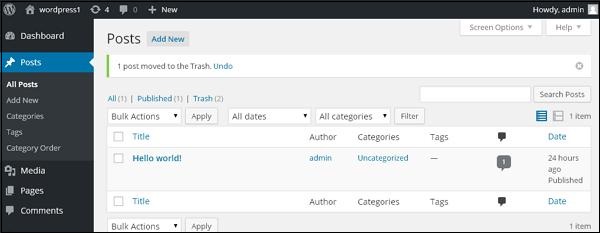
Step (3) − You can view your post lists to confirm if the above post is deleted.
WordPress – Preview Posts
In this chapter, we will study how to Preview Posts in WordPress. Preview Post is to view the post before it is published to the user. It is safer to preview your post and verify how your post looks on the website. You can edit or change the post as per your need after previewing.
Following are the simple steps to Preview Posts in WordPress.
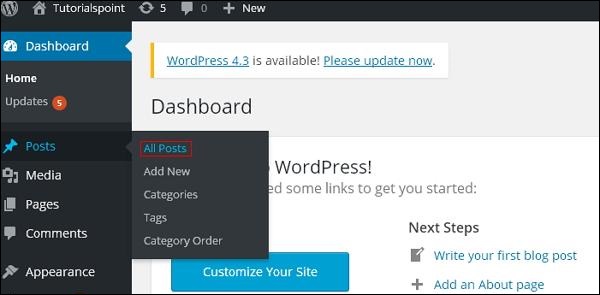
Step (1) − Click on Posts → All Posts in wordPress.
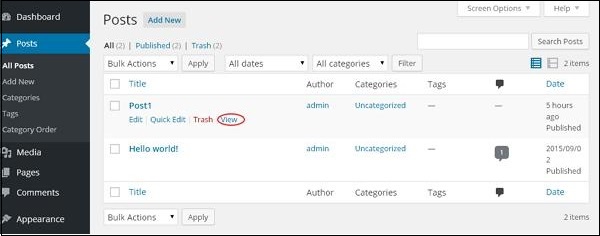
Step (2) − You can view Post1 (Post1 was created in the chapter WordPress – Add Posts). When the cursor hovers on the Post, then a few options get displayed below the Post name. Click on the View option as shown in the following screenshot.
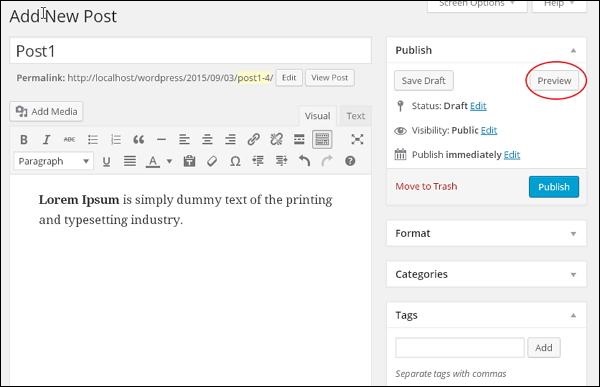
Or else you can view your post directly while editing or adding post by clicking on the Preview button as shown in the following screen.
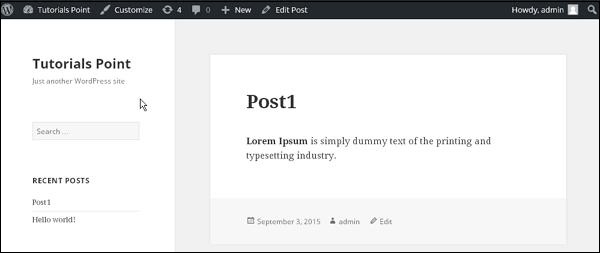
Step (3) − You can view your post, when you click on View or Preview.
WordPress – Publish Posts
In this chapter, we will study how to Publish Posts in WordPress. Publish is used to make the post available to all the users wherein every user can view that particular post. Publishing a new post in WordPress is an easy process.
Following are the steps to Publish Posts in WordPress.
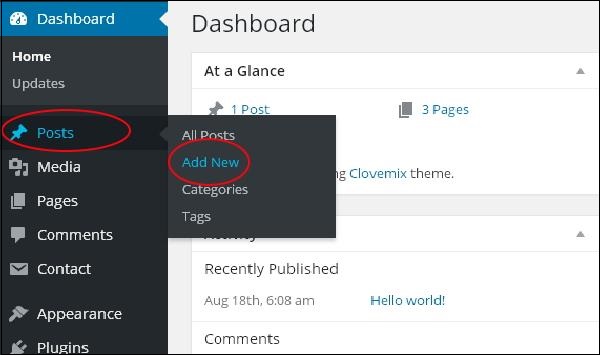
Step (1) − Click on Posts → Add New in WordPress.
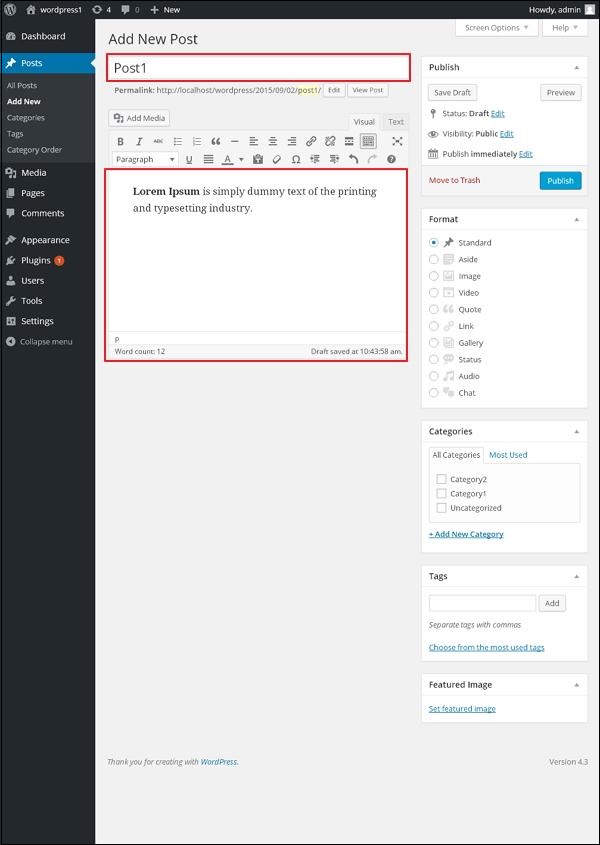
Step (2) − You will get the editor page of the Post as shown in the following screenshot. You can use the WordPress WYSIWYG editor to add the actual content of your post.
Step (3) − Click on Publish button to publish your respective post.
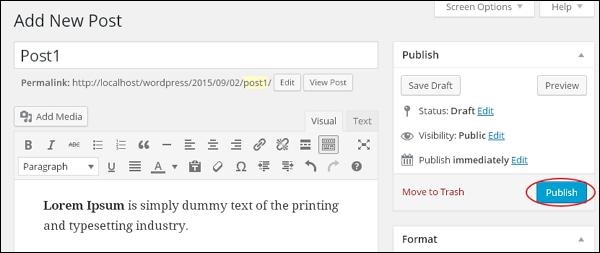
After clicking on publish, your posts get published for the user to view it.
WordPress – Media Library
In this chapter, we will learn about Media Library in WordPress. Media Library consists of the images, audios, videos and files that you can upload and add to the content when writing a Post or Page. Here you can view, add, edit or delete any media related objects if not needed.
Following are the steps to understand about Media Library.
Step (1) − Click on Media → Library in WordPress.
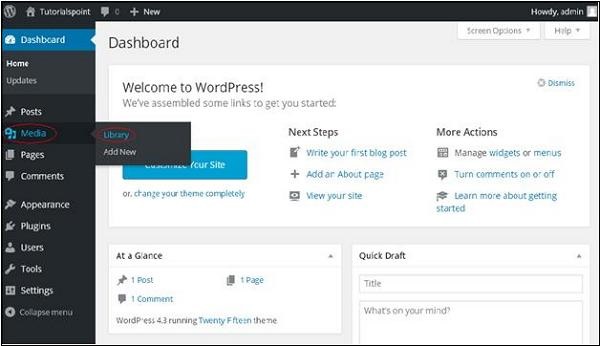
Step (2) − You can view media files like images, audios, videos. Click on Add Media button.
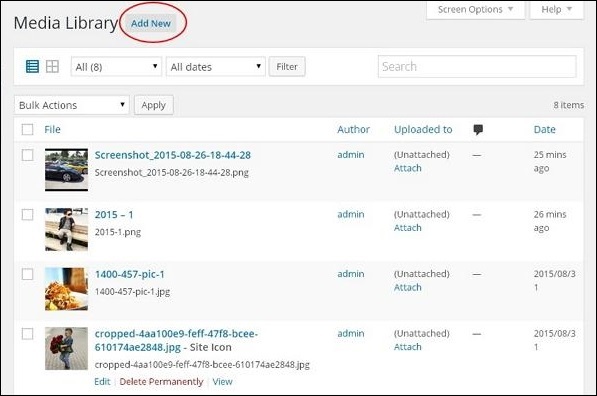
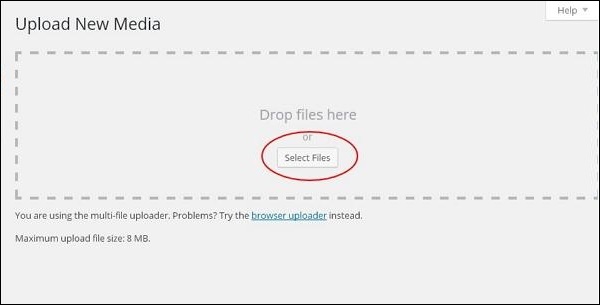
Step (3) − The Upload New Media page gets displayed. You can learn how to Add Media in the next chapter.
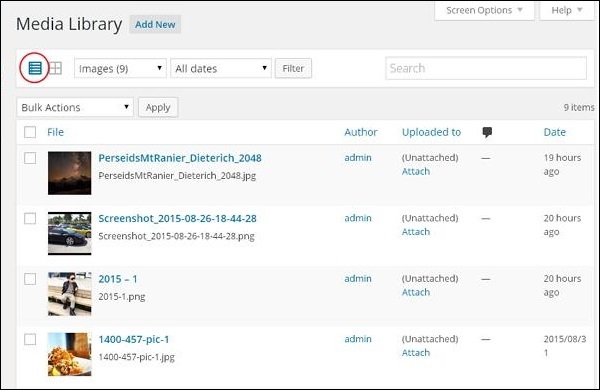
Step (4) − You can view a bar as shown in the following screenshot.

The various tabs that appear have the following functions −
List View − Displays the images and videos in list form.
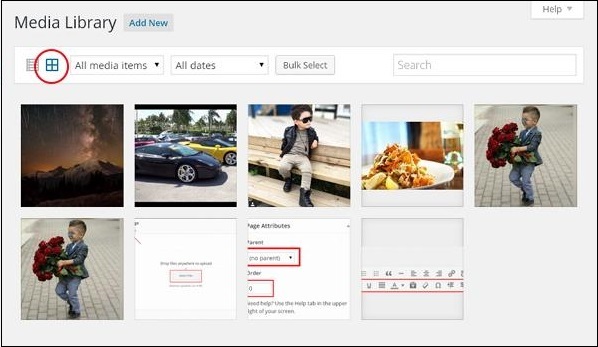
Grid View − Displays all images in the grid format as shown in the following screen.
Filter the images and videos − Filters the images and videos.
Search Box − Helps to search a particular image by inserting the name into the box.
WordPress – Add Media
In this chapter, we will study how to Add Media files in WordPress. WordPress allows you to add, all kind of media files like videos, audios and images.
Following are the steps to Add Media.
Step (1) − Click on Media → Add New in WordPress.
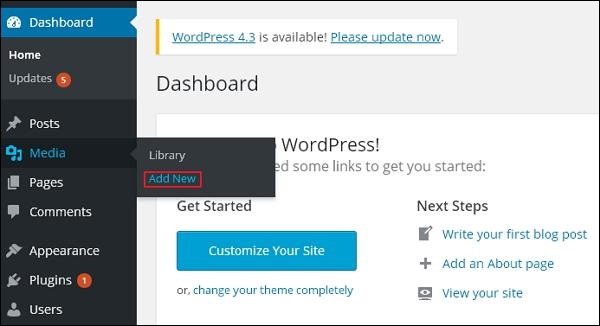
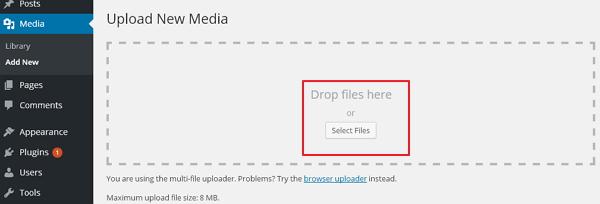
Step (2) − Then, click on Select Files option to select the files from your local storage as shown in the following figure.
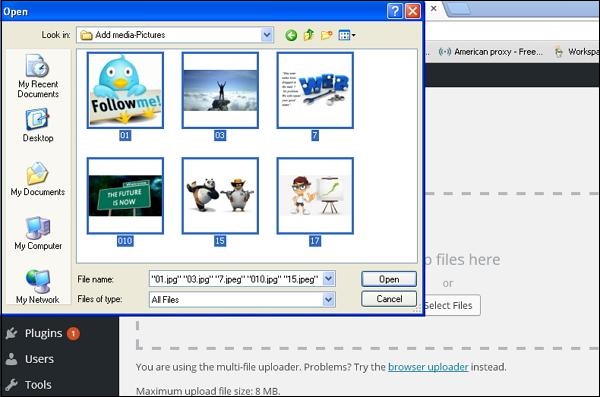
Step (3) − Add Media files such as images and audios by selecting them and click open as shown in the following screenshot.
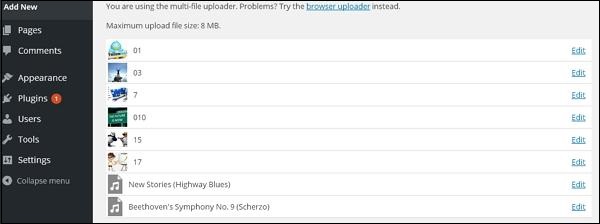
Step (4) − You can view the list of media files added as shown in the following screenshot.
WordPress – Insert Media
In this chapter, we will study how to Insert Media in WordPress. Media files can be inserted to your Pages or Posts from libraries, from local storage or from URLs.
Following are the steps to Insert Media in WordPress.
Step (1) − Click on Posts → Add New in WordPress.
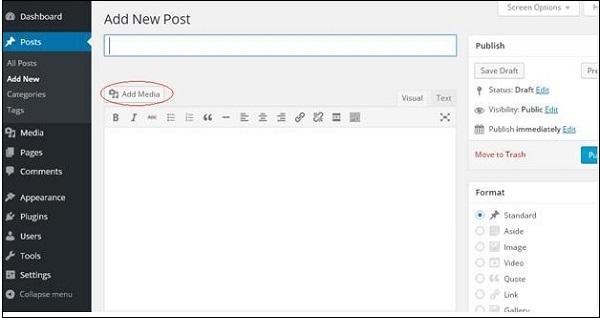
Step (2) − Click on Add Media.
Step (3) − You can select the files from the Media Library tab as shown in the following screenshot.
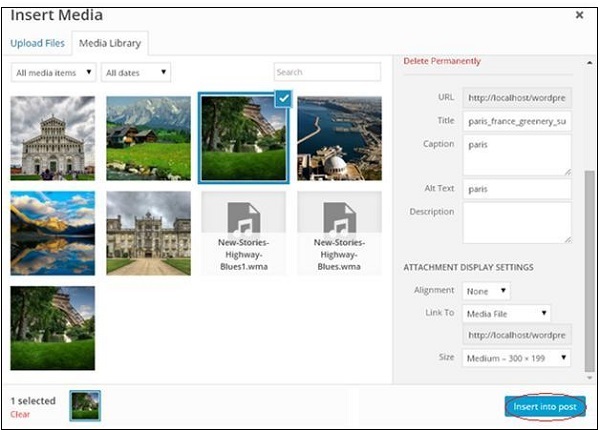
Information about the selected media file will be displayed on the right side of the screen under the Attachment Details. Click on Insert Post button, the image will be inserted into the post. In Attachment Details section, you will find information about the images such as URL, Title, Caption, Alt Text and Description
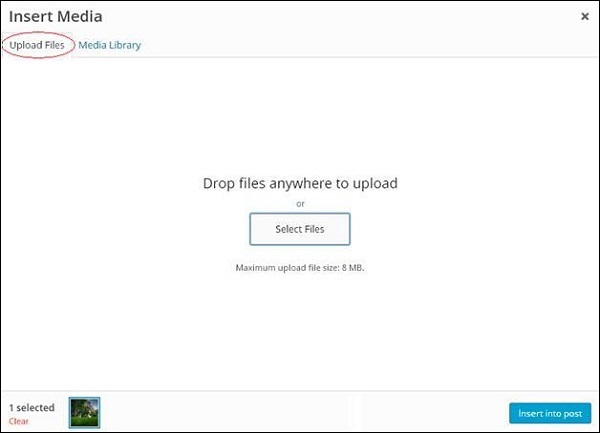
You can also insert an image directly from your system by clicking on Upload Files tab. Click on Insert into Post button.
WordPress – Edit Media
In this chapter, we will study how to Edit Media in wordPress. You can manage all the information about your media that is saved in the Media Library.
Following are the steps to Edit Media in WordPress.
Step (1) − Click on Media → Library and click on the name of the media item or the edit link.
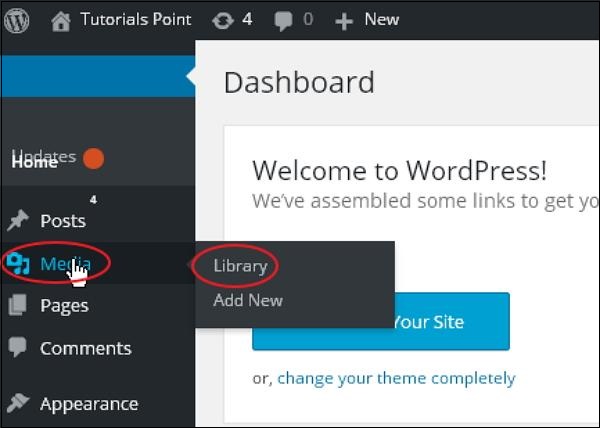
Step (2) − You will view a list of media files. Select any one image to edit.
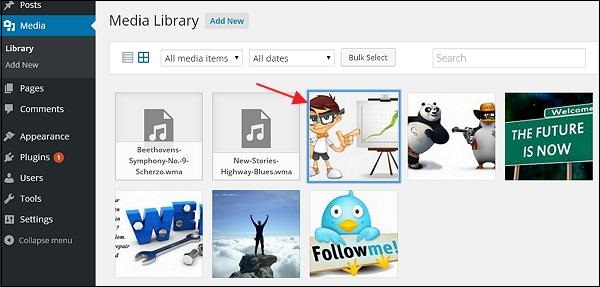
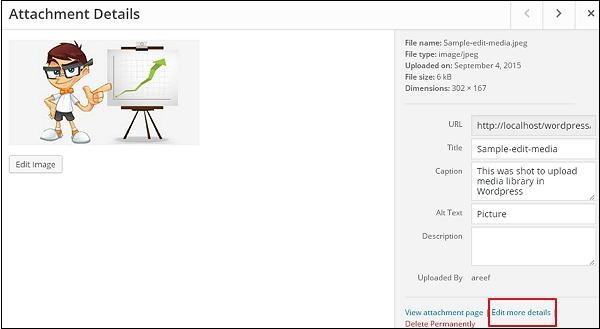
Step (3) − You can view the edit media page with few options on the right side.
-
URL − You can read only a link from media file.
-
Title − This displays the name of the media. Title is often shown in galleries and attachment pages, if themes or plugins are designed to display it.
-
Permalink − Permalink is the URL of the media attachment page. This is also a link to view the attachment page.
-
Edit image button − This allows you to edit the image position, such as rotate counter-clockwise, rotate clockwise, scale, crop, flip vertically, and flip horizontally.
-
Caption − A brief explanation of the media.
-
Alternate Text − The alt text for the image, which is used to describe media. Used for availability.
-
Description − An explanation of your media file.
-
Delete Permanently − Delete your media file permanently.
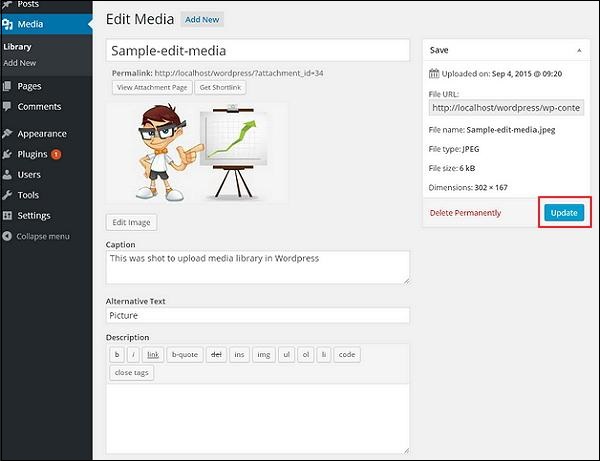
Step (4) − Once you complete editing the required fields, click on Update button to save the changes made to an image.
WordPress – Add Pages
In this chapter, we will study how to Add Pages into the WordPress. Adding pages is similar to adding posts in WordPress. Pages are static content and often do not change its displayed information.
Following are the simple steps to add pages in WordPress.
Step (1) − Click on Pages → Add New as shown in the following screenshot.
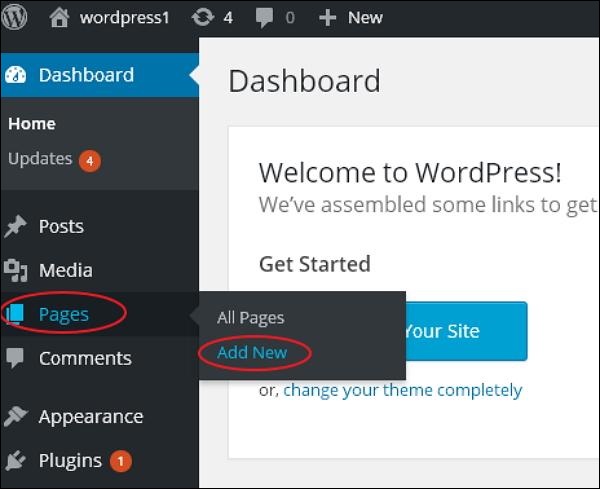
Step (2) − You will get the editor page as seen in the following screenshot. The editor page has two tabs, Visual and Text. You can insert text in either of these. Here, we’ll study about inserting text into Visual format.
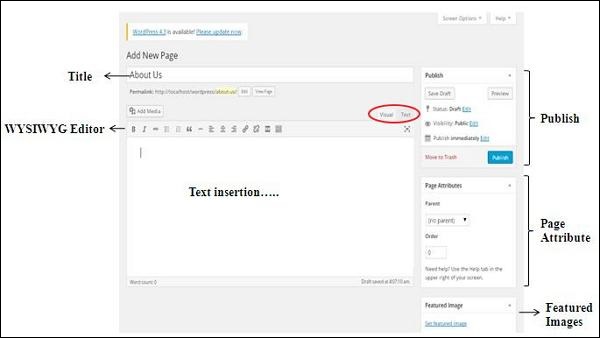
Following are the details of the fields on editor page of the Add New Page.
Title
It is used to write the title of the article, which is later displayed on the page.
Permalink shows the potential URL for the page below the title. The URL generates as per the given title.

WYSIWYG Editor
It is a WYSIWYG Editor, which is similar to a word processor interface where you can edit the contents of the article.
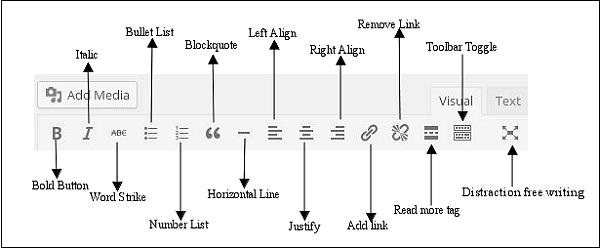
Following are the options present of WYSIWYG editor −
-
Bold Button − Used to bold your font.
-
Italic − Used to italicize the font.
-
Word Strike − Strikes through the content.
-
Bullet List − Adds bullets to content.
-
Number List − Adds numbers to the list of the content.
-
Blockquote − Quotes the text.
-
Horizontal Line − Creates a horizontal line between sentences.
-
Left Align − Sets the content on the left side of the page.
-
Right Align − Sets the content to the right side of the page.
-
Justify − Justifies the content of the page.
-
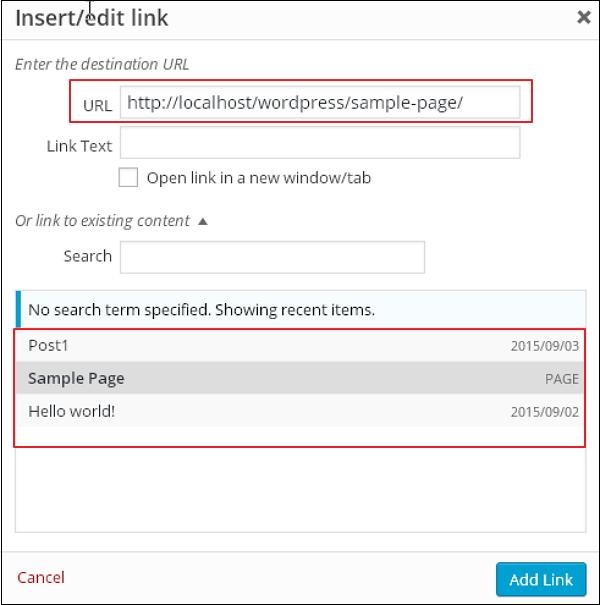
Add Link − Adds a link to your content. When you click on this button, the following page gets displayed.
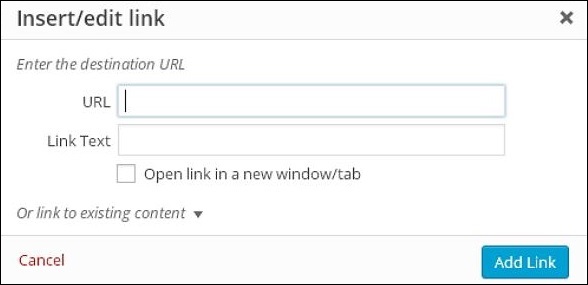
Following are the fields present in the Insert/edit link.
-
URL − Enter URL you want to link.
-
Link text − Insert text you want to enter into the link.
-
Open link in a new window/tab − Open your link page into the new tab or window. Check the box as required.
-
Or link to existing account − Links to an existing content page by selecting the page from the given list. When you click on existing page then you get a link created in the URL section as seen in the following screenshot.
-
Remove Link − Deletes the particular link added for text or content.
-
Read more tag − Adds Read More tag to your page.
-
Toolbar toggle − Clicking on this you get another list of toolbar as shown in the following image.
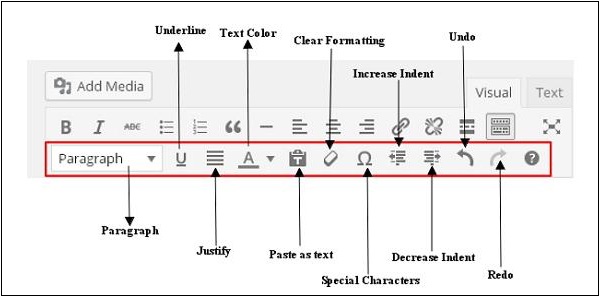
-
Paragraph − Selects the headings as required for the text from the dropdown.
-
Underline − Underlines the sentences.
-
Justify − Justifies your content.
-
Text Color − Sets color for words or sentences.
-
Paste as Text − Pastes your text.
-
Clear Formatting − Deletes selected content.
-
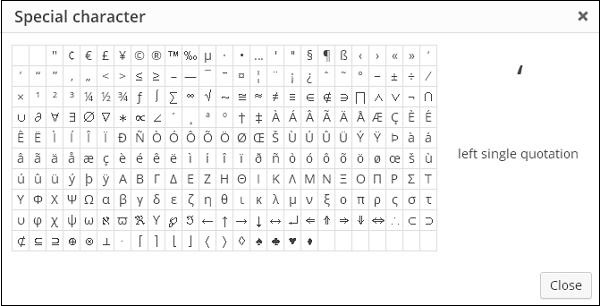
Special character − Inserts special characters needed in your content.
-
Increase Indent − Increases the indent of the page.
-
Decrease Indent − Decreases the indent of the page.
-
Undo − Reverses the most recent editing command.
-
Redo − Opposite of undo, restores the most recent editing command.
Text Insertion
For writing the content of an article.
Publish
To publish the page to the user on the website.
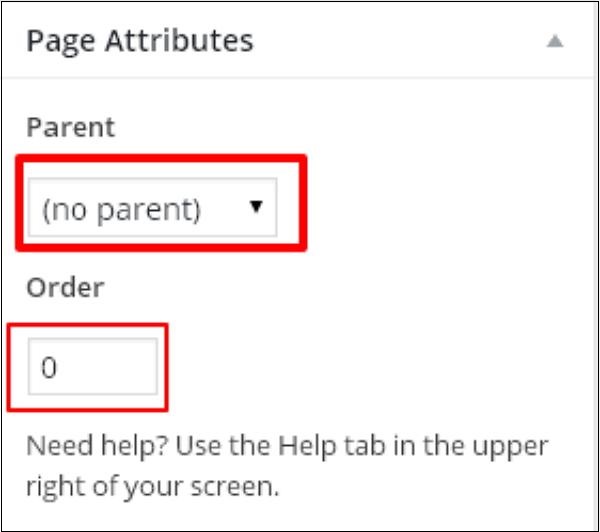
Page Attribute
Page attributes module allows you to select the parents for your particular page. You can also set order of the pages.
Featured Images
Includes the images in the pages.
WordPress – Publish Pages
In this chapter, we will study how to Publish Pages in WordPress. The command, “Publish” is used to make the pages available to all users wherein each user can view that particular page. Publishing a new page in WordPress is an easy process.
Following are the steps to Publish Pages in WordPress.
Step (1) − Click on Pages → Add New in WordPress.
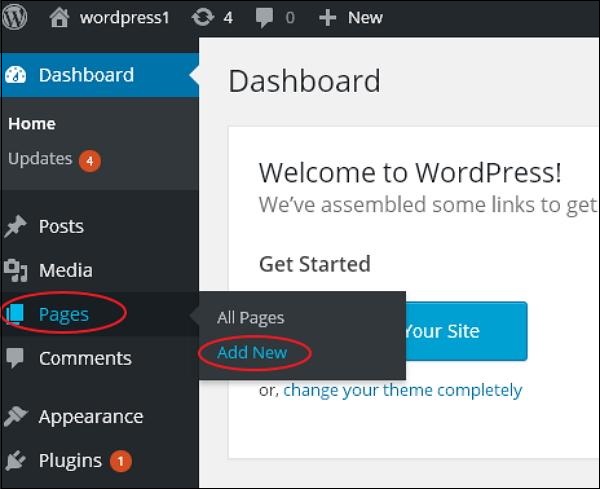
Step (2) − You will get the editor as shown in the following screenshot. You can use the WordPress WYSIWYG editor to add the actual content of your page.
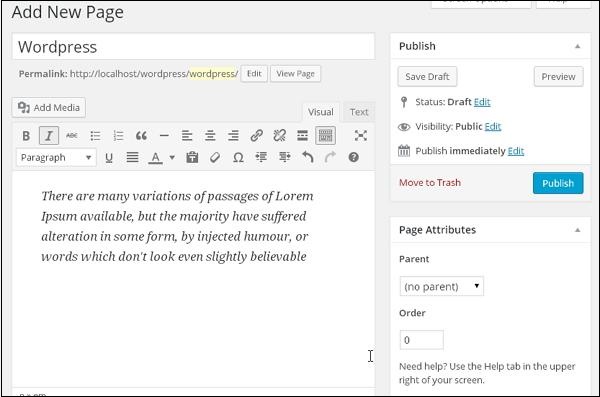
Step (3) − Click on Publish button as shown in the following screen.
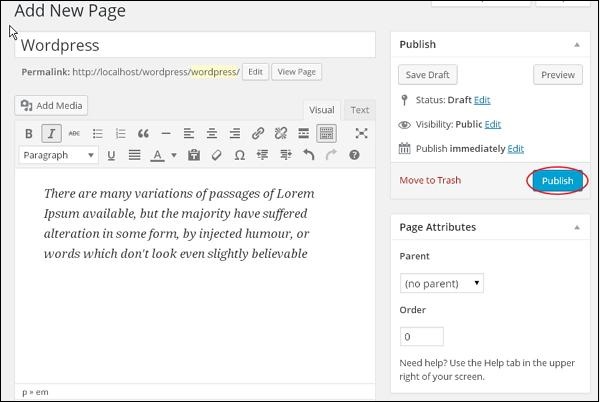
After clicking on publish, your posts get published for the user to view it.
WordPress – Edit Pages
In this chapter, we will study how to Edit pages in WordPress.
Step (1) − Click on Pages → All Pages in WordPress as shown in the following screen.
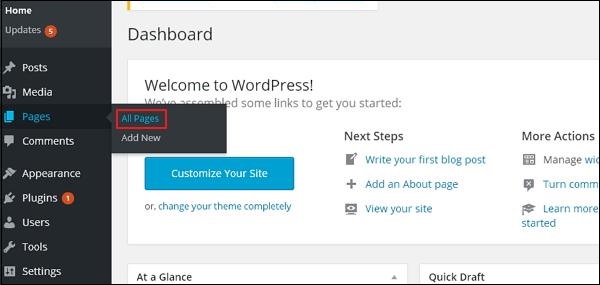
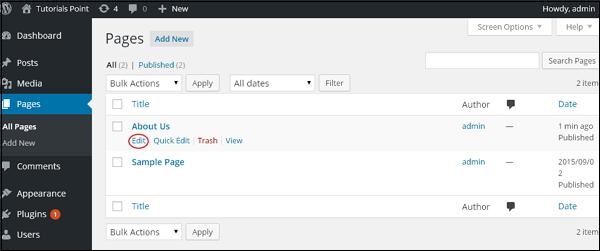
Step (2) − You can view About Us (About Us was created in the chapter WordPress – Add Pages). When the cursor hovers on the pages, then few options get displayed below About Us. There are two ways to edit the Post, i.e., Edit and Quick Edit.
Edit − Click on Edit option in About Us as shown in the following screenshot.
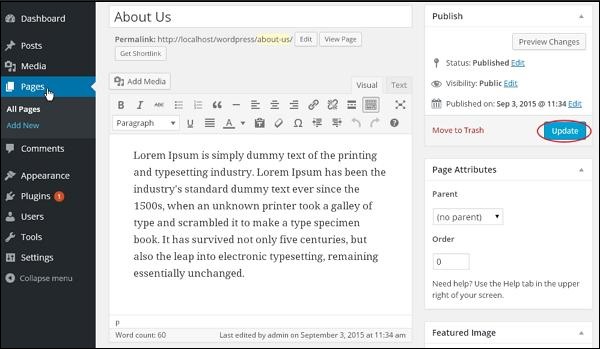
You can edit or change the content or title from the page as per your need, and then click on Update button as shown in the following screen.
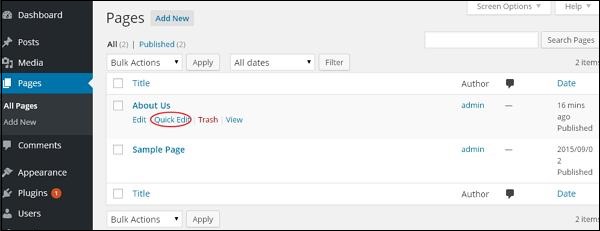
Quick Edit − Click on Quick Edit option in About Us as shown in the following screen.
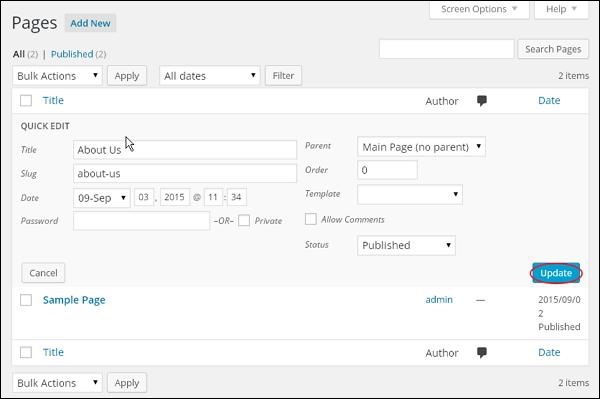
You can edit the Title, Slug and date of the About Us page and can also select the parent for your page as shown in the following shot and then click on Update button.
WordPress – Delete Pages
In this chapter, we will learn to Delete Pages in WordPress.
Following are the steps to Delete pages in wordPress.
Step (1) − Click on Pages → All Pages in WordPress.
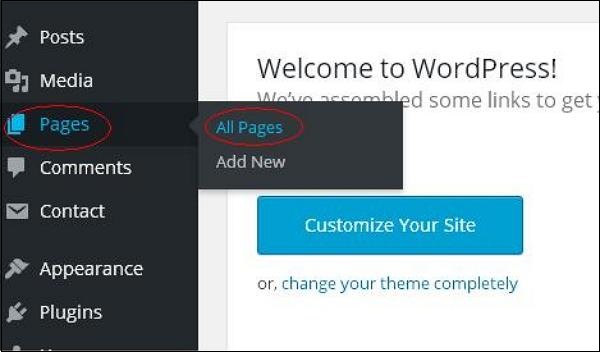
Step (2) − You can delete Sample Page (Sample Page is created by default in WordPress). When the cursor hovers on the pages, then a few options gets displayed below the Sample Page. Click on Trash option to delete the post.
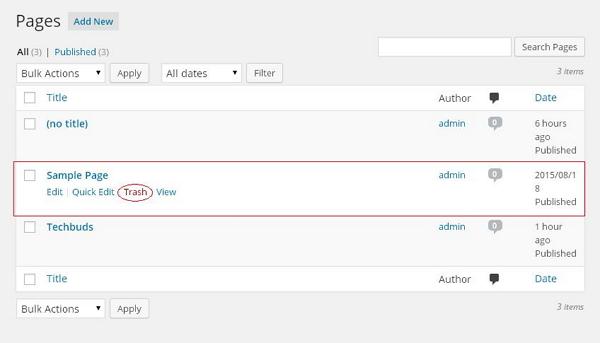
Or alternatively you can also delete your page directly while editing or adding page by clicking on the Move to Trash button as shown in the following screen.
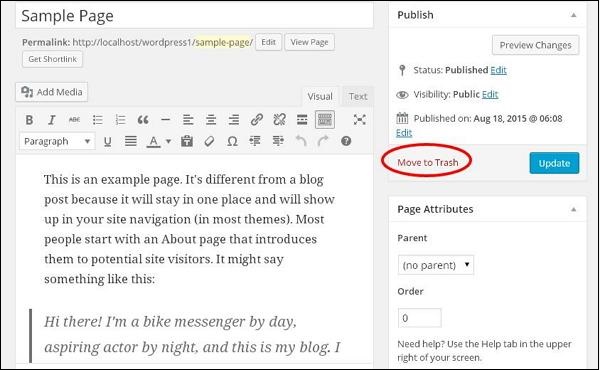
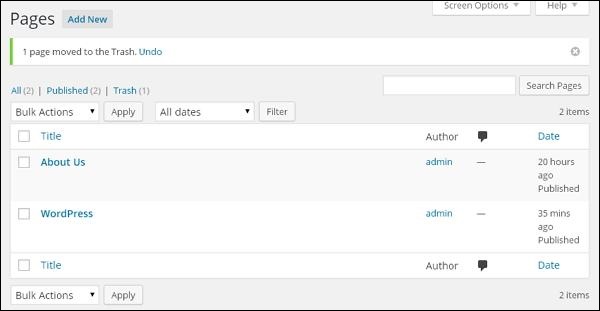
Step (3) − To confirm that you have deleted the page, view your page list.
WordPress – Add Tags
Tag is a small information attached to the main content or post for the purpose of identification. It tells the visitors what actually the post is about. If the tag is mentioned properly then it helps to find the content very easily.
Following are the steps to Add Tags in WordPress.
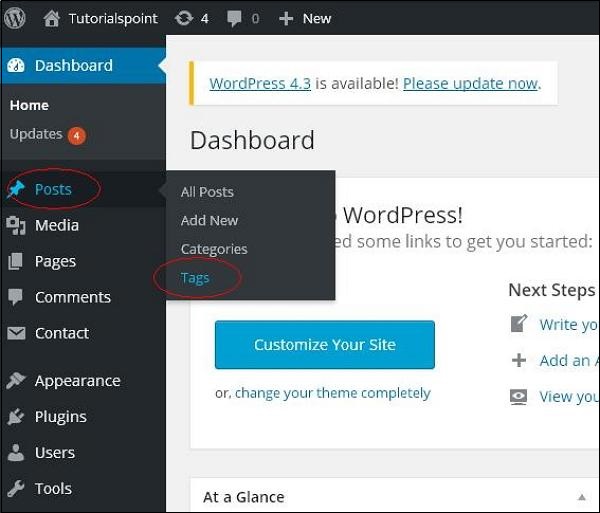
Step (1) − Click on Posts → Tags in WordPress.
Step (2) − The Tags page is displayed.
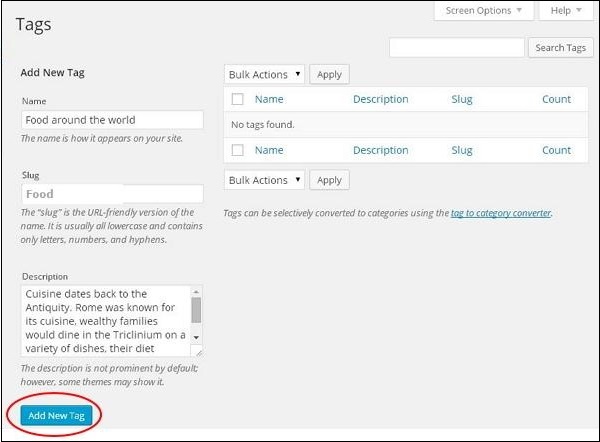
Following are the details of the fields on Tags.
-
Name − Enter the name of tags.
-
Slug − A word chosen to describe your post. It is specified in the tags URL.
-
Description − Add brief description of your tag. It gets displayed when you hover on the tag.
After filling all the information about Tags, click on Add New Tag button.
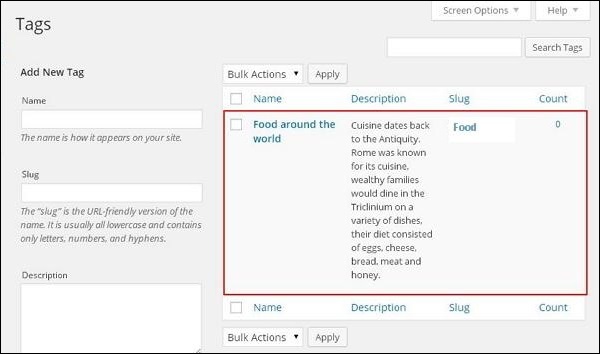
Step (3) − The new created tags will get displayed on the right side of the page as shown in the following screenshot.
WordPress – Edit Tags
In this chapter, we will study to Edit Tags in WordPress. You can learn how to add tags in the chapter WordPress – Add Tags.
Following are the simple steps to Edit Tags in WordPress.
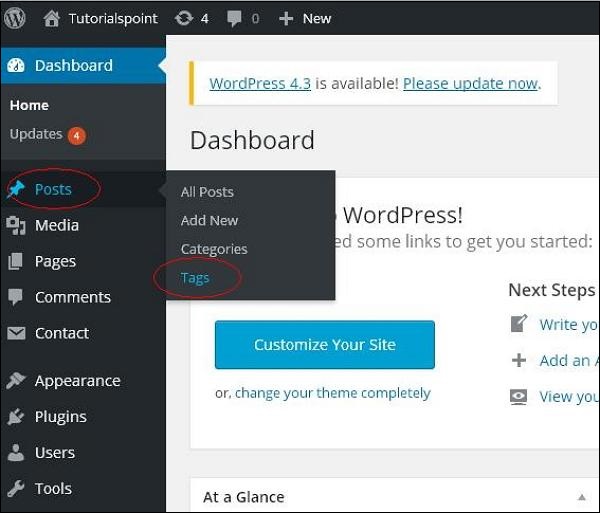
Step (1) − Click on Posts → Tags in WordPress.
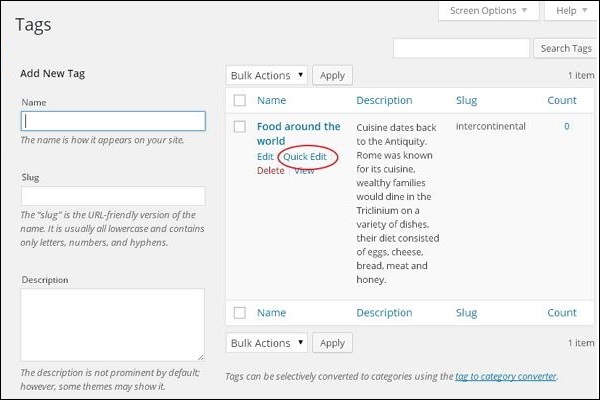
Step (2) − You can view tag Food around the world (Food around the world was created in the chapter WordPress – Add Tags). When the cursor hovers on the Tags, then a few options get displayed below the Tag name. There are two ways to edit the tags i.e. Edit and Quick Edit
Edit − Click on Edit option in Tags section as shown in the following screen.
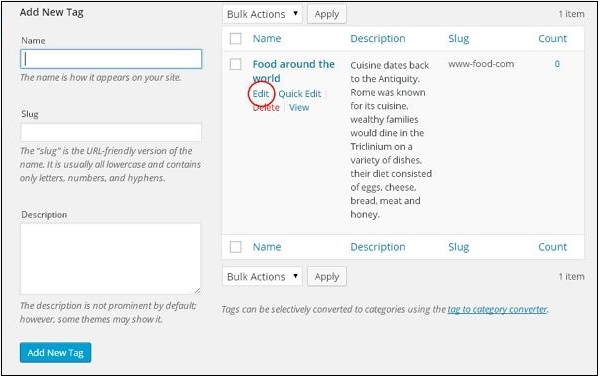
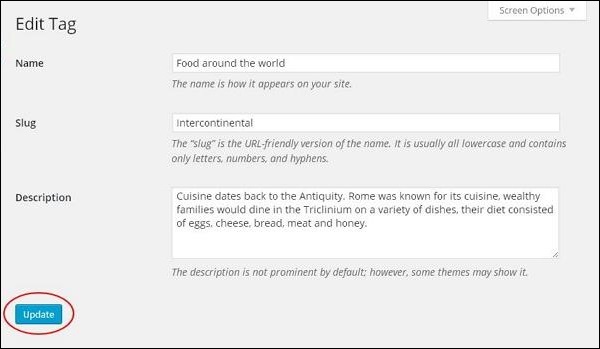
You can edit any of the required field, and then click on Updatebutton as shown in the following screen.
Quick Edit − Click on Quick Edit option in Tags section as shown in the following screenshot.
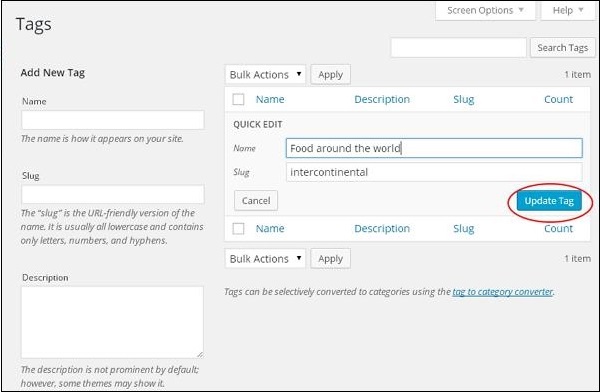
Here you can only edit the Name and Slug of the Tags as seen in the following screen and then click on Update Tag button.
WordPress – Delete Tags
In this chapter, we will learn to Delete tags in WordPress.
Following are the steps to delete tags in WordPress.
Step (1) − Click on Posts → Tags in WordPress.
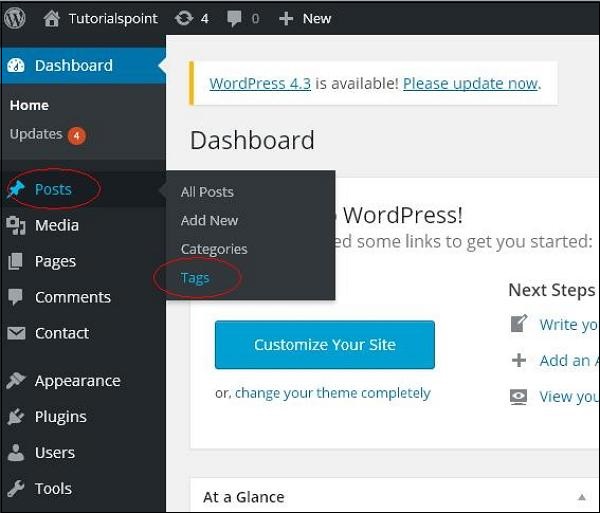
Step (2) − You can delete tag Food around the world (Food around the world was created in the chapter WordPress – Add Tags), when the cursor hovers on the Tags, then a few options get displayed below the Tags name. Click on Delete in tags section as shown in the following screen.
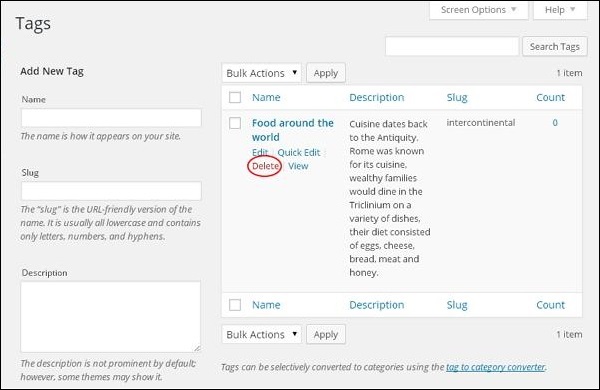
When you click on delete, you will get a pop message asking for confirmation to delete.
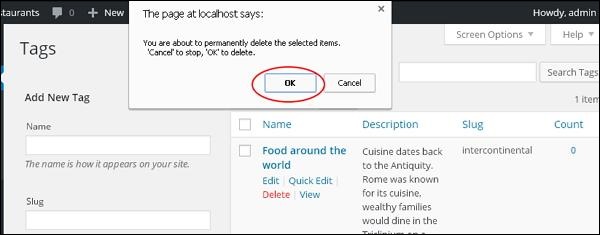
You can click on OK button and delete the tag permanently.
WordPress – Add Links
In this chapter, we will learn to Add Links in WordPress pages. Link is a connection from one resource to another. Adding links to your pages or blog posts help you to connect to other pages.
Following are the simple steps to Add links in WordPress.
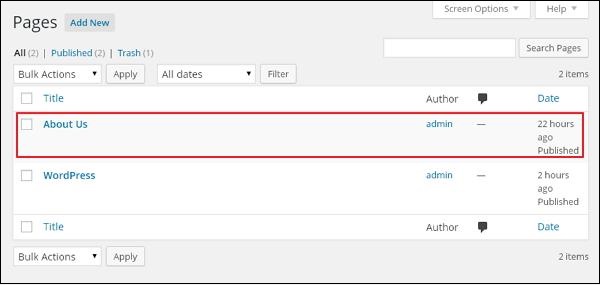
Step (1) − Click on Pages → All Pages in WordPress.
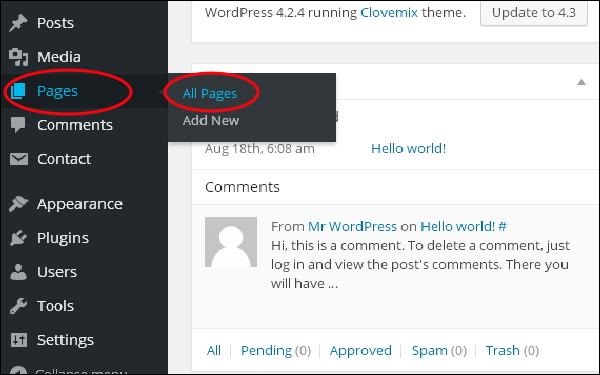
Step (2) − List of pages created in WordPress will get displayed as shown in the following screen. Select any of the pages to add links inside it. Here, we are going to add links in About Us page.
Step (3) − Select any of the sentence or word where you want to add link. Here, we will add link to the word Lorem.
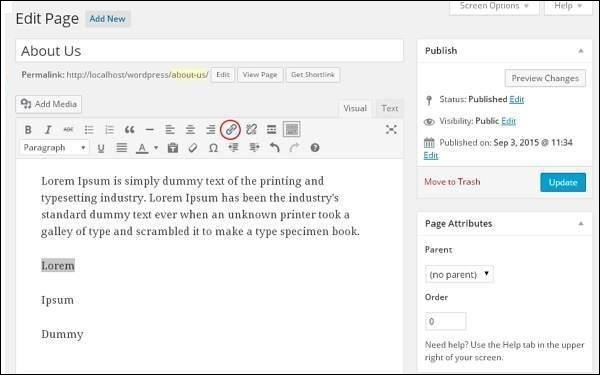
Step (4) − When you click on the Insert/Edit link symbol then the following pop window gets displayed.
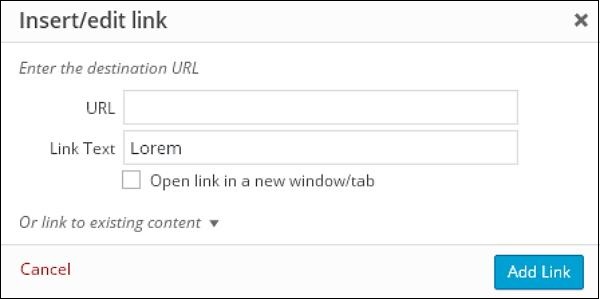
Following are the fields present in the Insert/edit link.
-
URL − Enter URL you want to link.
-
Link text − Insert text you want to enter into the link.
-
Open link in a new window/tab − Open your link page into the new tab or window. Check the box as required.
-
Or link to existing account − Add links to an existing content page by selecting the page from the given list. Click on Or link to existing account and the list of pages and posts gets displayed as shown in the following screen.
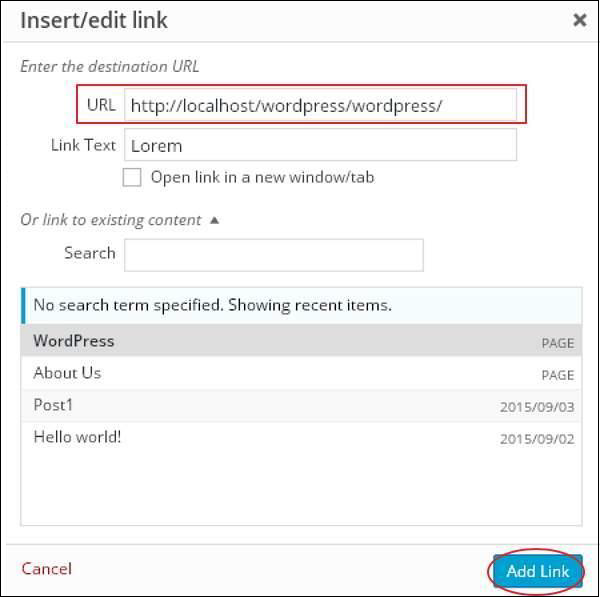
After selecting the particular page or post from the list, the links get created in the URL field as seen in the preceding screen. Click on Add Link.
Step (5) − When you hover on the word Lorem then the link tooltip gets displayed as shown in the following screen.
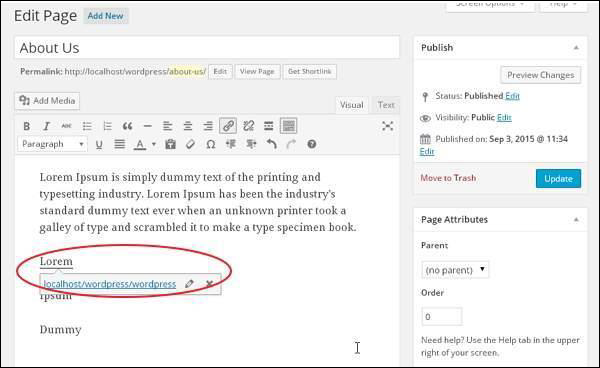
Click on Update button to update the changes in your page or post.
WordPress – Edit Links
In this chapter, we will study how to edit link in WordPress.
Following are the simple steps to Edit Links in WordPress
Step (1) − Click on Pages → All Pages as shown in the following screen.
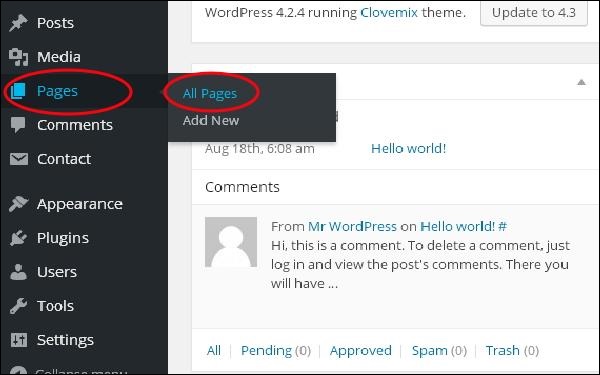
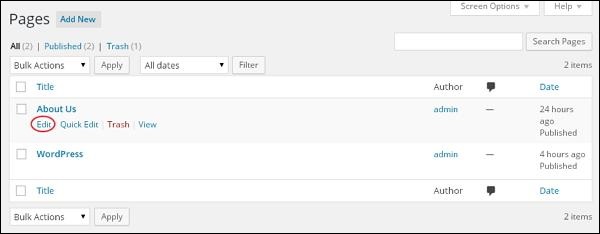
Step (2) − You can view the list of pages. When the cursor hovers on the About Us page, then a few options get displayed below About Us. Click on Edit as shown.
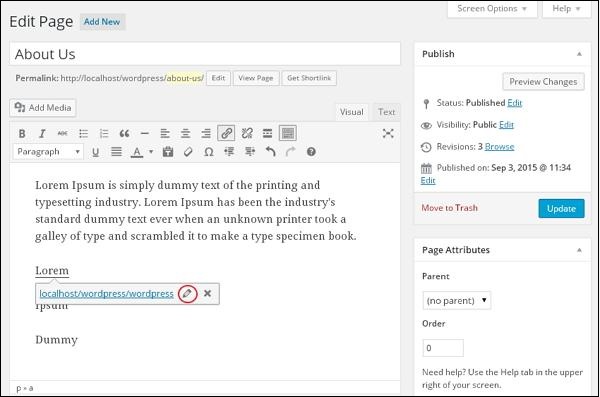
Step (3) − Hover on the word Lorem (Link for word Lorem was created in the chapter WordPress – Add Links), and click on the pencil symbol to edit the link as shown in the following screen.
Step (4) − You can change or edit your link by selecting the page from the existing list. In this case, we have selected the About Us page.
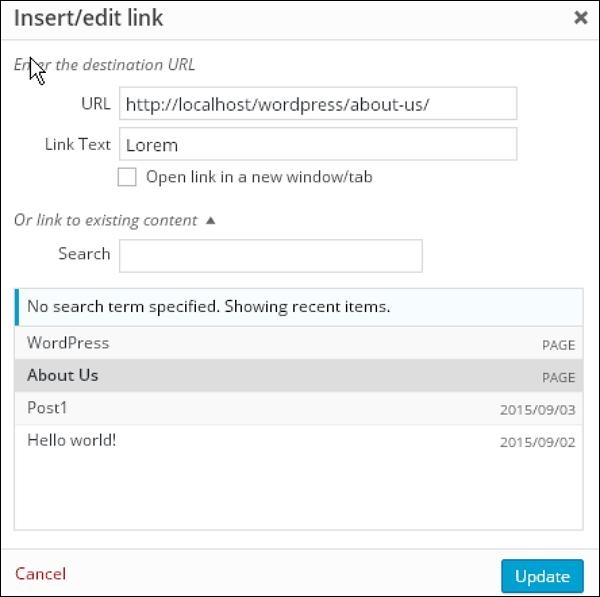
After selecting the particular page or post from the list, then click on Update button.
Step (5) − When you hover on the word Lorem then the link tooltip get displayed as seen in the following screen.
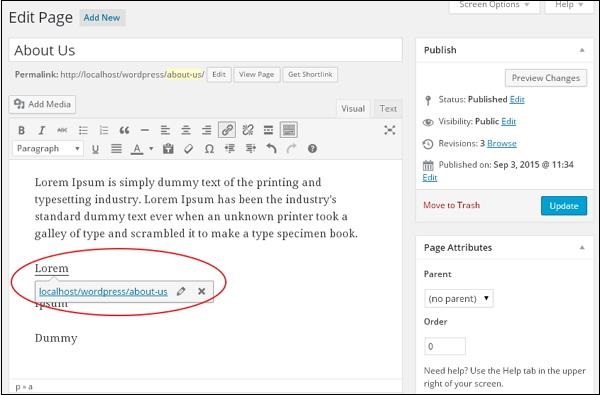
Click on Update button to update the changes in your page or post.
WordPress – Delete Links
In this chapter, we will learn to Delete links from WordPress. You can remove the unwanted links which you don’t need for your website or article.
Following are the steps to Delete Links in WordPress
Step (1) − Click on Pages → All Pages in WordPress.
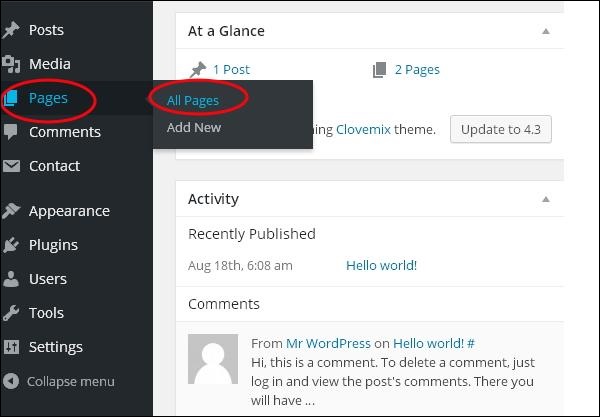
Step (2) − You can view the list of pages. When the cursor hovers on the About Us page, then a few options gets displayed. Click on the Edit button as shown in the following screen.
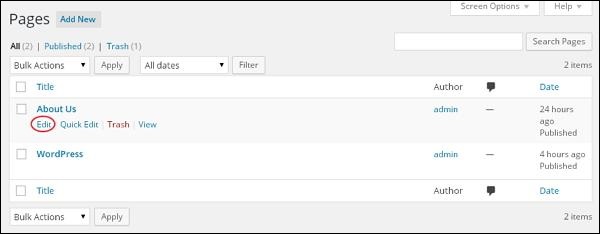
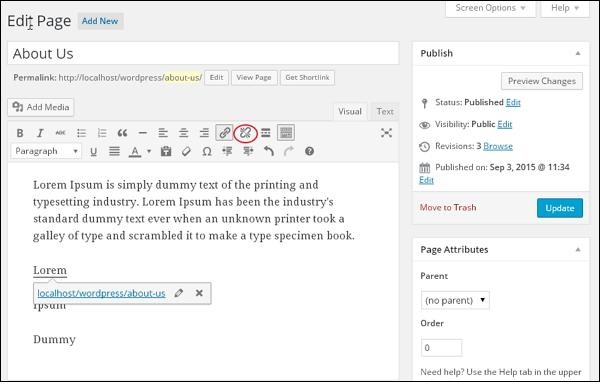
Step (3) − Select the word which you had already linked i.e. Lorem (Link for word Lorem was created in the chapter WordPress – Add Links), and click on the Remove Link Symbol as seen in the following screen.
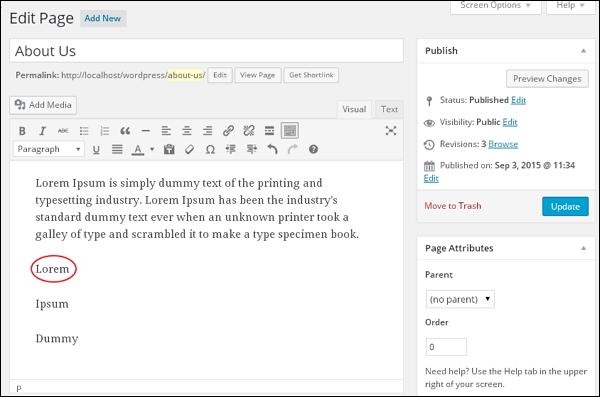
Step (4) − When you hover on the word Lorem, there will be no tooltip of the existing URL. The following screenshot shows that the link has been deleted.
WordPress – Add Comments
In this chapter, we will learn to Add Comments in WordPress. Adding comments allows your visitors to have a discussion with you. Comments are approved by the admin and then posted to be discussed further.
Following are the steps to add comments to your blog posts.
Step (1) − Click on Pages → All Pages in WordPress.
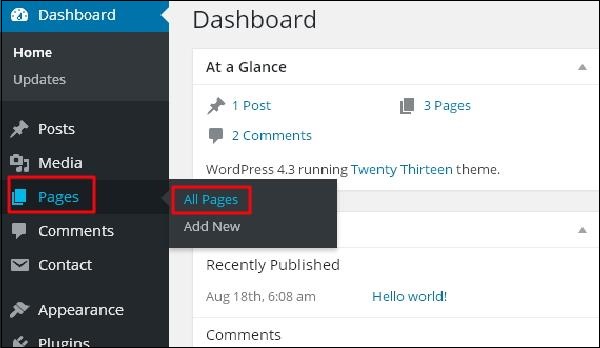
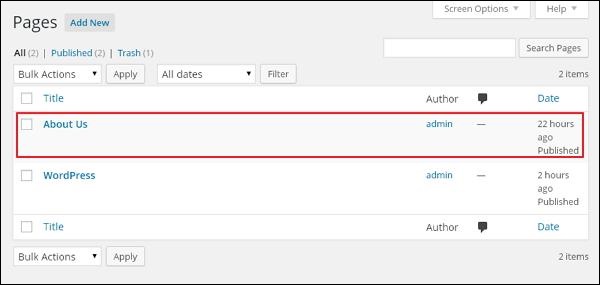
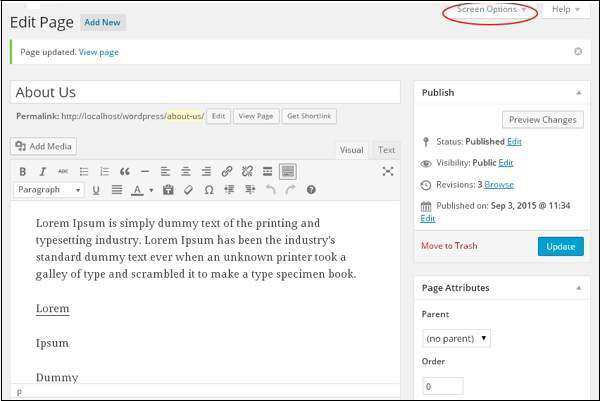
Step (2) − The list of pages created in WordPress will get displayed as seen in the following screen. Select any of the pages you want to add comments to. Here, we are going to add comment in About Us page. Click on About Us.
Step (3) − To add a comment on this page, click on Screen options present at the top right hand corner.
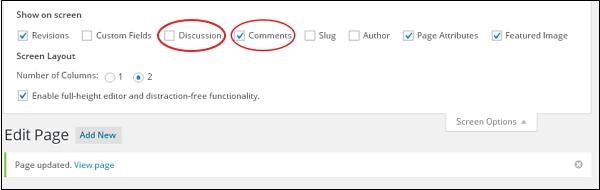
Step (4) − The dropdown list of Screen Option gets displayed. Check the Discussion and Comments box as shown in the following screen.
Step (5) − You can now view the Discussion and Comments box at the bottom of your page.
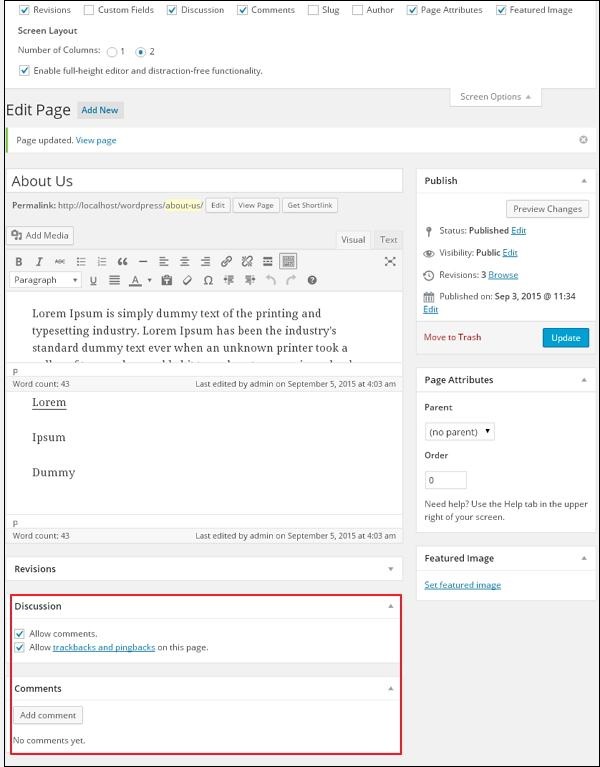
In the Discussion section, there are two options present −
In the Comment section, you can add comments by clicking on Add Comment button.
Step (6) − Click on Update button after adding the comment box.
WordPress – Edit Comments
In this chapter, we will learn about how to Edit comments in WordPress. Editing comments can be done only by the admin.
Following are the steps to Edit Comments in WordPress.
Step (1) − Click on Comments in WordPress.
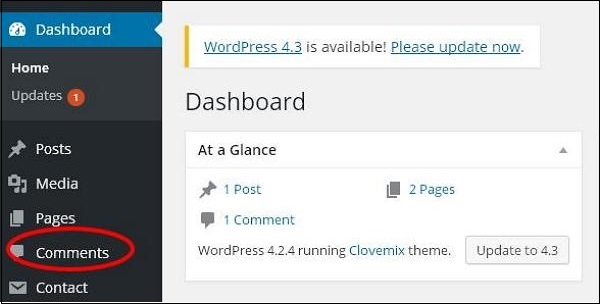
Step (2) − You can view the comments list for the various pages. Select any comment, you want to edit. Click on edit.
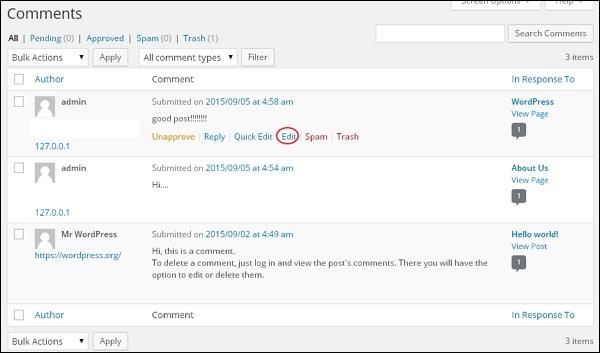
Step (3) − The Edit comment page gets displayed. You can edit the comment and click on Update Button.
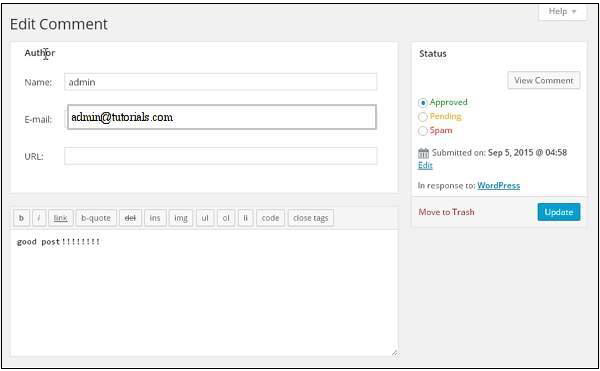
Here you can edit the name, e-mail, URL or the comment from the comment box.
WordPress – Moderate Comments
In this chapter, we will learn to Moderate Comments in WordPress. Comment moderation is a process where, when visitors comment on posts, the comment is not published directly until and unless it is approved by the admin to be posted. It manages your comments so that there is no comment spamming.
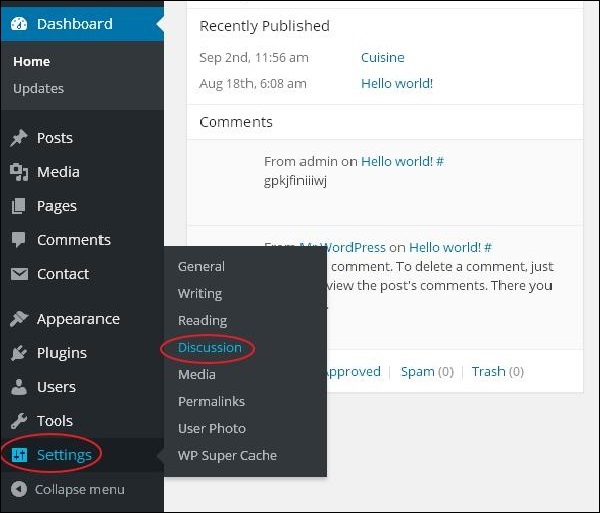
Step (1) − Click on Settings → Discussion in WordPress.
Step (2) − The Discussion Setting page gets displayed.
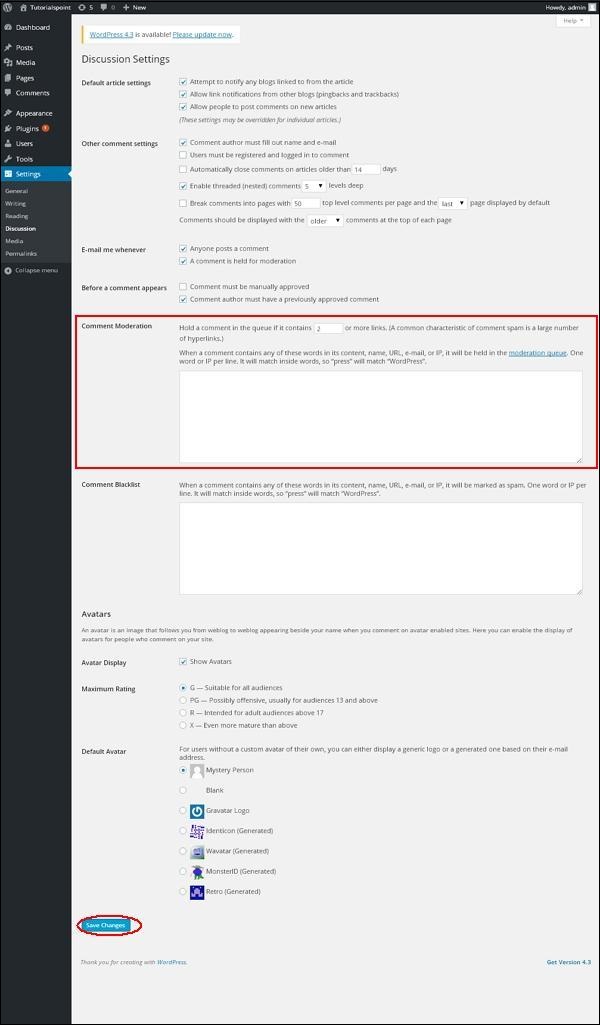
In the Comment Moderation field, enter those words or URLs you do not want any visitor to add comments. Whenever a visitor gives any comments it would be moderated by the admin first and then published.
Step (3) − Click on Save Changes.
WordPress – View Plugins
In this chapter, we will study how to View Plugins in WordPress. It helps you to enable and disable WordPress Plugins. This adds the unique features to an existing web site. Plugins extend and enlarge the functionality of WordPress.
Following are the simple steps to View Plugins in WordPress.
Step (1) − Click on Plugins → Installed Plugins in WordPress administrator.
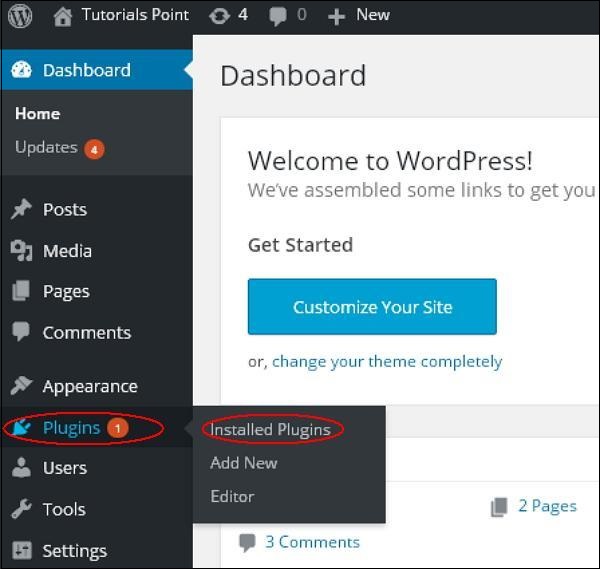
Step (2) − You will see the list of existing plugins on your site as seen in the following screen.
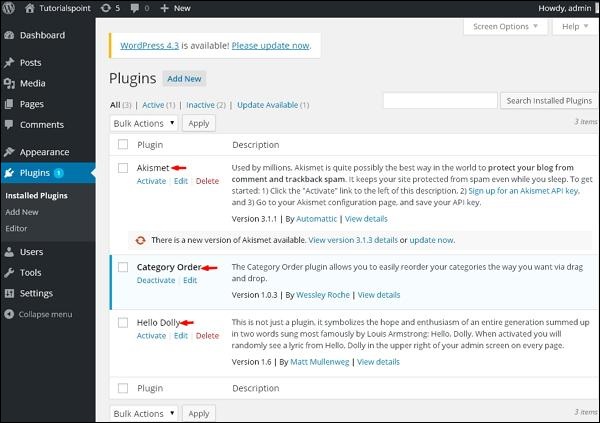
A table of Plugin and Description is displayed. Names of the plugins are defined in Plugin column and a brief description about the plugin is defined under Description column.
Toolbar
Following functions appear as Plugin toolbar options on the page −
-
Active − Shows the active plugins on the website.
-
Inactive − Shows the installed but inactive plugins on the website.
-
Update Available − Shows, if a new version is available or asks to update now.
WordPress – Install Plugins
In this chapter, we will study how to install plugins in WordPress. It is really easy to install plugins. All the plugins are free to download; the only condition is that a plugin must be in the WordPress directory.
Following are the simple steps to Install Plugins in WordPress.
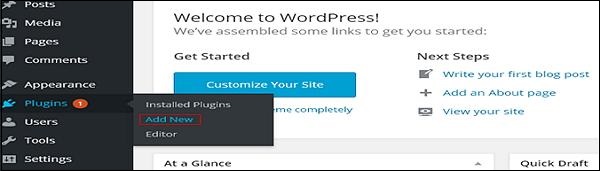
Step (1) − Click on Plugins → Add New in WordPress.
Step (2) − Enter your required plugin name in the search boxas shown in the following screen. List of plugins which are relevant to the plugins name will get displayed as seen in the following screen.
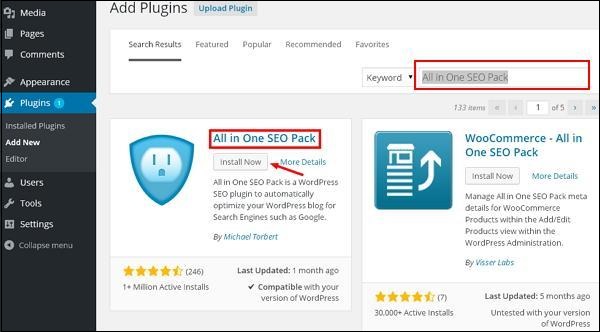
Select the required plugin you want to use. Here, we have searched All in one SEO Pack plugin, which happens to be the first plugin as shown in the preceding screen. Click on install now button to install the plugin on your website.
Step (3) − The plugins automatically start downloading and installing.
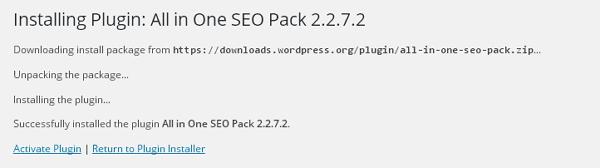
Click on Activate Plugin to activate the plugin on your website, which makes your task much easier using this plugin.
Step (4) − Once activated, you will see the installed plugin in the list of plugins as seen in the following screen.
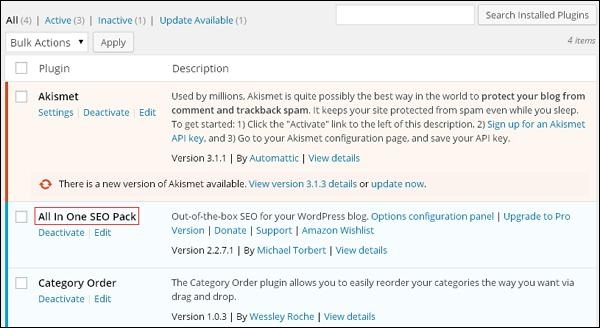
WordPress – Customize Plugins
In this chapter, we will study how to Customize Plugins in WordPress without writing any HTML or CSS. It’s usually a large addition for multi-user sites. This new method allows you to customize your login page by using the WordPress theme customizer (no coding skills required).
Following are the simple steps to Customize Plugins in WordPress.
Step (1) − Click on Plugins → Add New.
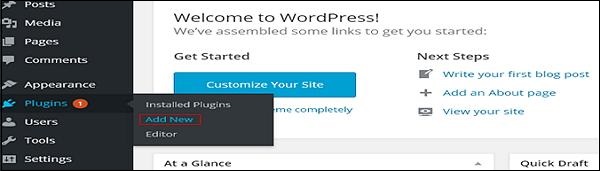
Step (2) − Install and activate the Custom Login Page Customizer Plugin.
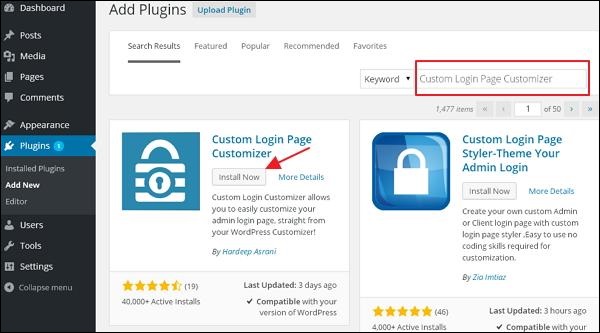
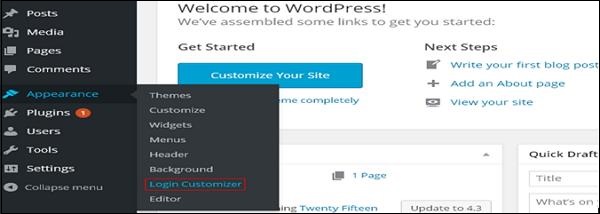
Step (3) − Click on Appearance → Login Customize section.
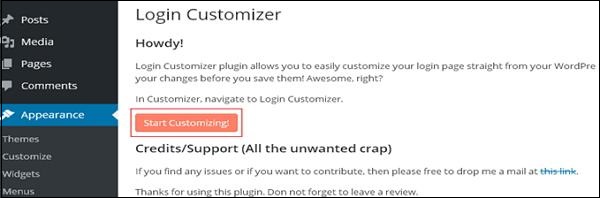
Step (4) − Click on Start Customizing button to proceed further.
Step (5) − It will launch the built-in WordPress theme customizer. You can customize the theme and make it look the way you want.
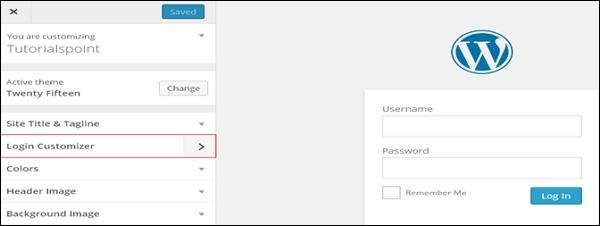
Click on the new Login Customizer tab in the side panel. Login customizer page will get displayed. On the login customizer page, you can customize your login page in the same way as you customize your WordPress theme.
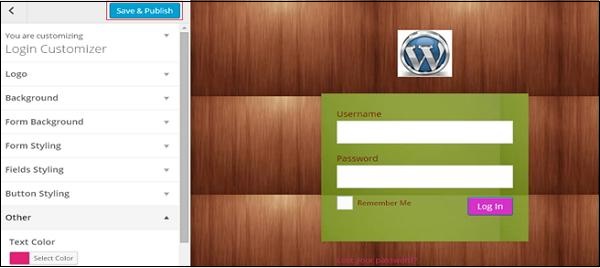
Step (6) − The customized login page will appear as shown in the following screen.
-
Logo − Upload logo of your choice to replace the default WordPress logo.
-
Background − Add background image or you can choose a background color of your choice.
-
Form Background − Select form background image or color for login form container of your choice.
Most of the selections in the customizer panel are transparent. You can check all the selections in the customizer to adjust the setting as per your requirement of your login page. Click on Save and Publish button.
WordPress – User Roles
In this chapter, we will learn about the roles of users in WordPress. Every user has their own role in WordPress. Roles are like permissions given to a particular user to access the WordPress site. These roles can be allotted only by the Admin.
Here are few pre-defined roles available in WordPress −
-
Administrator − The Administrator has all the rights. An Admin can do anything and everything on the WordPress site such as creating more admins, inviting more users and also removing them.
-
Editor − The Editor has access to all the posts, pages, comments, categories, tags, and links. They can create, publish, edit or delete any posts or pages.
-
Author − The Author can only write posts, upload pictures, edit, and publish their own posts.
-
Contributor − The Contributor can only write and edit their posts until published. They can create their own posts and pages but cannot publish them. They cannot upload images or files but can see your site’s status. When they want to publish any post, it must be first notified personally to the administrator for review. When the post is approved, the contributor cannot make any changes once published.
-
Follower − The Follower can only read and comment on the posts. Followers are the ones who have signed in to your account to receive updates.
-
Viewer − Viewers can only view your posts; they cannot edit but can only comment on the posts.
WordPress – Add Users
In this chapter, we will study how to Add users to your WordPress blog or website. When users register on your WordPress blog or website, you get an e-mail notification, so you always know when new users register, and you can then get into your Dashboard and edit the users’ role.
Following are the simple steps to Add Users in WordPress.
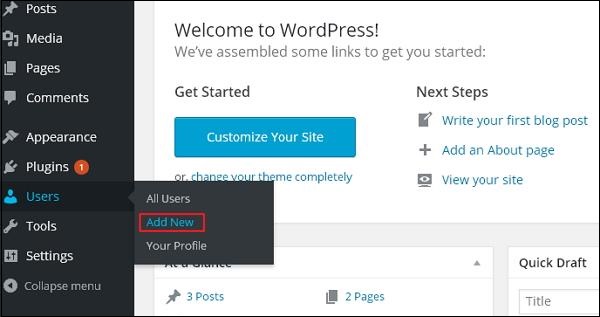
Step (1) − Click on Users → Add New in WordPress.
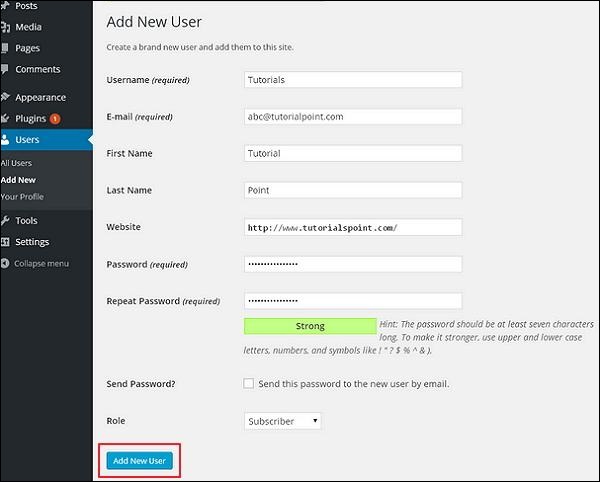
Step (2) − You can fill the user detail on the Add New Userpage. Fill in all the required fields (as seen in the following screen) to proceed further.
-
Username (required) − Enter the unique username, which you want to display on website.
-
E-mail (required) − Enter the valid e-mail address. The user receives notifications from the site at this e-mail address.
-
First Name − Enter the user’s first name.
-
Last Name − Enter the user’s last name.
-
Website − Enter the URL for the user’s website.
-
Password (required) − Enter the password.
-
Repeat Password (required) − Repeat the same password as the previous password for authentication.
-
Send Password − Send password to the New User by e-mail checkbox. The user will receive an e-mail with the new password.
-
Role − Select the particular role from the dropdown, i.e., Subscriber, Contributor, Author, Editor, or Administrator.
Click on Add New User button to add user to your users list.
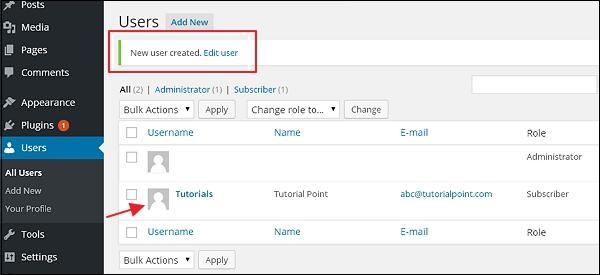
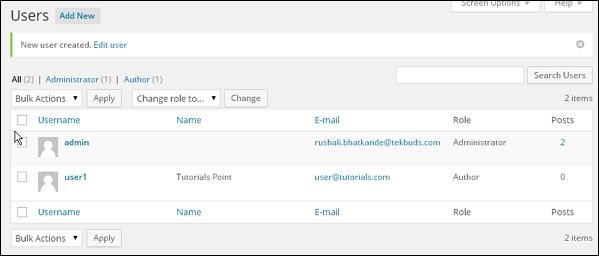
Step (3) − You can view the user list to see whether the users have been added. A message will be displayed as New User Created as seen in the following screen.
WordPress – User Photo
In this chapter, we will study about User Photo in WordPress. To add user photo in WordPress, you must install plugin User Photo from WordPress plugins. It helps you add a photo of your own to your WordPress profile.
Following are the simple steps to add a User photo.
Step (1) − Click on Settings → User Photo.
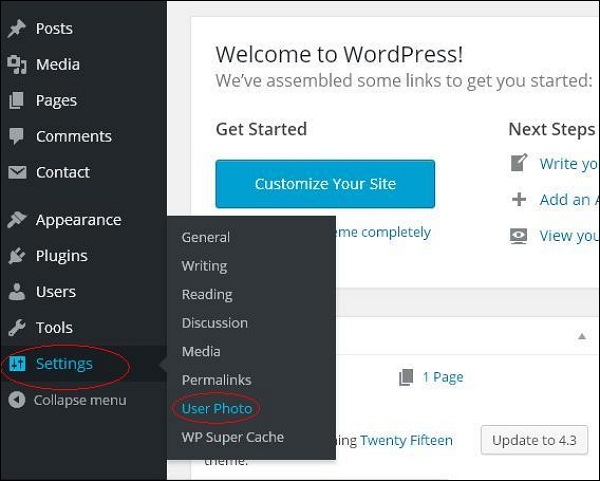
Step (2) − The User Photo Options page gets displayed.
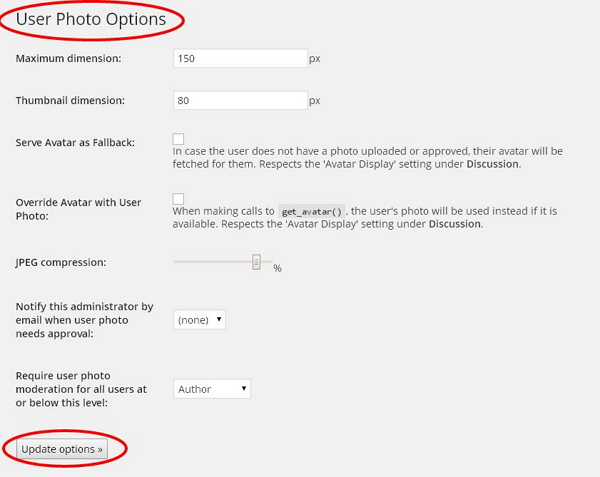
Set the dimension for your thumbnails and make the required changes and then click on Update Options button.
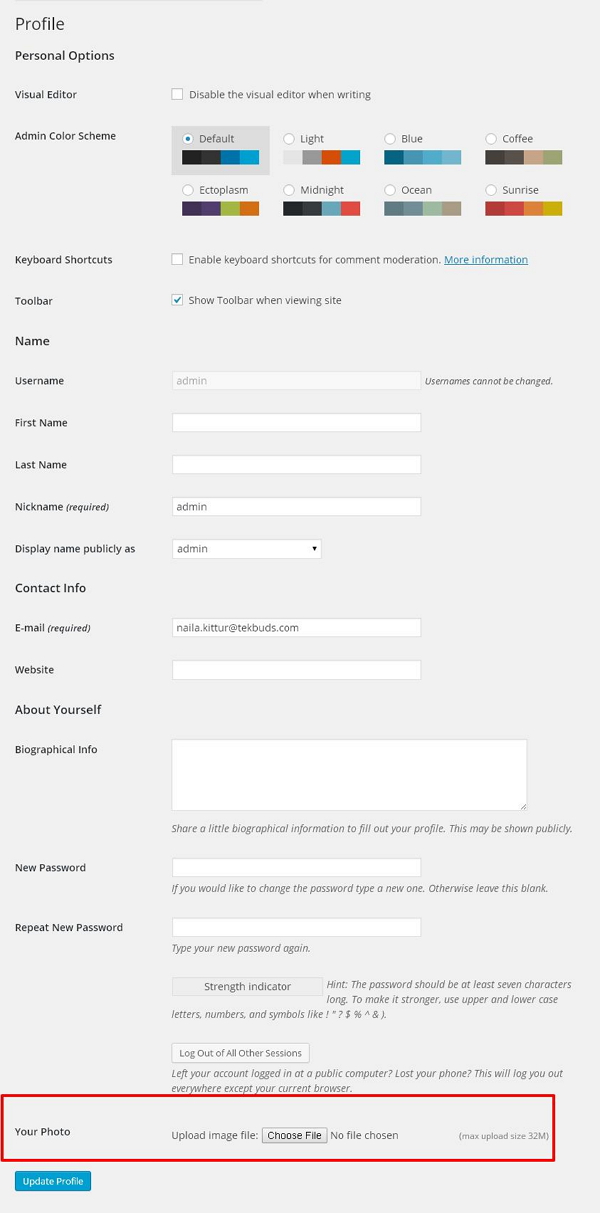
Step (3) − To view the plugin User Photo is activated, go to Users → Your Profile. In your Profile page you can see Your Photo section is added. Here you can upload your photo to display as profile image.
WordPress – Edit Users
In this chapter, we will study how to Edit Users in WordPress.
Following are the simple steps to Edit Users in WordPress.
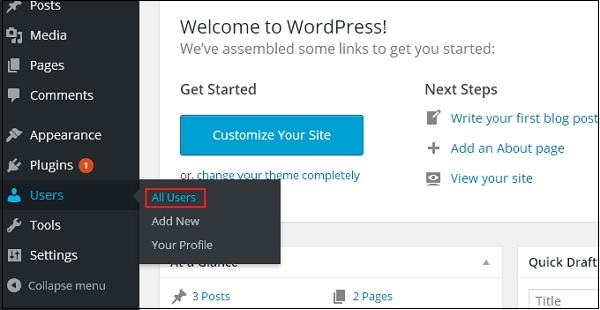
Step (1) − Click on Users → All Users.
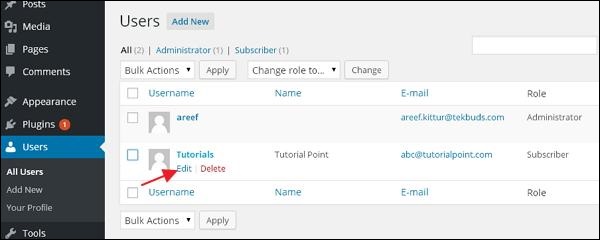
Step (2) − You will see a list of users.
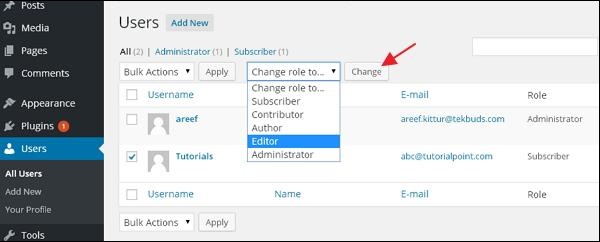
There are two more tabs seen on the toolbar −
When we click on the Change role to box, a dropdown list appears as seen in the preceding screenshot.
-
Subscriber − A person who can only manage his profile.
-
Contributor − A person who can write and supervise own posts, but cannot publish them.
-
Author − A person who can publish and manage his own posts.
-
Editor − A person who can publish and manage posts, including the posts of other users.
-
Administrator − A person who has access to all the administration features within a single website.
Click on the check box of the user name to change the role of the user. Then, click on change button and the user’s role will be changed accordingly.
Step (3) − Click on Edit option as shown in the following screen to edit the user.
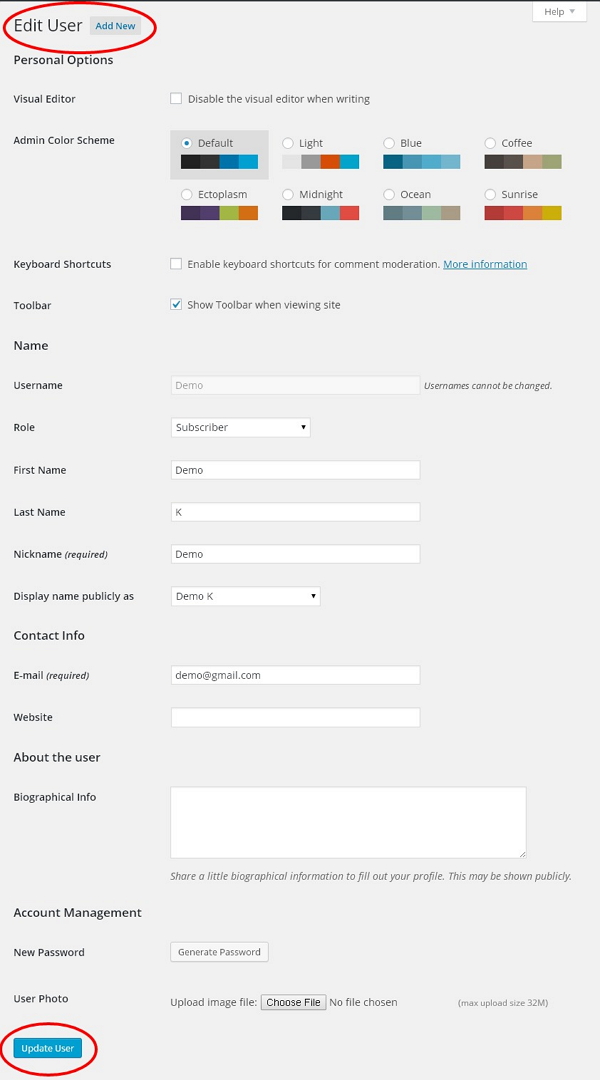
Step (4) − The Edit User page is displayed. Here you can edit or modify all the fields as per your need and click on Update User to save the changes.
WordPress – Delete Users
In this chapter, we will learn how to delete users in WordPress.
Following are the steps to Delete Users.
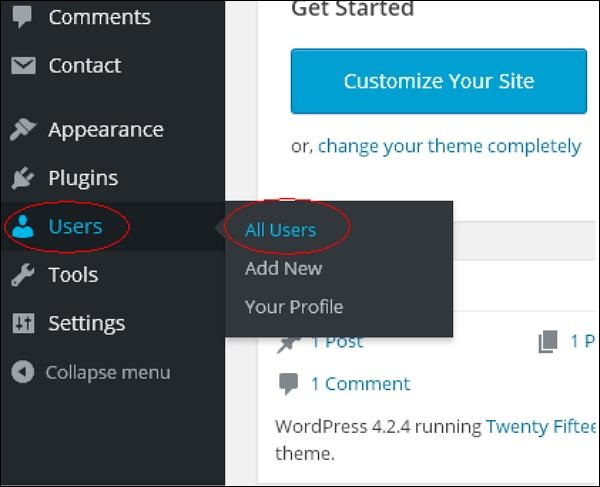
Step (1) − Click on Users → All Users.
Step (2) − List of Users gets displayed as shown in the following screen.
Step (3) − Select the one you want to delete. And click on Delete.
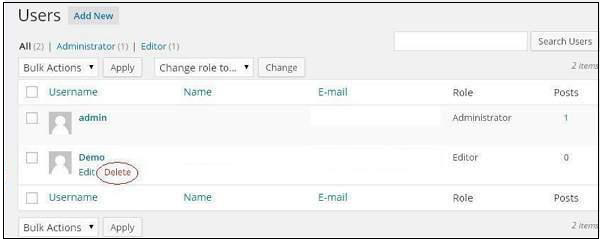
Step (4) − When you click on Delete you get the following page.
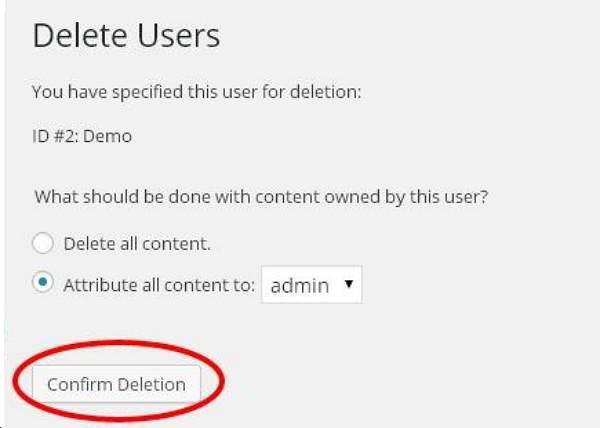
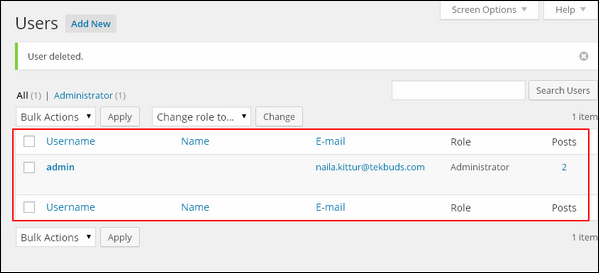
Step (5) − Select options as required and click on Confirm Deletion. Your user will be deleted.
Step (6) − We have another method of deleting users. A screen as shown in the following shot appears.
Here you can select the users to delete, check the boxes and click on Delete from the dropdown list and click on Apply.
Step (7) − Once you click on Apply, the users selected will be deleted.
WordPress – Personal Profile
In this chapter, we will learn how to create a Personal profile in WordPress.
Following are the steps to Personal Profile.
Step(1) − Click on Users → Your Profile from the left navigation bar.
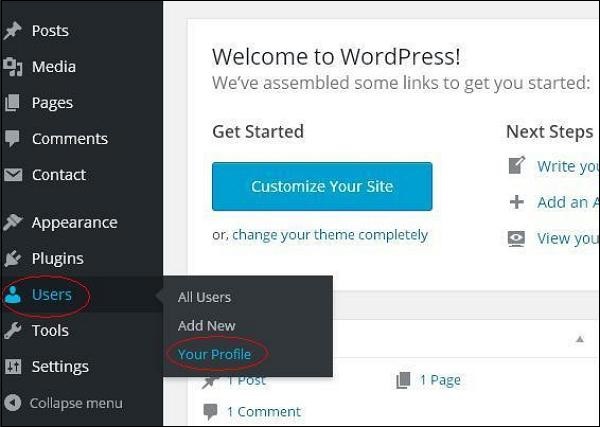
Step (2) − When you click on ‘Your profile’ the following screen will be displayed.
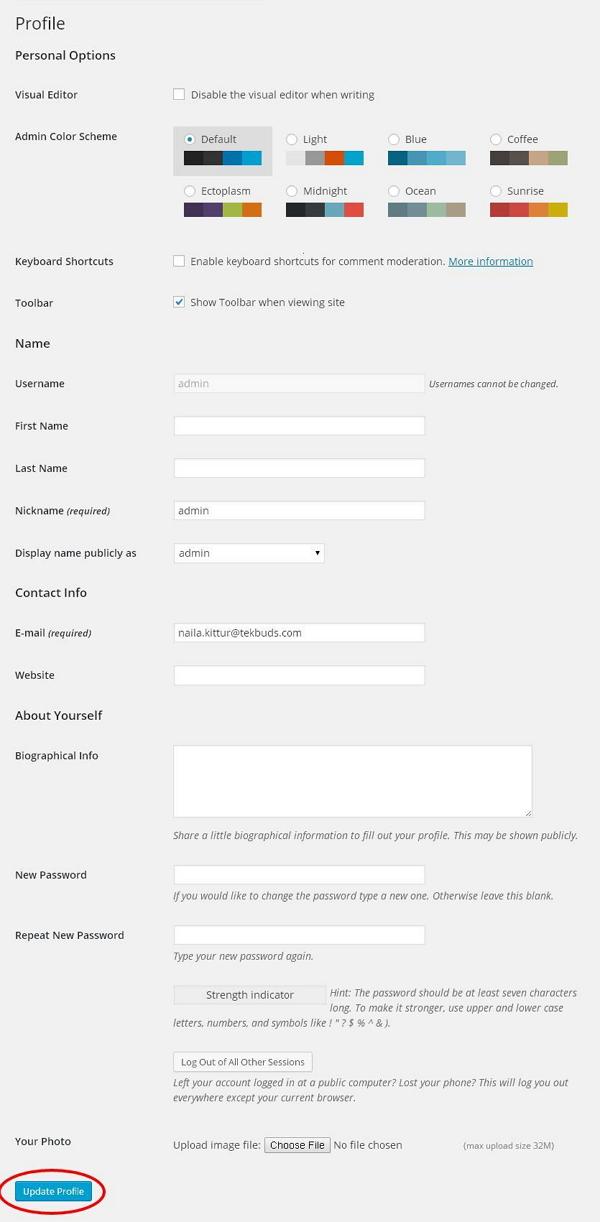
The following Personal options appear on the screen −
-
Visual editor − While you are adding posts/pages to your site you can enable this setting if you wish to create, format, or edit your post. If you disable this setting, you won’t be able to use this option.
-
Admin color scheme − You can change the color of your WordPress site by selecting any of the following.
-
Keyboard Shortcuts − If you are too fast at getting your work done and need keyboard shortcuts then you can check this box.
-
Toolbar − If you check this box, you can view the toolbar while using WordPress.
Name
-
Username − Enter your user name.
-
First Name/ Last Name − Enter your first name and last name.
-
Nick name − Enter nick names if any.
-
Display name publicly as − Check the box if you want your name to be displayed publicly.
Contact Info
About yourself
-
Biographical Info − Some details about you.
-
New password − Enter a password of your choice.
-
Repeat password − Re-enter the password for authentication. Password must contain 7 characters.
-
Your photo − You can upload an image of your own from your computer. This will be your profile picture.
Step (3) − After you have updated all the changes, click on Update Profile.
WordPress – Theme Management
In this chapter, we will learn about Theme management. It includes image files, templates, CSS stylesheets, etc. that can help to make your website look great. This chapter discusses how to install, add new, or customize themes in WordPress.
Following are the steps for Theme Management.
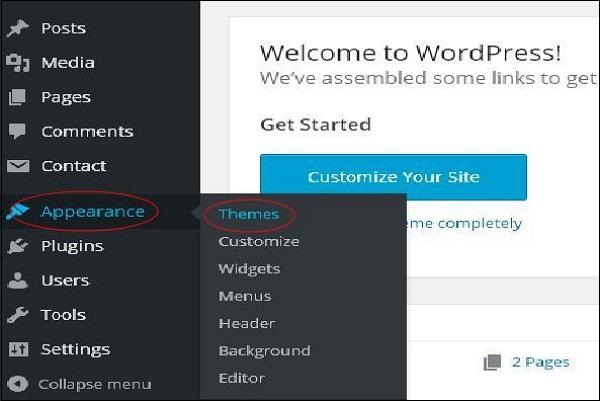
Step (1) − Select Appearance → Themes from the dashboard.
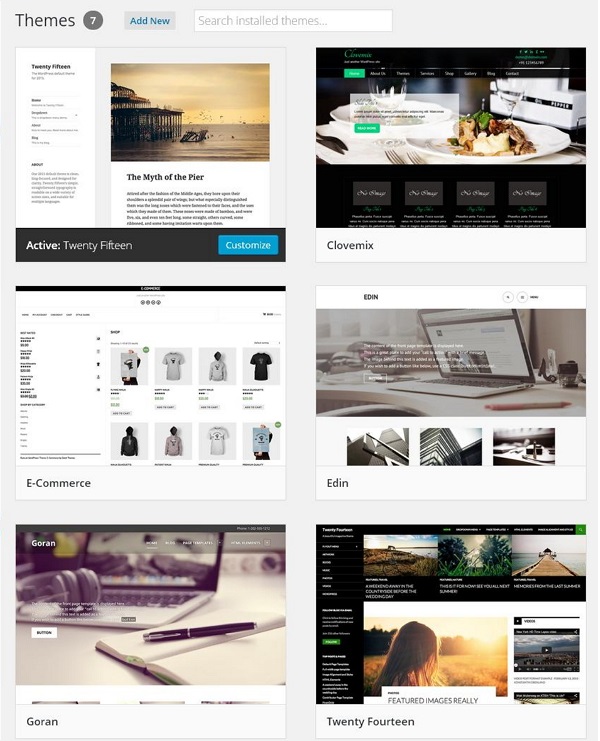
Step (2) − The following screen will be displayed. Hover over any theme and click on Theme Details.
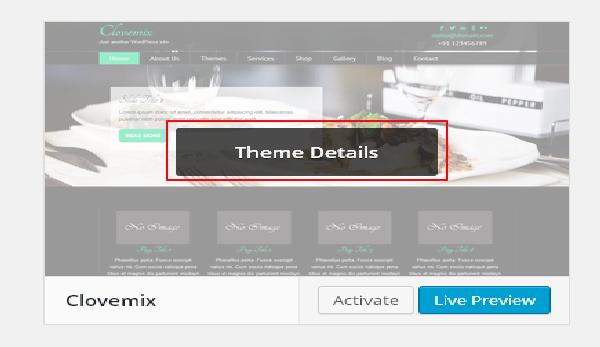
Step (3) − When you click on Theme Detail the following page appears. It consists of details related to the theme. Details like version, description, tags etc.
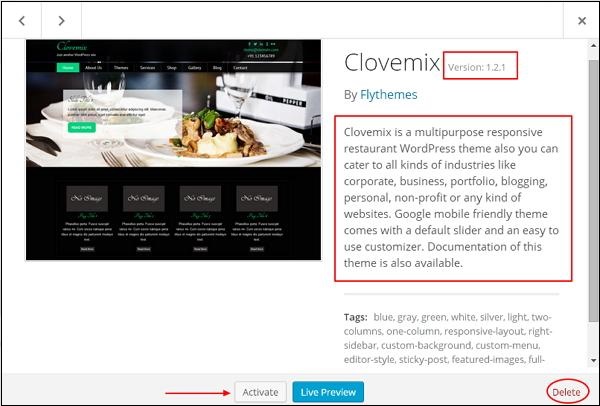
If you want to add this theme to your page/website then click on Activate, and if you want to just check the theme, then click on Live preview.
If you click on activate then you get a pop-up message as −

Step (4) − Click on Customize.
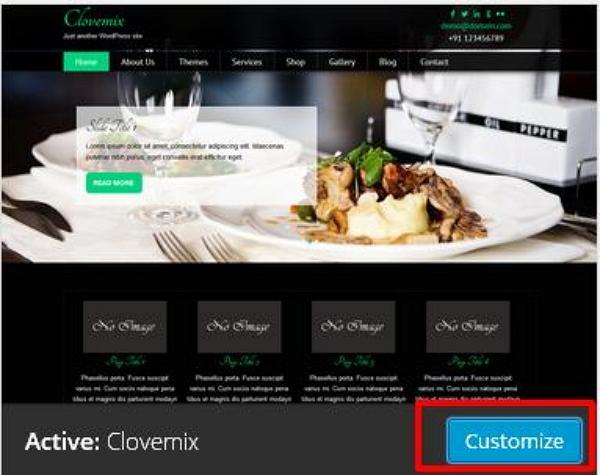
Step (5) − On the left side of the page, you can customize your theme. Any changes you make or anything new you add is displayed on the right side of the page.
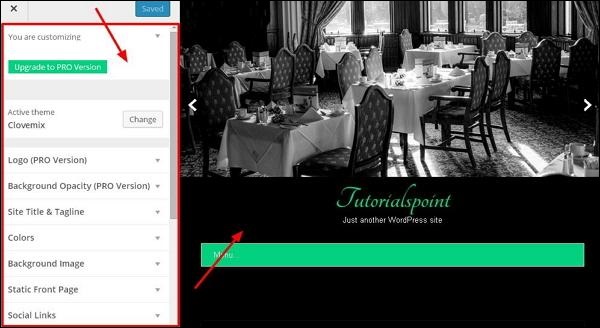
We will learn about customizing the appearance of the themes in the next chapter i.e.; WordPress Customize Theme.
WordPress – Customize Theme
In this chapter, we will learn how to customize themes. Customizing themes help you to give a new look to your website. Here you can change background images/colors, add titles, and do much more.
Following are the steps of Customize theme.
Step (1) − Click on Appearance → Customize.
Step (2) − The following screen will be displayed.
As can be seen, on the left side we have the customizing section, and on the right side we have the theme you have chosen. So any changes you make on the left side will be displayed on the right side of the page. Here are a few options you must know −
Active theme − In this section, you can change the current theme just by clicking on ‘Change’.
When you click on ‘Change’ you get a list of themes, click on any of the themes, and then click ‘Save & Continue’. Your theme will be saved.
Site Title & Tagline − In this section, you can add the site title and tagline you want to add to your website.
Add your title name in the ‘Site Title’ section. And your tagline in the ‘Tagline’ box.
Colors − You can change your header text color using this section. As you scroll through the colors you find changes happening on the right side of your page. You can even add a color of your own into the box that is situated in between ‘Current color’ and ‘Default’.
Header Image − Add a header image either by selecting from the suggestions or you can add an image of your own by clicking on ‘Add new image’.
Widgets − Add widgets to your site from here.
When you click on the arrow mark the following image appears.
Here, there are two options −
First is the ‘Main Widget Area’, when you click on this you get another list of widgets that are to be displayed in the footer area.
When you click on any of the widgets a dropdown appears where you can edit more or add more. For example − If you want to add categories then the following image appears.
In this image, as you can see, you can add your category in the ‘Title’ section. Check any of the required boxes. If you do not want to add any, then say ‘Remove’. Same goes for other widgets too.
Secondary Widget − Here you must click on ‘Add a widget’and you get a side bar with a list of different widgets. Click on any and it adds up to your widget list.
If you want to add more widgets then click on ‘Add a widget’again and you can add as many widgets as you want.
Static Front − Select either latest posts or static front page for your site.
WordPress – Widget Management
In this chapter, we will study about Widget Management. Widgets are small blocks that perform specific functions. These give design and structure control to the WordPress theme. Some specific features of a widget are −
- They help you add content and features.
- They can be easily dragged and dropped in widget area.
- They vary from theme to theme. They are not same for every theme.
Step (1) − Click on Appearance → Widgets.
Step (2) − The following screen showing available widgets appear.
The following functions appear on the page −
-
Available Widgets − You can use these to add into your sidebar main.
-
Inactive Sidebar (not used) − These are not used and can be removed permanently from the widget list.
-
Inactive Widgets − Removes the widgets from sidebar but keep it in the settings.
-
Sidebar Main − Any widget you add here will appear on your site.
-
Manage in Customizer − Takes you back to customization page.
Step (3) − Drag and drop in the Sidebar Main. Any widget you add here, shows up on your site.
WordPress – Background
In this chapter, we will study about background images, background colors and background opacity.
Step (1) − Click on Appearance → Background.
Step (2) − The following page appears where the Background Image section shows up.
Step (3) − There’s no image selected for background. If you want to do so, then click on Select Image. You get the following page.
Here you can upload images using two options.
- Upload Files
- Media Library
Step (4) − Upload Files − When you click on Upload files the following screen is displayed. Select files from your desktop and then click on Choose Image if satisfied with the image.
Step (5) − Media Library − When you click on Media Library the following page appears. Select files from the WordPress media library, which means, if you already have images updated then you can select any of them directly.
After selecting an image, on the right side you will get a few options −
-
Edit Image − When you click on this you are taken to another page where you can edit the scale image, dimensions, crop image, and thumbnail settings, etc. As shown in the following image, make the required changes, click on Save and then click on Update.
-
Delete Permanently − If you want your image off the library then click on this button.
-
URL − Enter your image URL into this box.
-
Title − If you want to make any changes in the title of the image you can do it right here.
-
Caption − You can explain briefly about your image in this section.
-
Alt text − Give an alternative text to your image so that it is easily available for the users during search.
-
Description − A little description about your image.
Step (6) − Click on Colors → Background Color on the same page. Change your background color accordingly. Background Opacity is not used for all themes. Theme customization is not same for every theme we use. It changes from theme to theme.
WordPress – Host Transfer
In this chapter, we will study how to transfer WordPress to a new hosting platform.
Here, we have used Hostinger web hosting to transfer the WordPress site to another host.
Just follow the simple steps given below to transfer your WordPress site to another host.
Step (1) − Keep the backup of WordPress files and export the database. We will study about this in detail in the chapter WordPress – Backup & Restore
Step (2) − Login to your cPanel and click on MySQL Databases as shown in the following screen.
Step (3) − Create a new database and MySQL user as shown in the following screen. The page has the following fields −
-
MySQL Database Name − Enter your database name.
-
MySQL Username − Enter your username.
-
Password − Set password for your database.
-
Password again − Once again set the same password as previous for authentication.
After filling all the fields, Click on Create button.
Step (4) − You can view your created MySQL database, Userand Host as shown in the following screen.
Step (5) − Click on + symbol.
Step (6) − Click on phpMyAdmin.
Step (7) − Click on Import tab on the phpMyAdmin page.
Step (8) − Click on Choose File button to select the backup file from your system and click on Go button.
Step (9) − You can view the tables of database uploaded as shown in the following screen.
Step (10) − Upload your WordPress files by using file transfer protocol(FileZilla) as shown in the chapter WordPress – Backup & Restore in Restoring WordPress Files section.
Step (12) − Inside the Website section of hostinger, Click on Auto Installer.
Step (13) − You can view the uploaded file of the WordPress. Click on the URL link as shown in the following screen.
Step (14) − You can view the login page of WordPress.
WordPress – Version Update
In this chapter, we will study how to update version in WordPress. Here, we will upgrade WordPress to the latest version through the admin panel.
Following are a few simple steps to update the version in WordPress.
Step (1) − Click on Please Update Now as shown in the following screen.
You will get notifications in WordPress admin panel when there is a newer version available for WordPress. Before updating, it is advised to keep WordPress backup.
Step (2) − After clicking on the update link, the following page gets displayed. Click on Update Now button.
Step (3) − The following message gets displayed during the upgradation of WordPress.
Note − While updating the version, if you get an error as
Fatal error: Maximum execution time of 30 seconds exceeded in C:\your wordpress folder\wp-includes\class-http.php on line 1597
then you need to take the following actions −
Now your WordPress is successfully upgraded.
WordPress – Spam Protection
In this chapter, we will learn how to protect your WordPress blog or website from spam. Make sure that your WordPress script is updated to the latest stable version. WordPress comes with a preinstalled antispam solution – Akismet.
You can activate Akismet, for which you should have a WordPress API key. You have to register at the official WordPress website. The key will be sent to your mail box.
Following are the steps to follow to enable Akismet Spam Protection plugin for your website or blog.
Step (1) − Go to your WordPress admin area → Plugins → Installed. The following screen will be displayed.
Step (2) − Click on Activate button as shown in the following screen.
Step (3) − The Akismet plugin will be activated and then Click on Activate your Akismet account button as shown in the following screen.
Step (4) − Click on Get your API key as seen in the following screen to get a new key or enter manually, if you already have API key.
Step (5) − If you don’t have API key then, click on GET AN AKISMET API KEY tab to move further.
Step (6) − Fill up the required fields and click on Sign upbutton as shown in the following screen.
Step (7) − Once you complete with signup process. You will get an API key in your registered e-mail id. Enter API key manually and click on Use this key button as seen in the following screen.
Step (8) − If you have entered a correct API key, it will be verified and you will get a confirmation message as reflected in the following screen.
Step (9) − Now your blog will be protected from spam by Akismet. You will be able to check the comments in your blog for spam, as well as manually mark comments as spam from the blog admin area → Comments.
You can keep a track of how many spam posts have been stopped by Akismet and you can secure your posts, blogs, comments, etc. Furthermore, you can prevent your website from spammers, who can harm your site.
WordPress – Backup & Restore
In this chapter, we will study how to Backup & Restore files and database in WordPress. In WordPress there are two parts of backing up such as −
- WordPress Files Backup
- WordPress Database Backup
- WordPress Files Restore
- WordPress Database Restore
WordPress Files Backup
To get the backup files of WordPress, you need to install FileZilla Client on your system.
Following are the simple steps used for files backup operation in WordPress −
Step (1) − Open the FileZilla Client as shown in the following screenshot.
Step (2) − Enter the Host, Username, Password and Portlike you have used to log-in to your cPanel.
After filling all the fields, click on Quickconnect button.
Step (3) − You will get all files and folders of your WordPress site on the right side as seen in the following screen.
Step (4) − Select all the files and folders and right click on the mouse and click on Download.
After downloading the WordPress files from cPanel, it will be saved on your system.
WordPress Database Backup
Following are the simple steps for database backup in WordPress −
Step (2) − Click on the database name ‘wordpress’ which you have created for WordPress.
Step (3) − After clicking on database wordpress, it will open the following page. Click on Export tab.
Step (4) − You will get two methods to export the database i.e. Quick and Custom. Select any one of the methods and click on Go button.
After exporting the database file, it will get saved on your system.
Restoring WordPress Files
Following are the simple steps used to restore the files in WordPress using ftp −
Step (1) − Open the FileZilla Client and login to your site using ftp as shown in the following screen.
Step (2) − Open the local directory in ftp and upload all WordPress files to your website as shown in the following screen.
Step (3) − Then, go to your wordpress folder → wp-config.php file. Copy and rename wp-config.php file before editing, in case of some mistake you can restore this file back.
Open the wp-config.php file and locate the following code.
define('DB_NAME', 'db_name');
Replace the db_name with your database name which you have created.
define('DB_USER', 'db_user');
Replace the db_user with your username of MySql.
define('DB_PASSWORD', 'db_password');
Replace the db_password with your password of MySql.
Save your wp-config file after editing and upload it to your WordPress site through ftp.
Restoring WordPress Database
Following are the steps used to restore the database in WordPress −
You can create a new database or import your backup in the existing database.
Here we’ll create a new database name, i.e., new_wordpressand click on Create button.
Step (2) − You can view your created database as shown in the following screen. Click on the database name new_wordpress.
Step (3) − Click on Import.
Step (4) − Click on Choose File button to select the backup file from your system. After uploading the sql file, select format as SQL as shown in the following screen.
Click on Go button.
Step (5) − Once you click on Go, you will get a message after the sql file is uploaded successfully.
WordPress – Optimization
In this chapter, we will study how to Optimize WordPress site.
Here are a few simple tips to optimize your WordPress site.
- Ensure high quality and meaningful content.
- Have the right names for images.
- Use short permalinks that contain keywords.
- Have optimized themes.
- Sitemap should be in XML format.
- Connect posts to social networks.
- Beware of black hat techniques.
- Delete your trash box.
- Keep Checking Your Site Statistics
- Keep checking your plugins.
- Use CSS and JavaScript effectively.
Ensure High Quality and Meaningful Content
Any page you create, the most important thing that matters is the content. You must have good content with keywords that can be helpful for users, not for the search engines. Content should be understandable and not complicated or difficult to read.
Have the right names for images
The names you choose for your images must be unique; consider choosing images keeping the user in mind. Use keywords that might be helpful for the users. Have some specific names for your images and don’t forget to add your alt tags and title tags to your images.
For example − If your image is about Chocolate sundae Ice-cream then do not mention the name as DSC12346, instead put it as ‘Chocolate-sundae-High-street-restaurant-new-york.jpg’. This would be much easier to search.
Use short permalinks that contain keywords
Have optimized themes
Use those themes that are fast and are optimized for WordPress so that when applied to a website, it must not have low speed.
Sitemap should be in XML format
Google has many tools that can be useful. Tools like Website Optimizer, Webmaster Central, and Google XML sitemaps are very easy to use.
Connect posts to social media
Social media is a very important aspect today. So have them connected to your blog posts, pages, etc., to have good ranks and popularity. Help promote others posts and pages too and they will do the same in return.
Beware of black hat techniques
Don’t trick Google as it finds you in no time. Don’t put yourself in trouble and create problems for your site by using black hat techniques. Be sure to use genuine SEO techniques.
Delete your trash box
Always consider clearing your trash for more speed and to have a good flow with your website.
Keep checking your site statistics
Size of page matters a lot. The more images, flash, videos or media related posts on your page, the more it would be slower to load. Yslowi> module plugin is recommended to help you get a faster page browsing.
Check plugins
Having many plugins in WordPress may also be the reason for your page to slow load. So keep a check on your plugins which you’re working on. Consider checking your plugins before you add them.
Use CSS and JavaScript effectively
Always keep your CSS at the upper side of the page and JavaScript at the bottom. Let CSS load first and then JavaScript. Here is a plugin that will help you get your JavaScript’s at the bottom of the page. It is Footer javaScript.
WordPress – Reset Password
In this chapter, we will learn how to reset your passwords in WordPress. We have two methods of resetting passwords in WordPress −
Let’s look how to set password through the User section.
Step (1) − Login to your wordPress admin panel and click on Users → All Users from the dashboard.
Step (2) − When you click on All Users you get a page with a list of users. From this select the one you want to reset password of and click on edit.
When you click on edit, the following page gets displayed.
Now let’s look into resetting your password using Lost your password section.
Step (3) − In this page you can type in your new password that must contain 7 characters. Once you are done with setting your new password click on Update Profile.
Step (3.1) − When you try logging into your WordPress admin panel, you forget your password and need to reset it, you get the following message on the page.
Step (3.2) − Click on Lost your password? The following page appears. Update your e-mail and say Get New Password.
Step (3.3) − After you click, you get a message saying a Link has been sent to the e-mail address you provided.
Step (3.4) − Go to your e-mail and open the (WordPress Site) Password Reset mail and click on the link that is provided.
Step (3.5) − Type your new password, confirm again if required and then click on Reset Password.

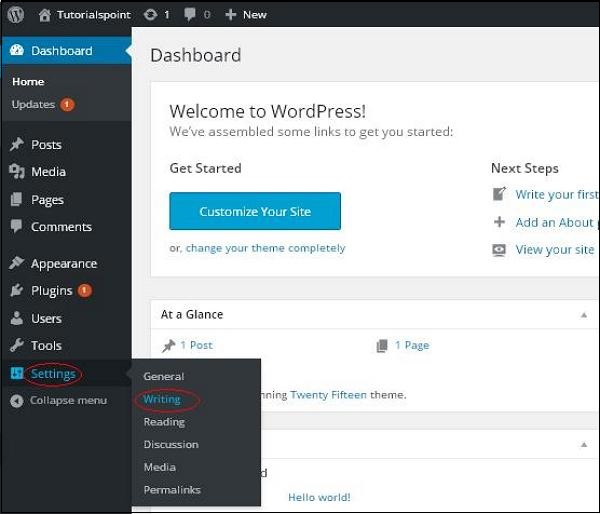
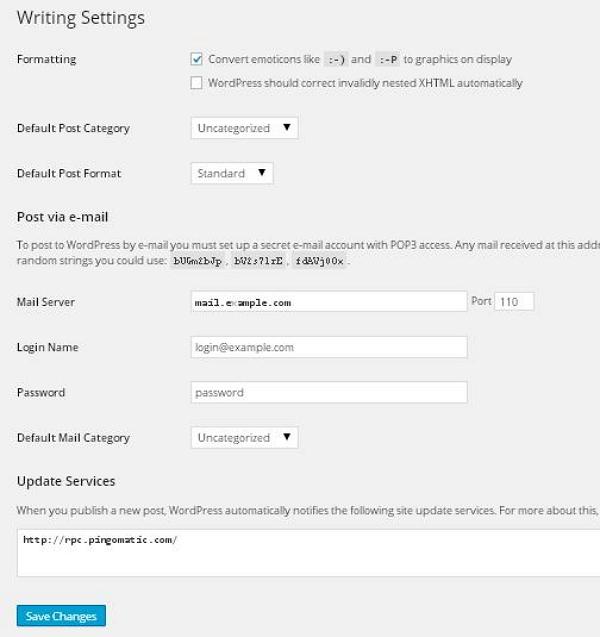
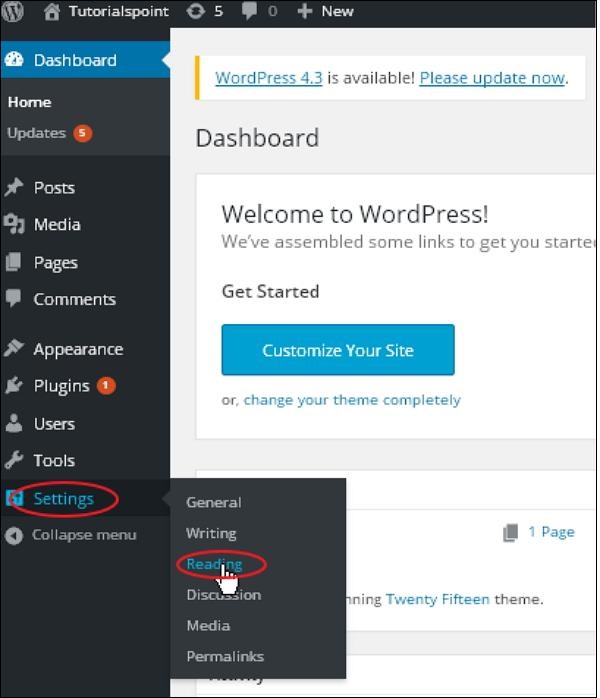
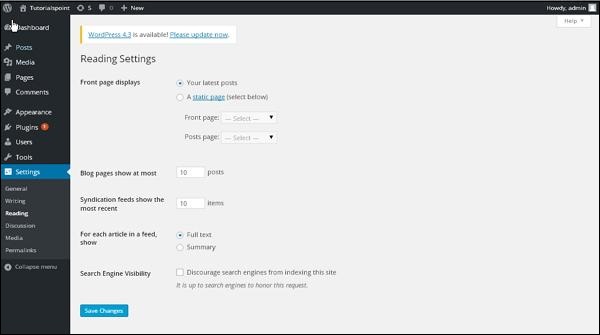
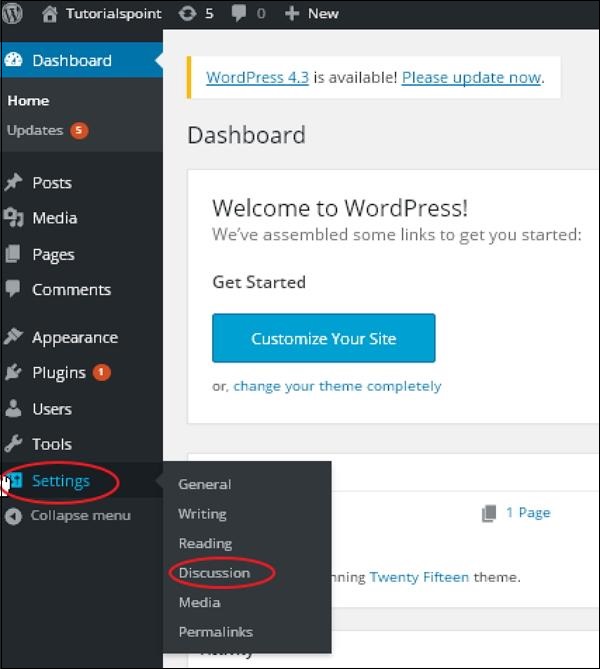
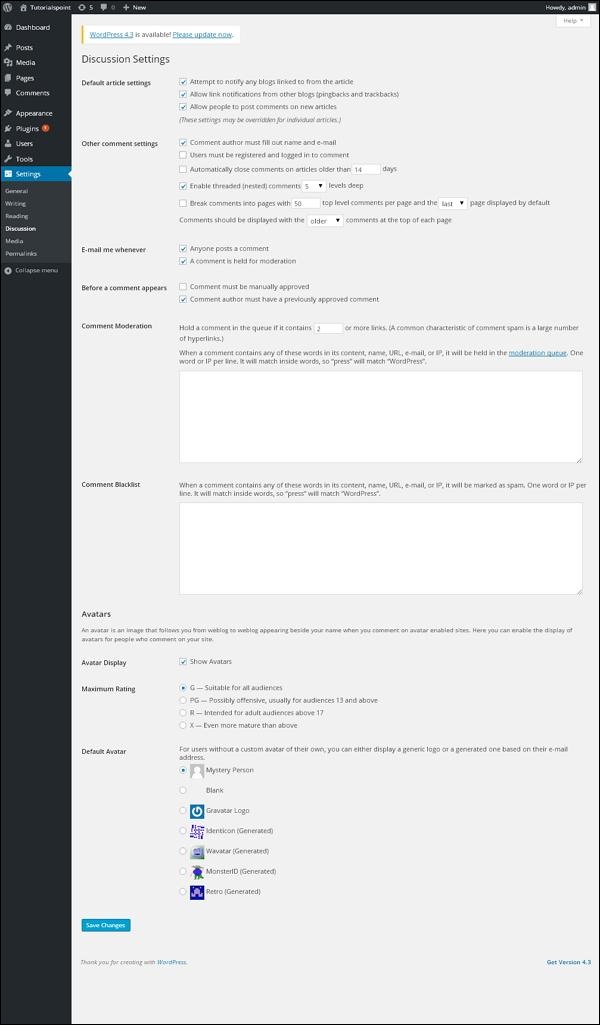
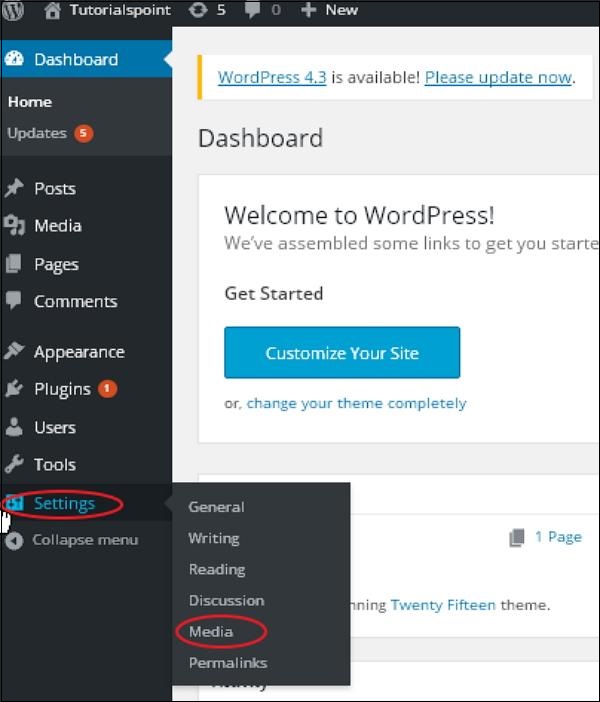
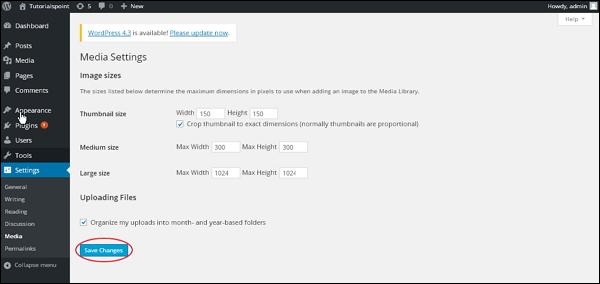
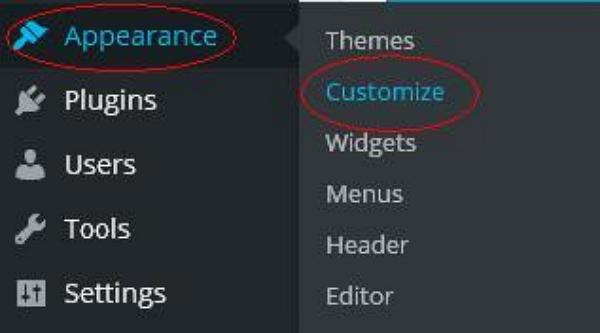
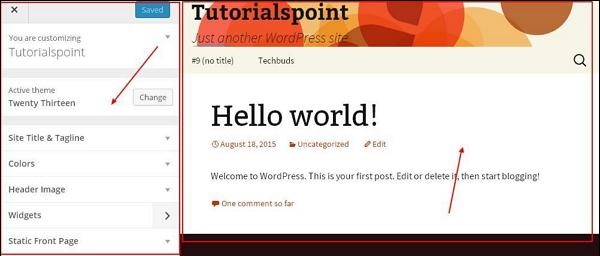
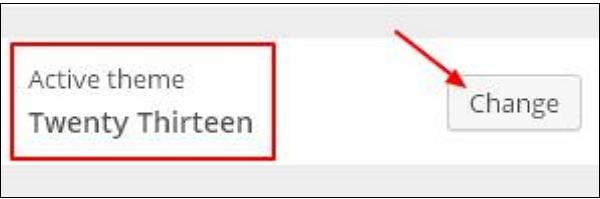
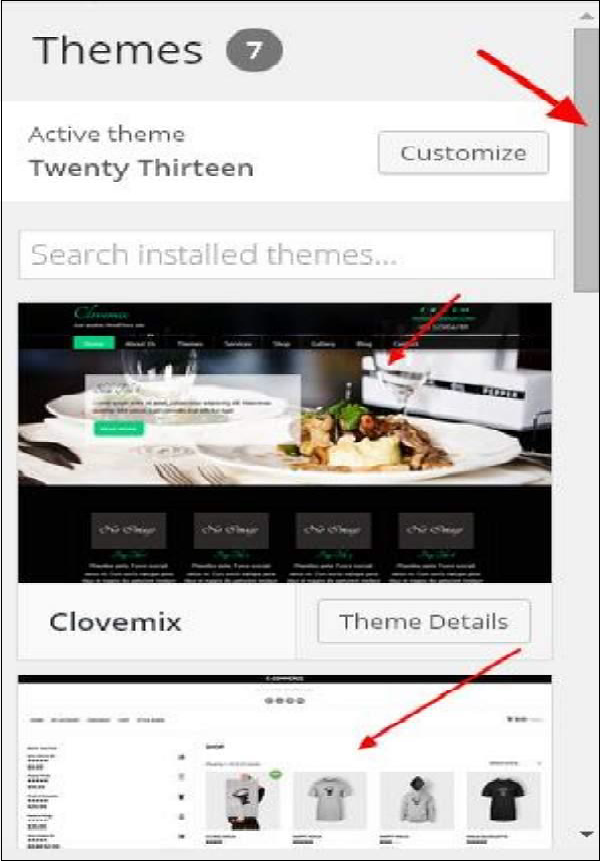
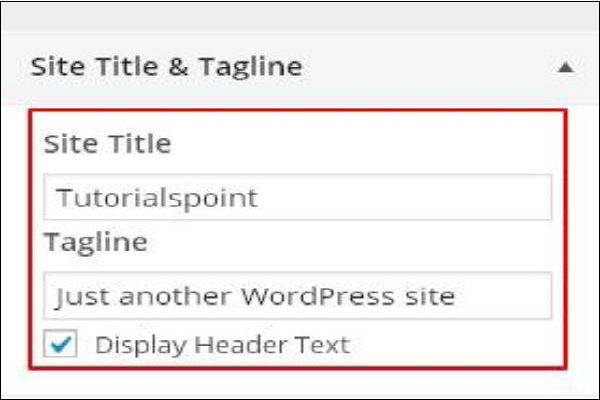
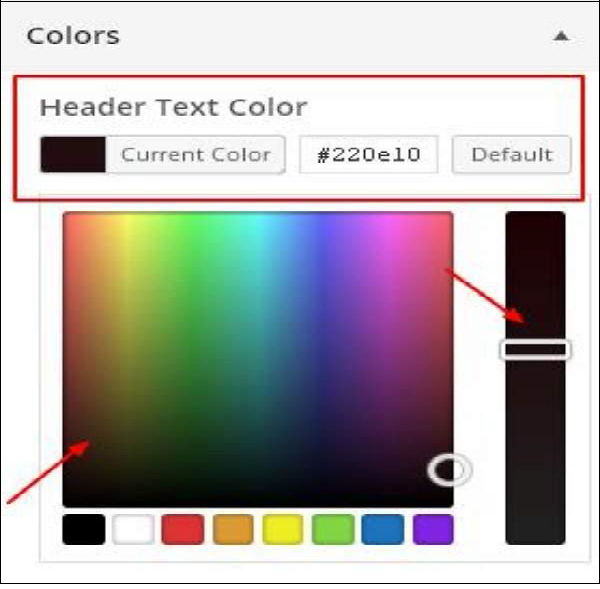
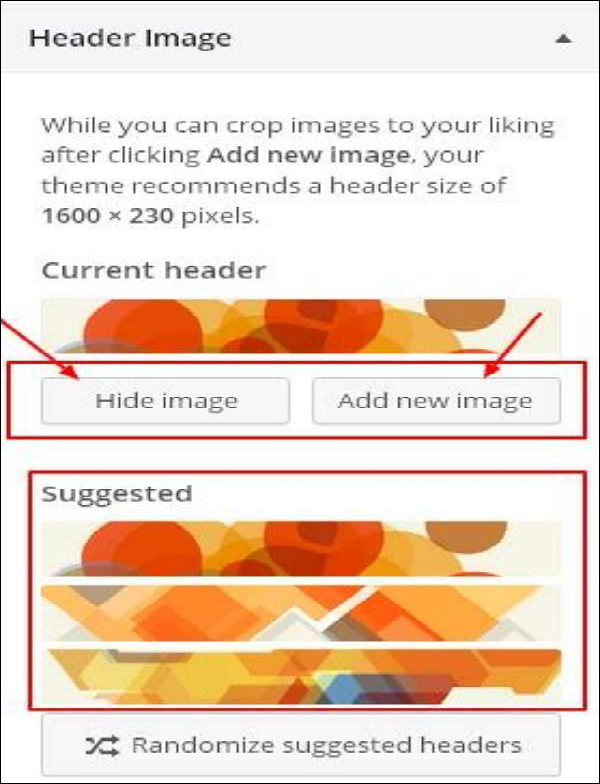

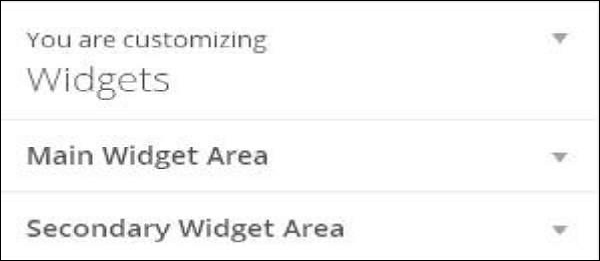
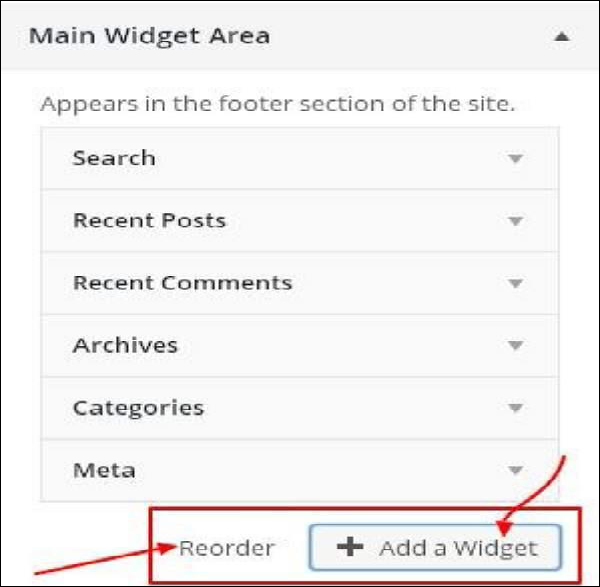
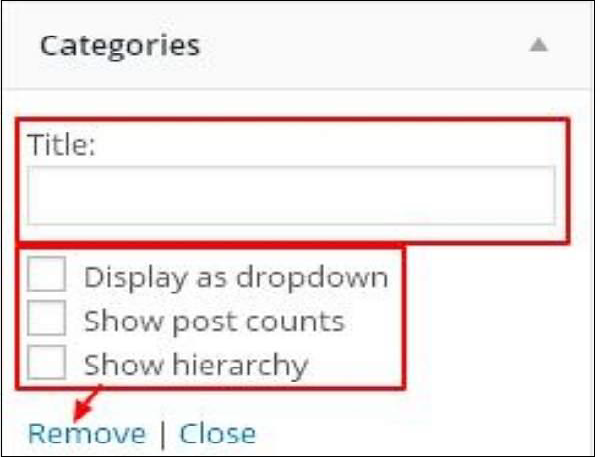
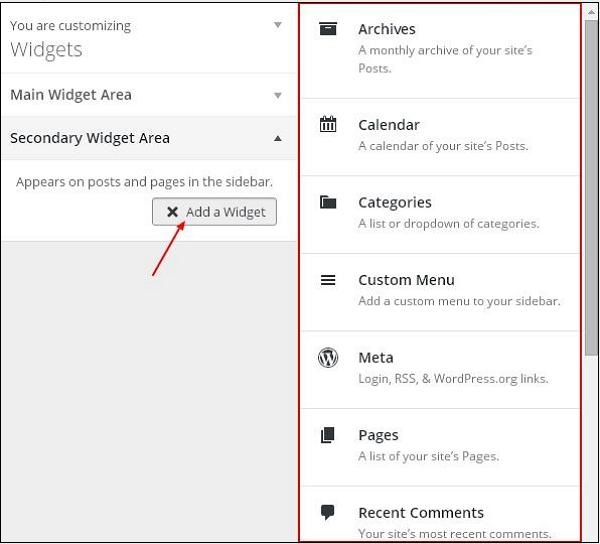
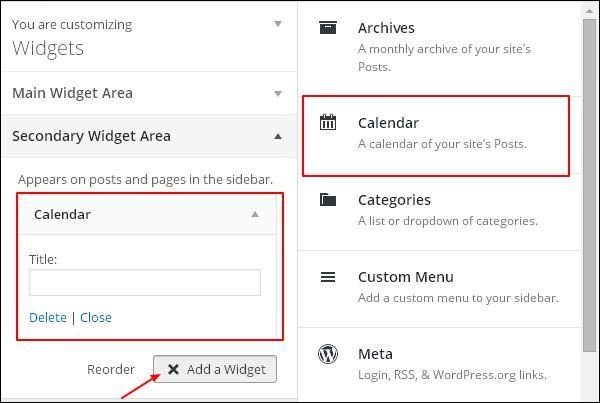
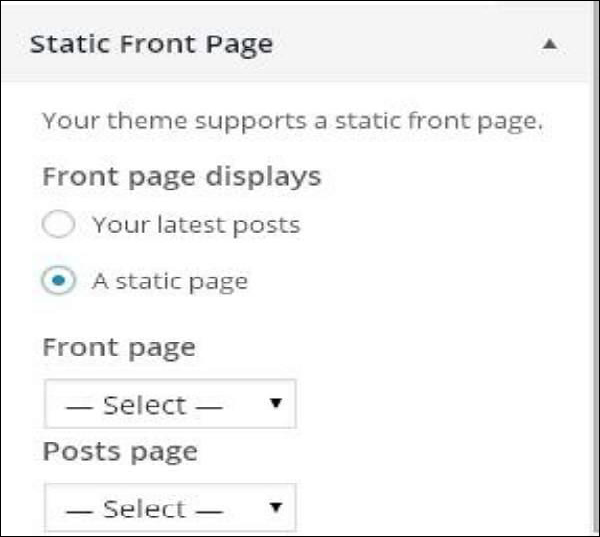
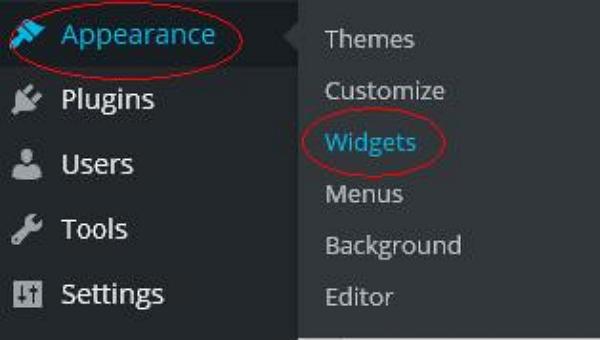
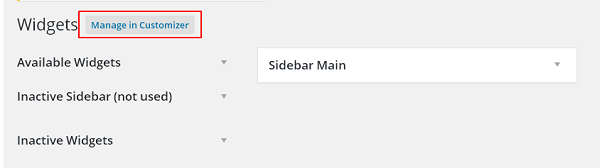
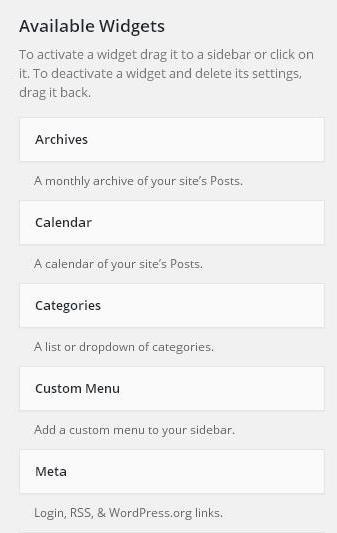
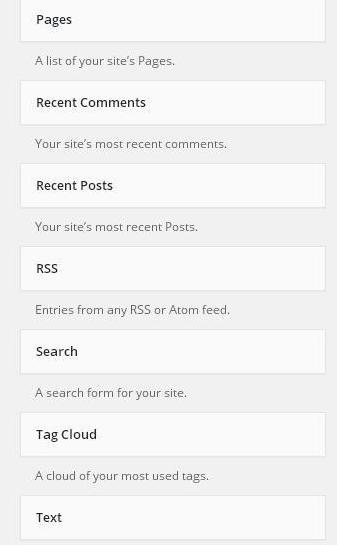
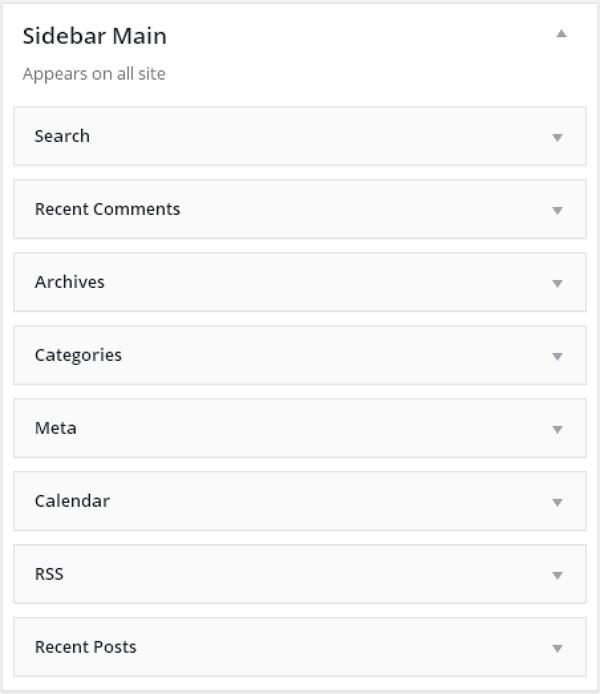
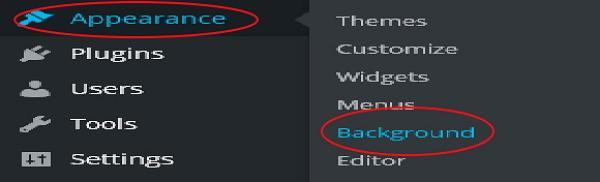
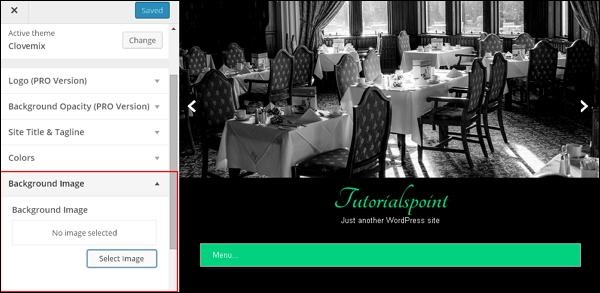
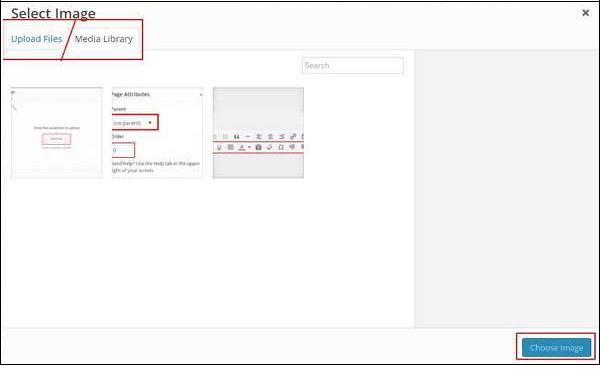
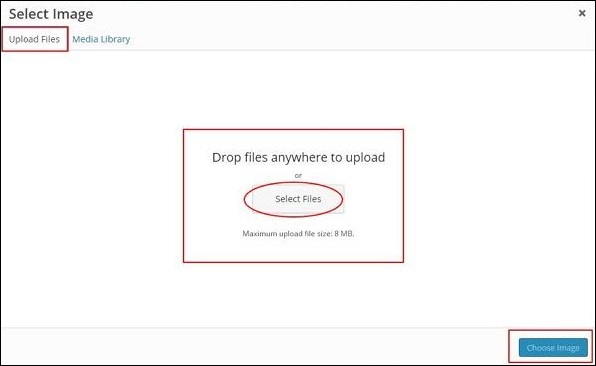
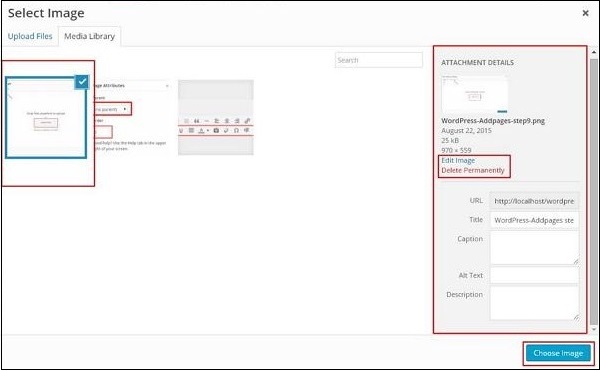
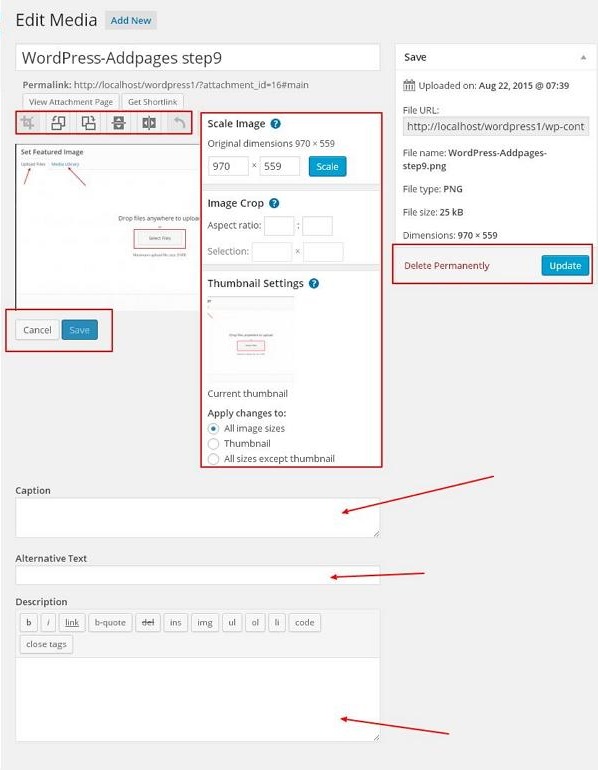
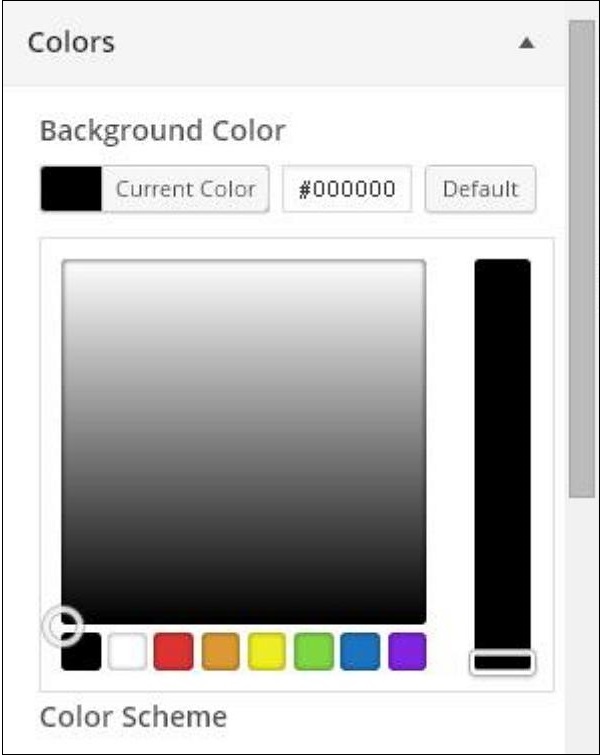
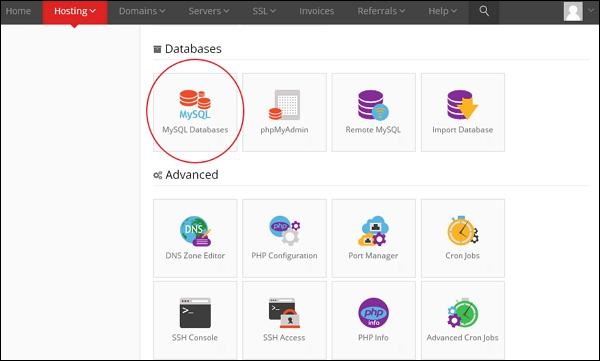
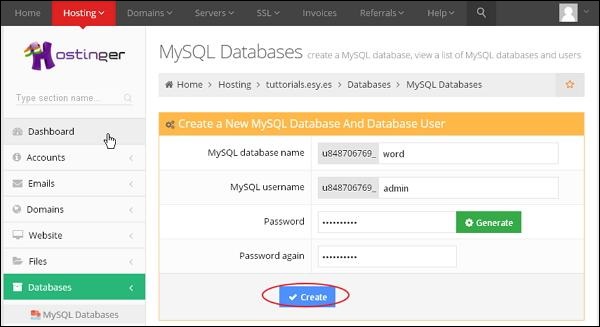
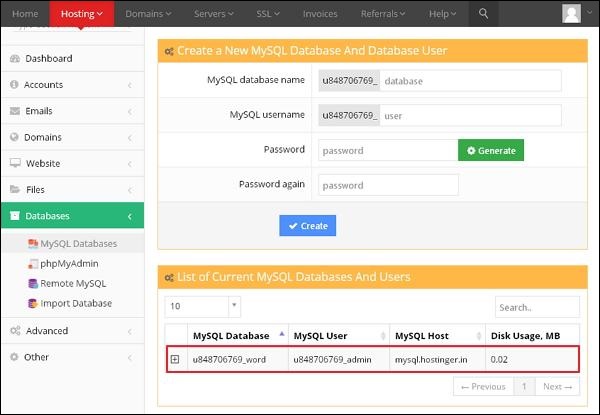
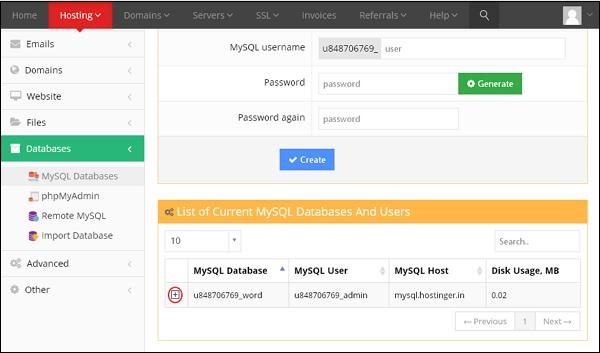
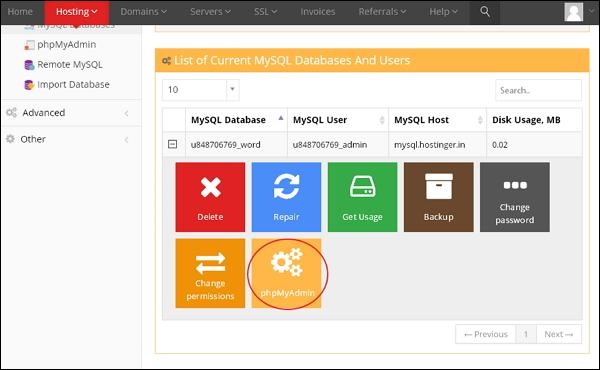
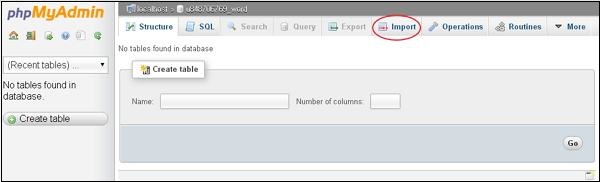
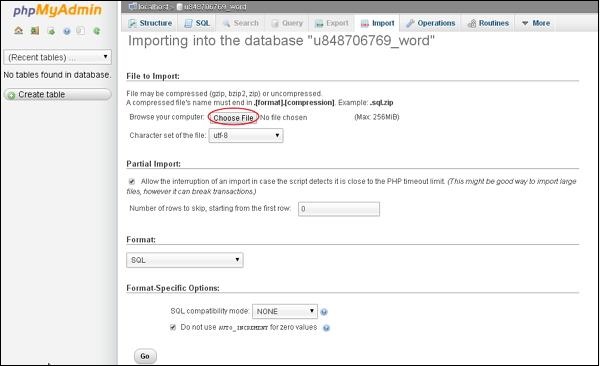
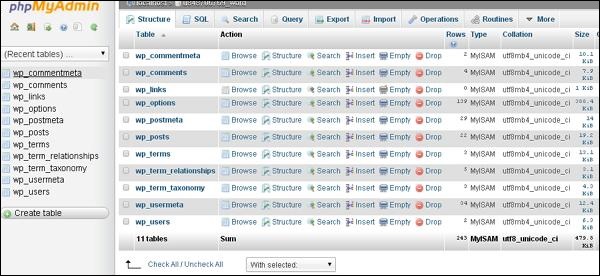
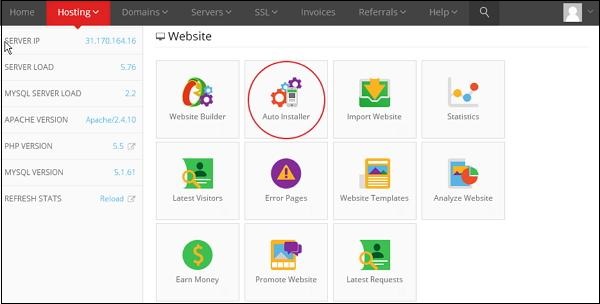
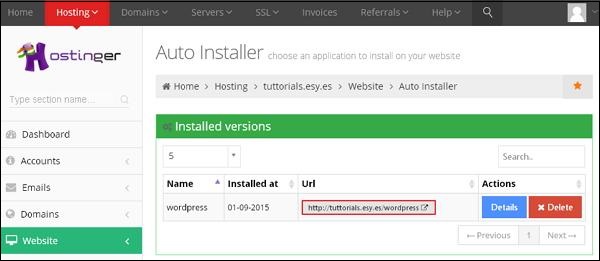
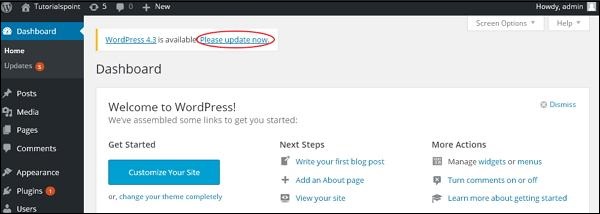
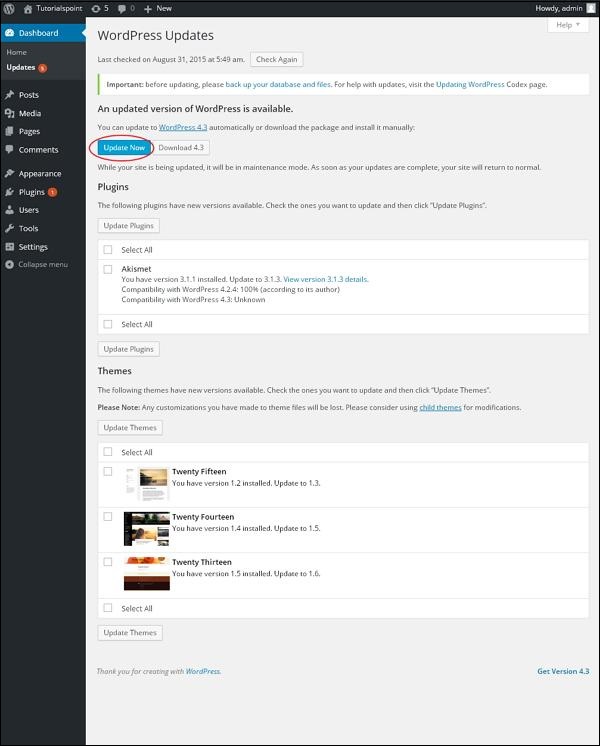
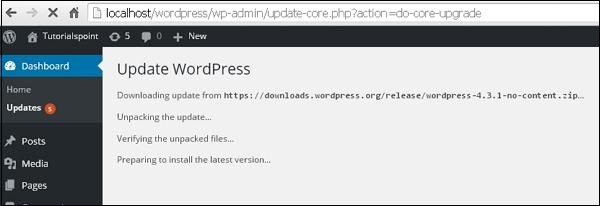
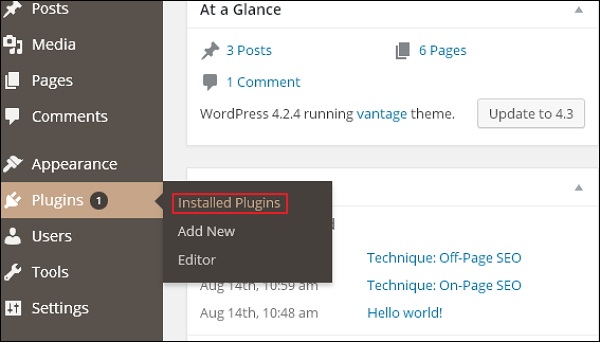
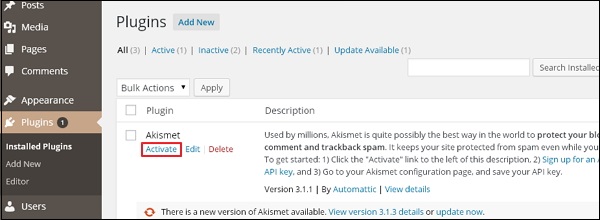
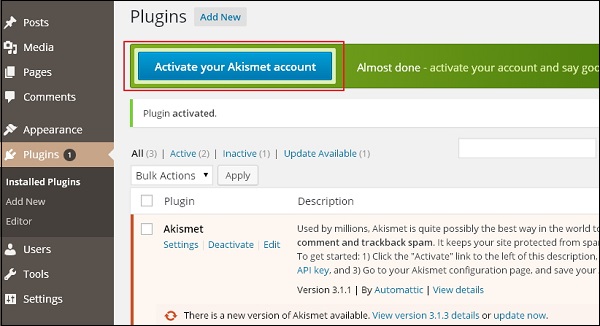
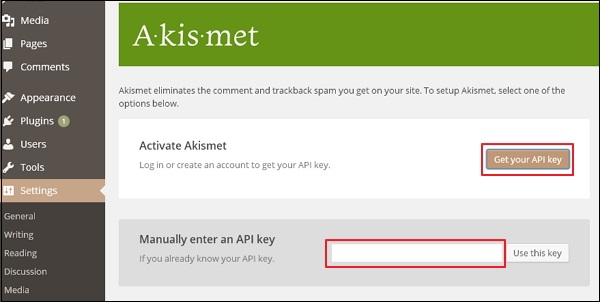
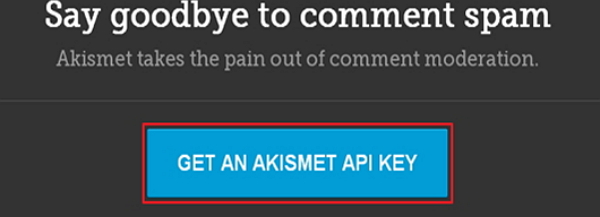
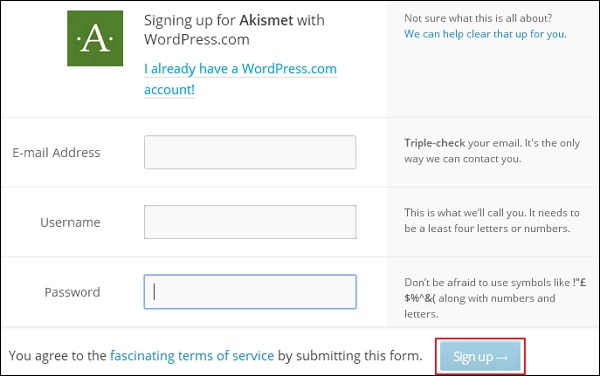
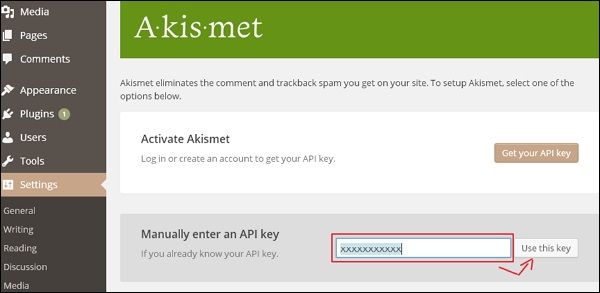
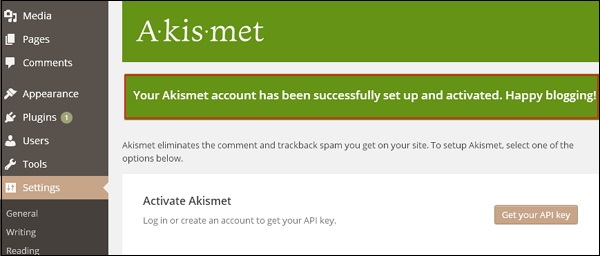
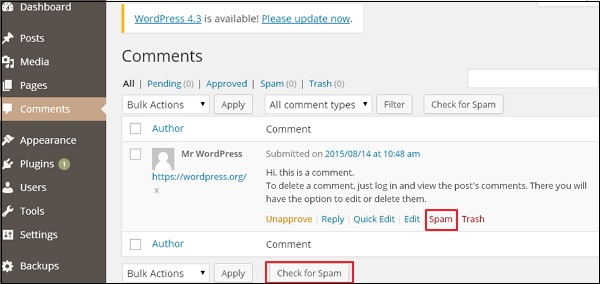
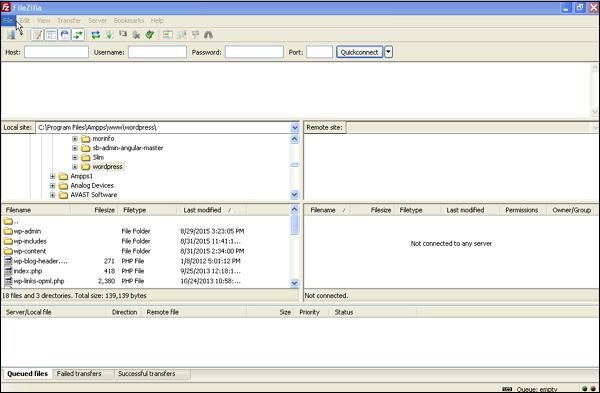
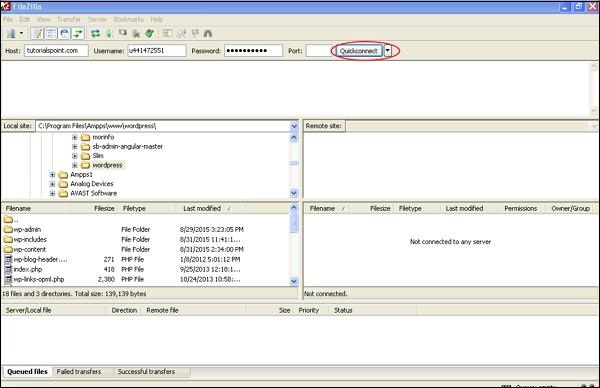
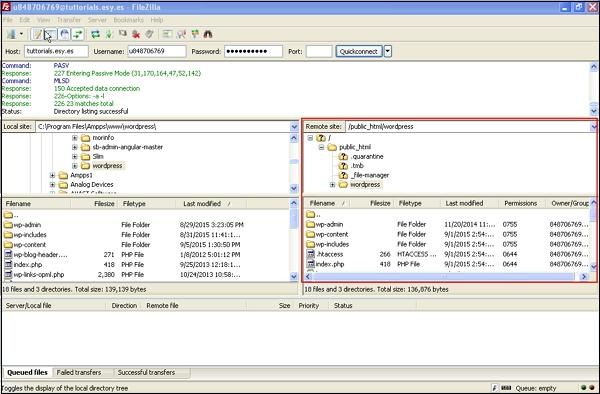
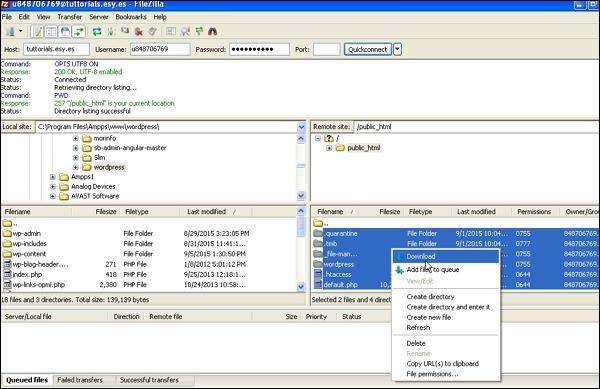
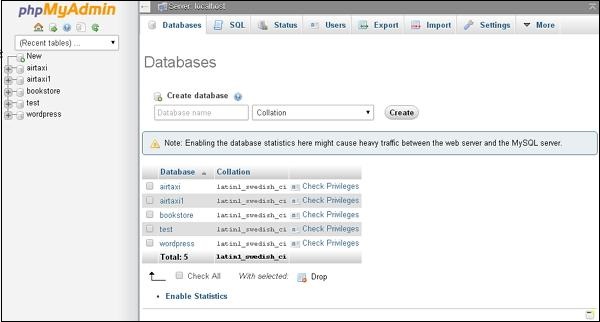
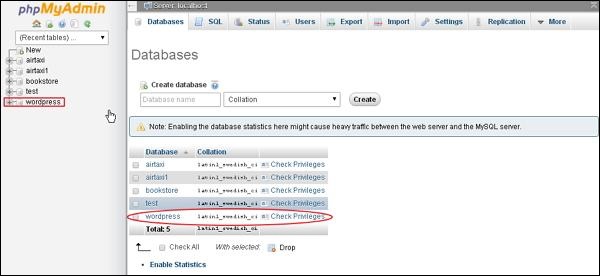
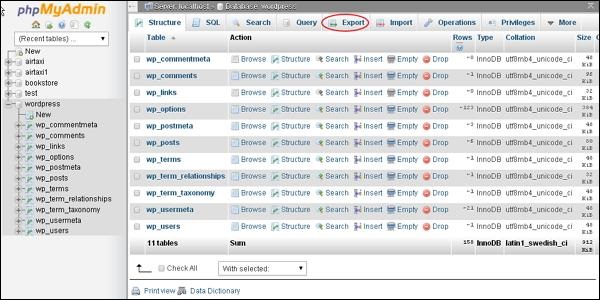
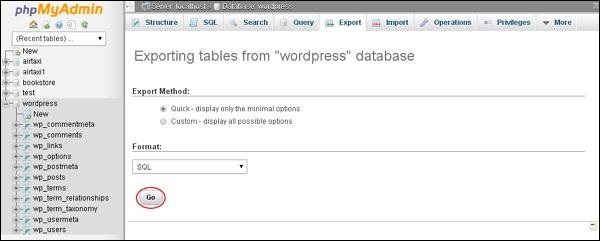
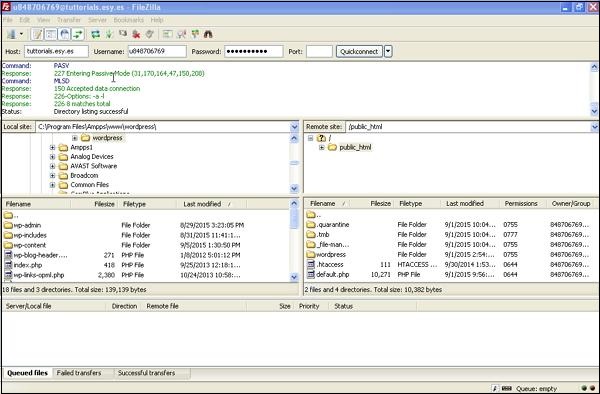
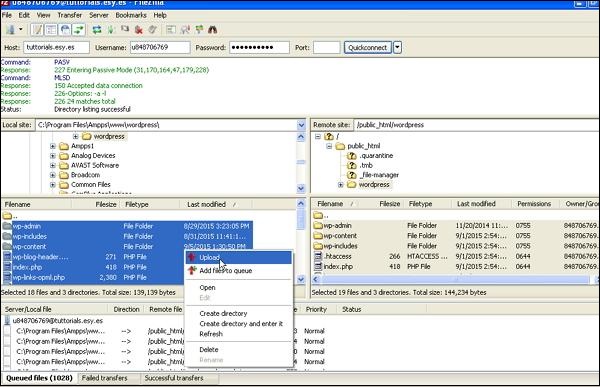
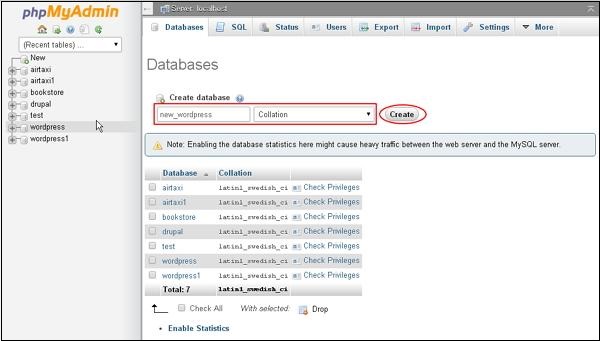
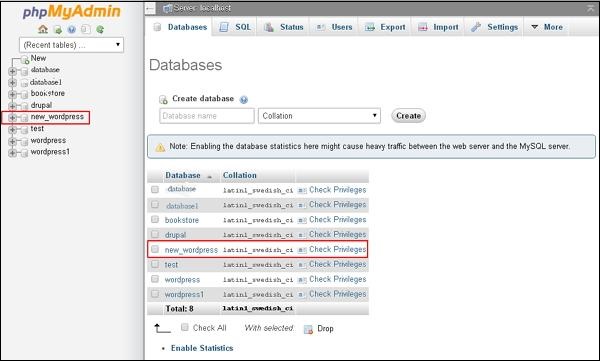
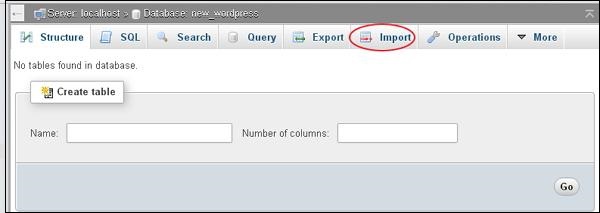
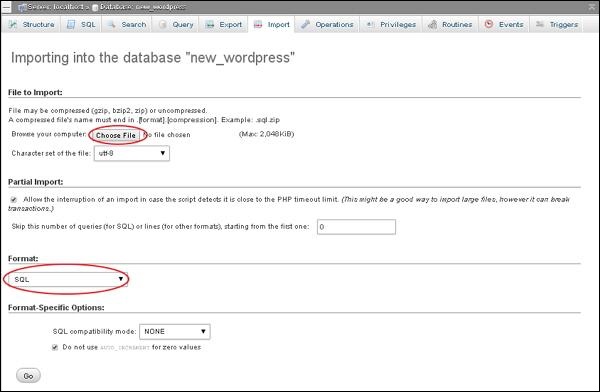

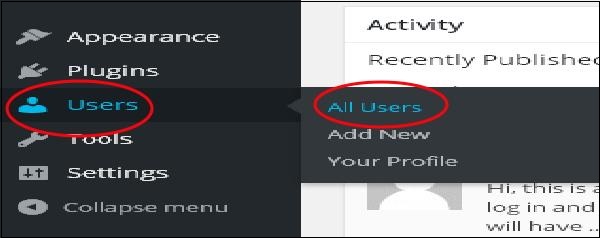
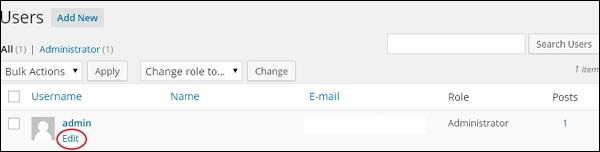
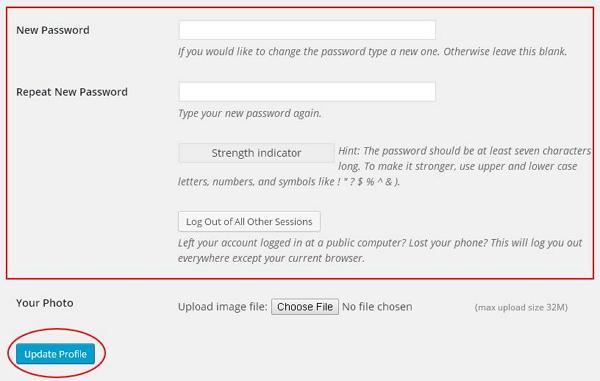
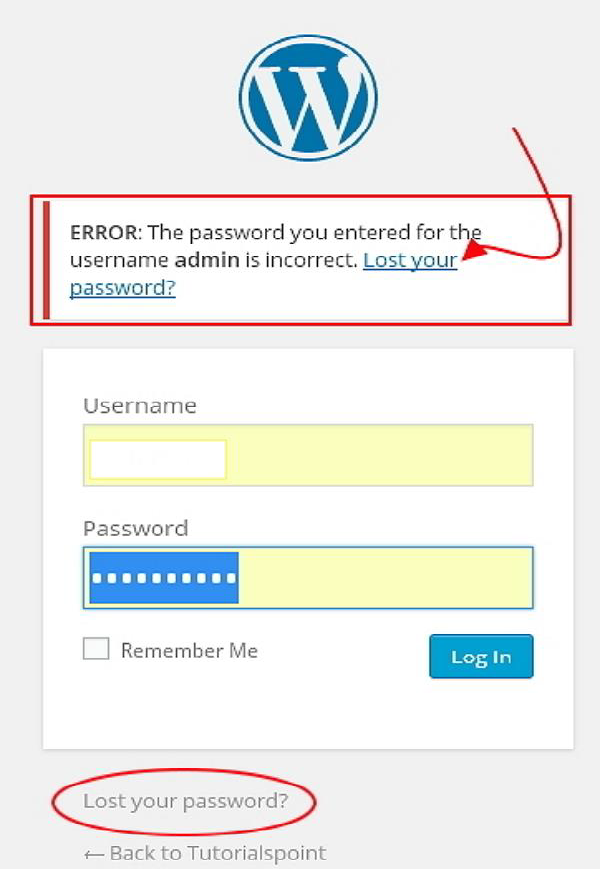
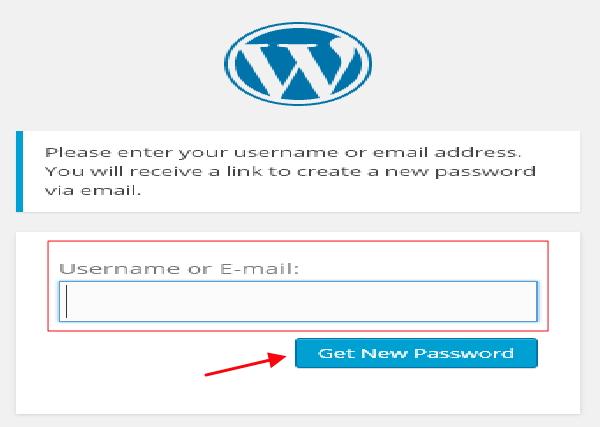
 Yameen's Tech