wordpress user photo

In this chapter, we will study about User Photo in WordPress. To add user photo in WordPress, you must install plugin User Photo from WordPress plugins. It helps you add a photo of your own to your WordPress profile.
Following are the simple steps to add a User photo.
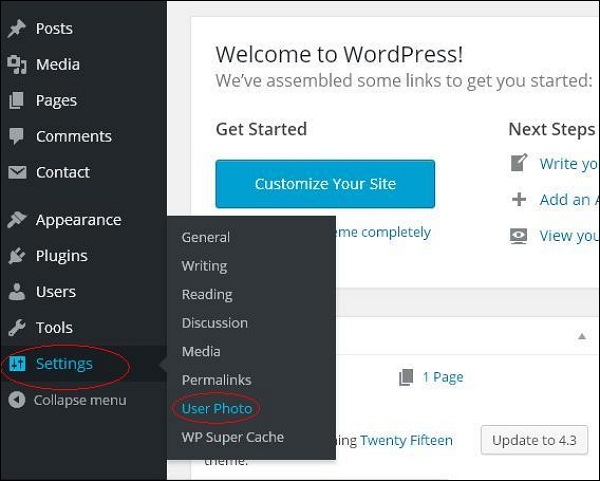
Step (1) − Click on Settings → User Photo.
WordPress User Photo

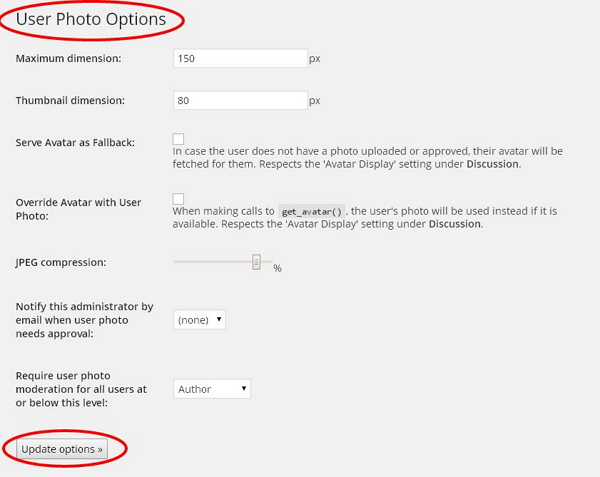
Step (2) − The User Photo Options page gets displayed.
WordPress User Photo

Set the dimension for your thumbnails and make the required changes and then click on Update Options button.
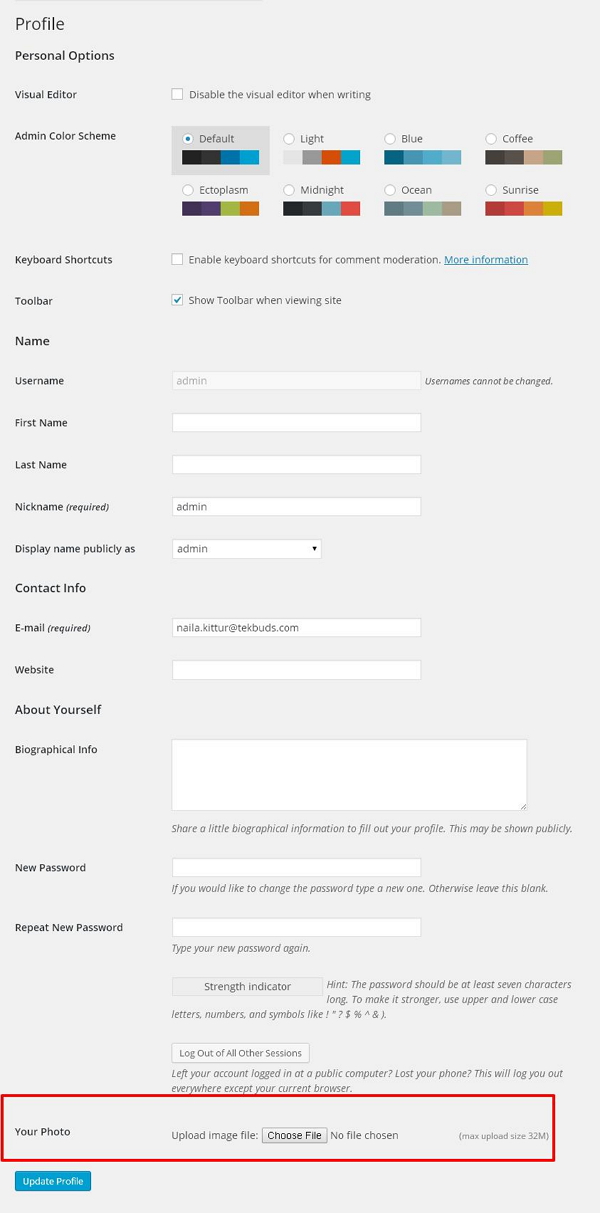
Step (3) − To view the plugin User Photo is activated, go to Users → Your Profile. In your Profile page you can see Your Photo section is added. Here you can upload your photo to display as profile image.
WordPress User Photo


                                     <<<   Back to WordPress Home

wordpress add users

In this chapter, we will study how to Add users to your WordPress blog or website. When users register on your WordPress blog or website, you get an e-mail notification, so you always know when new users register, and you can then get into your Dashboard and edit the users’ role.
Following are the simple steps to Add Users in WordPress.
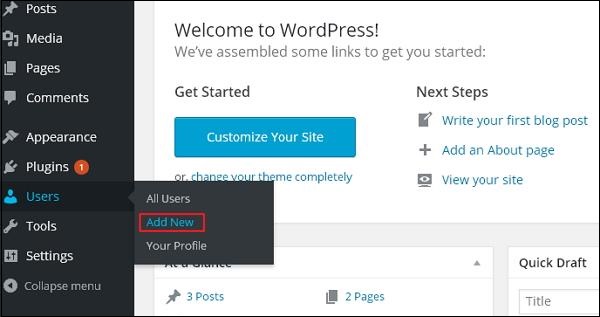
Step (1) − Click on Users → Add New in WordPress.

WordPress Add Users

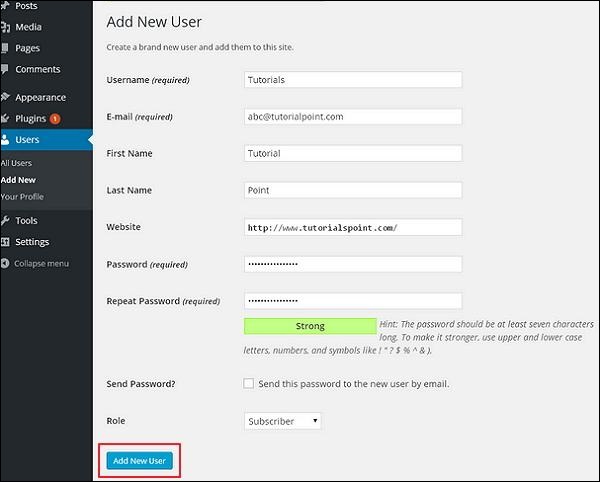
Step (2) − You can fill the user detail on the Add New Userpage. Fill in all the required fields (as seen in the following screen) to proceed further.

WordPress Add Users

  • Username (required) − Enter the unique username, which you want to display on website.
  • E-mail (required) − Enter the valid e-mail address. The user receives notifications from the site at this e-mail address.
  • First Name − Enter the user’s first name.
  • Last Name − Enter the user’s last name.
  • Website − Enter the URL for the user’s website.
  • Password (required) − Enter the password.
  • Repeat Password (required) − Repeat the same password as the previous password for authentication.
  • Send Password − Send password to the New User by e-mail checkbox. The user will receive an e-mail with the new password.
  • Role − Select the particular role from the dropdown, i.e., Subscriber, Contributor, Author, Editor, or Administrator.
Click on Add New User button to add user to your users list.
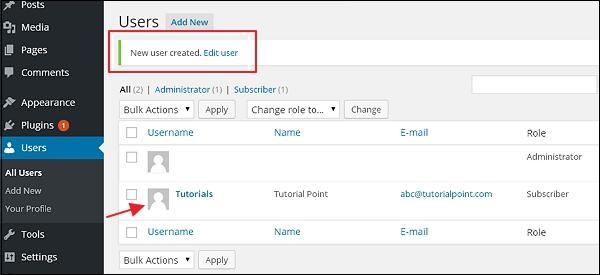
Step (3) − You can view the user list to see whether the users have been added. A message will be displayed as New User Created as seen in the following screen.

WordPress Add Users

          
                                    <<<   Back to WordPress Home

wordpress user roles

In this chapter, we will learn about the roles of users in WordPress. Every user has their own role in WordPress. Roles are like permissions given to a particular user to access the WordPress site. These roles can be allotted only by the Admin.
Here are few pre-defined roles available in WordPress −
  • Administrator − The Administrator has all the rights. An Admin can do anything and everything on the WordPress site such as creating more admins, inviting more users and also removing them.
  • Editor − The Editor has access to all the posts, pages, comments, categories, tags, and links. They can create, publish, edit or delete any posts or pages.
  • Author − The Author can only write posts, upload pictures, edit, and publish their own posts.
  • Contributor − The Contributor can only write and edit their posts until published. They can create their own posts and pages but cannot publish them. They cannot upload images or files but can see your site’s status. When they want to publish any post, it must be first notified personally to the administrator for review. When the post is approved, the contributor cannot make any changes once published.
  • Follower − The Follower can only read and comment on the posts. Followers are the ones who have signed in to your account to receive updates.
  • Viewer − Viewers can only view your posts; they cannot edit but can only comment on the posts.

                                              <<<   Back to WordPress Home

wordpress customize plugins

In this chapter, we will study how to Customize Plugins in WordPress without writing any HTML or CSS. It’s usually a large addition for multi-user sites. This new method allows you to customize your login page by using the WordPress theme customizer (no coding skills required).
Following are the simple steps to Customize Plugins in WordPress.
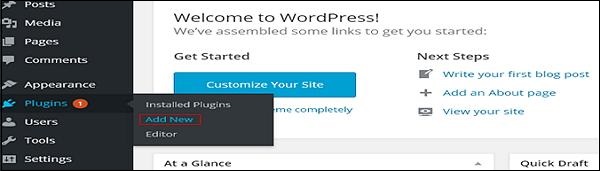
Step (1) − Click on Plugins → Add New.

wordPress customize plugins

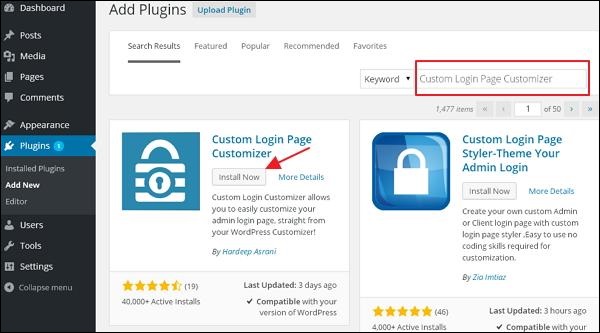
Step (2) − Install and activate the Custom Login Page Customizer Plugin.

wordPress customize plugins

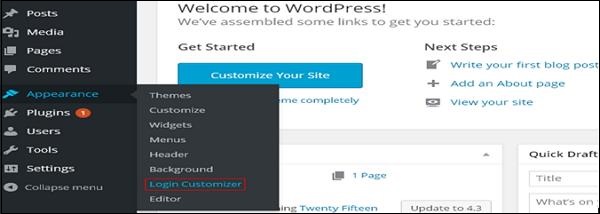
Step (3) − Click on Appearance → Login Customize section.

wordPress customize plugins

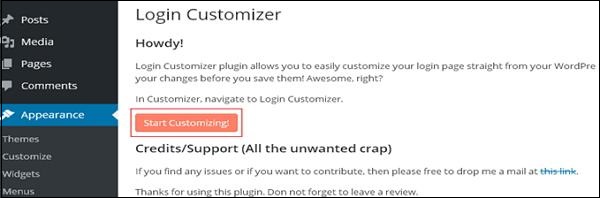
Step (4) − Click on Start Customizing button to proceed further.

wordPress customize plugins

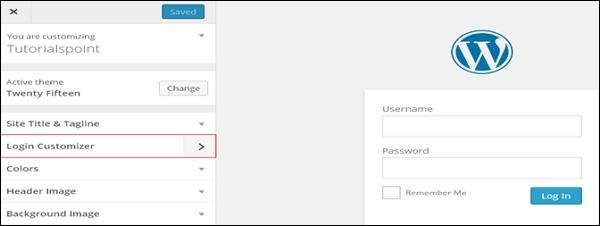
Step (5) − It will launch the built-in WordPress theme customizer. You can customize the theme and make it look the way you want.

wordPress customize plugins

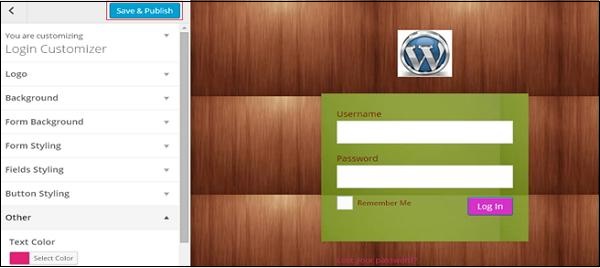
Click on the new Login Customizer tab in the side panel. Login customizer page will get displayed. On the login customizer page, you can customize your login page in the same way as you customize your WordPress theme.
Step (6) − The customized login page will appear as shown in the following screen.

wordPress customize plugins

  • Logo − Upload logo of your choice to replace the default WordPress logo.
  • Background − Add background image or you can choose a background color of your choice.
  • Form Background − Select form background image or color for login form container of your choice.
Most of the selections in the customizer panel are transparent. You can check all the selections in the customizer to adjust the setting as per your requirement of your login page. Click on Save and Publish button.

                                         <<<   Back to WordPress Home

wordpress install plugins

In this chapter, we will study how to install plugins in WordPress. It is really easy to install plugins. All the plugins are free to download; the only condition is that a plugin must be in the WordPress directory.
Following are the simple steps to Install Plugins in WordPress.
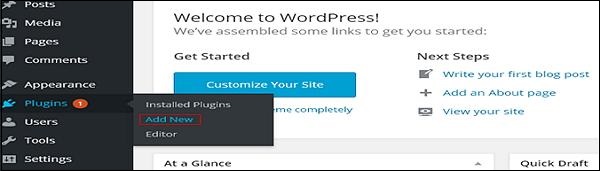
Step (1) − Click on Plugins → Add New in WordPress.

wordPress install plugins

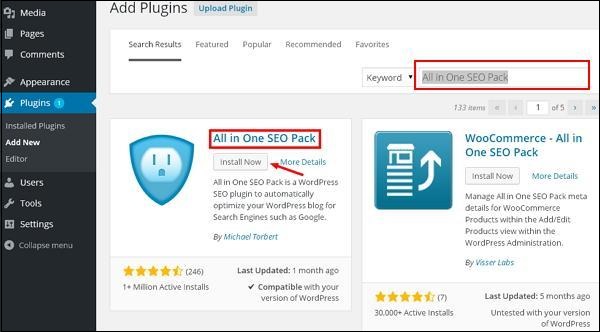
Step (2) − Enter your required plugin name in the search boxas shown in the following screen. List of plugins which are relevant to the plugins name will get displayed as seen in the following screen.

wordPress install plugins

Select the required plugin you want to use. Here, we have searched All in one SEO Pack plugin, which happens to be the first plugin as shown in the preceding screen. Click on install now button to install the plugin on your website.
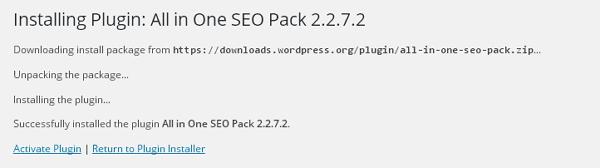
Step (3) − The plugins automatically start downloading and installing.

wordPress install plugins

Click on Activate Plugin to activate the plugin on your website, which makes your task much easier using this plugin.
Step (4) − Once activated, you will see the installed plugin in the list of plugins as seen in the following screen.

wordPress install plugins

                     
                                           <<<   Back to WordPress Home

wordpress view plugins

In this chapter, we will study how to View Plugins in WordPress. It helps you to enable and disable WordPress Plugins. This adds the unique features to an existing web site. Plugins extend and enlarge the functionality of WordPress.
Following are the simple steps to View Plugins in WordPress.
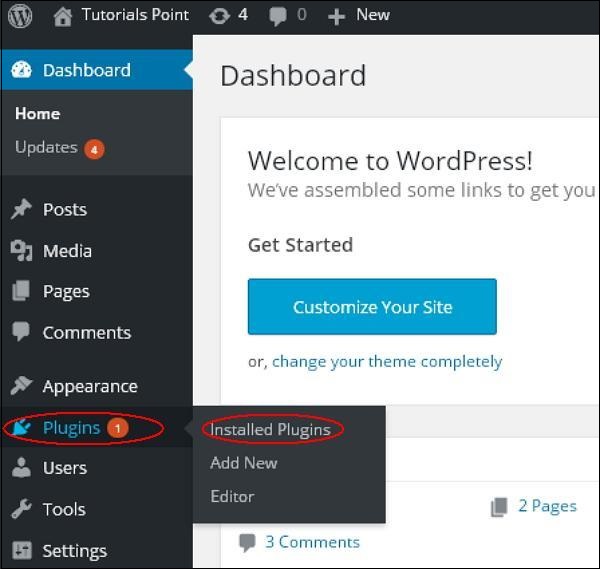
Step (1) − Click on Plugins → Installed Plugins in WordPress administrator.

WordPress View Plugins

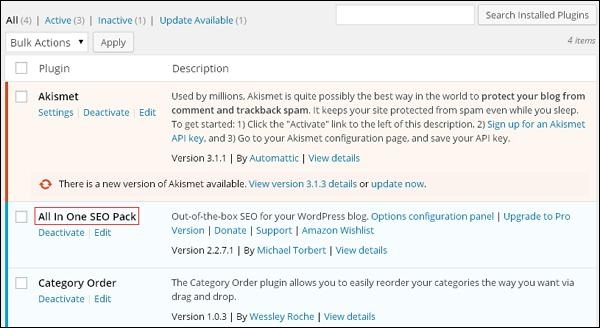
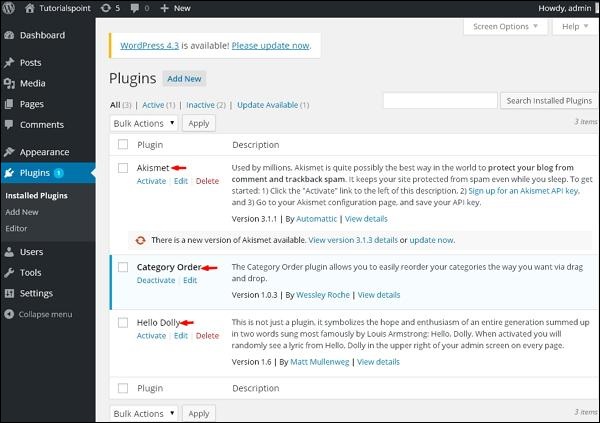
Step (2) − You will see the list of existing plugins on your site as seen in the following screen.

WordPress View Plugins

A table of Plugin and Description is displayed. Names of the plugins are defined in Plugin column and a brief description about the plugin is defined under Description column.

Toolbar

Following functions appear as Plugin toolbar options on the page −
  • Active − Shows the active plugins on the website.
  • Inactive − Shows the installed but inactive plugins on the website.
  • Update Available − Shows, if a new version is available or asks to update now.

                                        <<<   Back to WordPress Home

wordpress moderate comments

In this chapter, we will learn to Moderate Comments in WordPress. Comment moderation is a process where, when visitors comment on posts, the comment is not published directly until and unless it is approved by the admin to be posted. It manages your comments so that there is no comment spamming.
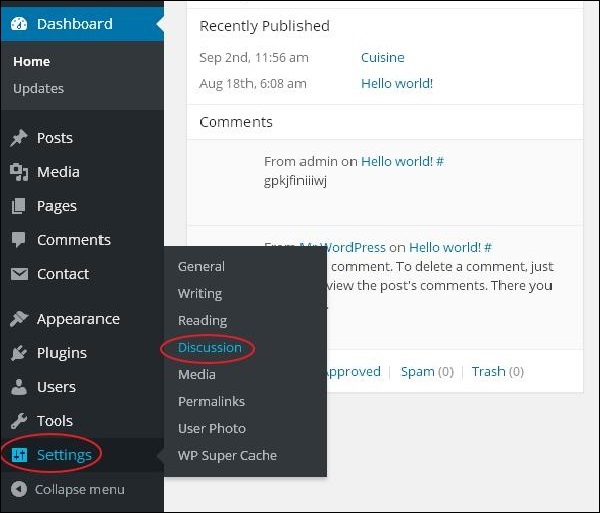
Step (1) − Click on Settings → Discussion in WordPress.

WordPress Moderate Comments

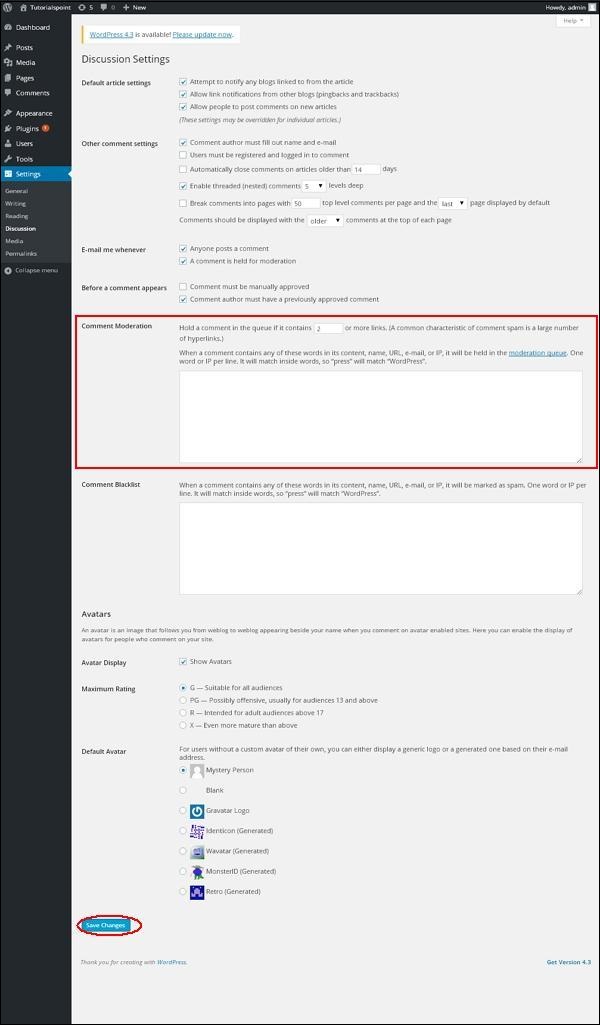
Step (2) − The Discussion Setting page gets displayed.

WordPress Moderate Comments

In the Comment Moderation field, enter those words or URLs you do not want any visitor to add comments. Whenever a visitor gives any comments it would be moderated by the admin first and then published.
Step (3) − Click on Save Changes.

                                                 <<<   Back to WordPress Home

wordpress edit comments

In this chapter, we will learn about how to Edit comments in WordPress. Editing comments can be done only by the admin.
Following are the steps to Edit Comments in WordPress.
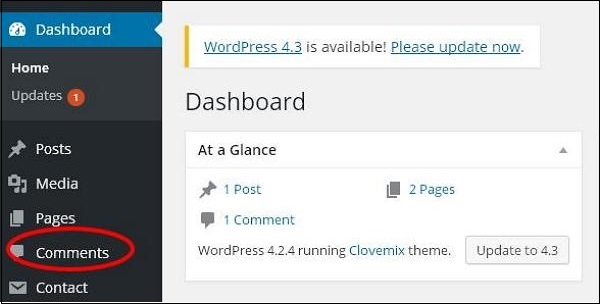
Step (1) − Click on Comments in WordPress.

WordPress Edit Comments

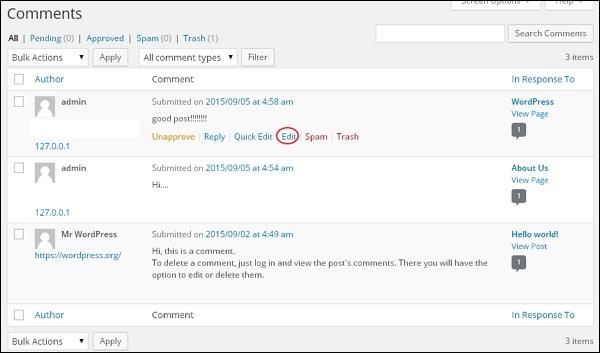
Step (2) − You can view the comments list for the various pages. Select any comment, you want to edit. Click on edit.

WordPress Edit Comments

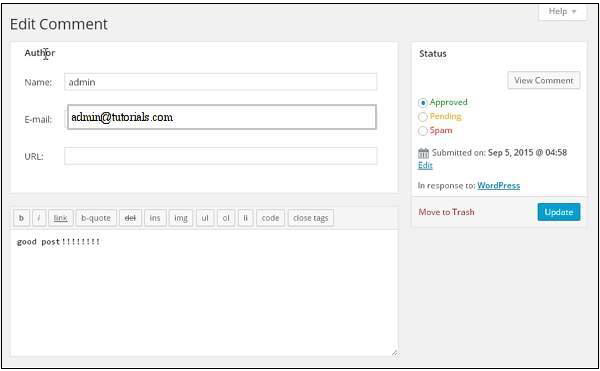
Step (3) − The Edit comment page gets displayed. You can edit the comment and click on Update Button.

WordPress Edit Comments

Here you can edit the name, e-mail, URL or the comment from the comment box.

                                          <<<   Back to WordPress Home

wordpress add comments

In this chapter, we will learn to Add Comments in WordPress. Adding comments allows your visitors to have a discussion with you. Comments are approved by the admin and then posted to be discussed further.
Following are the steps to add comments to your blog posts.
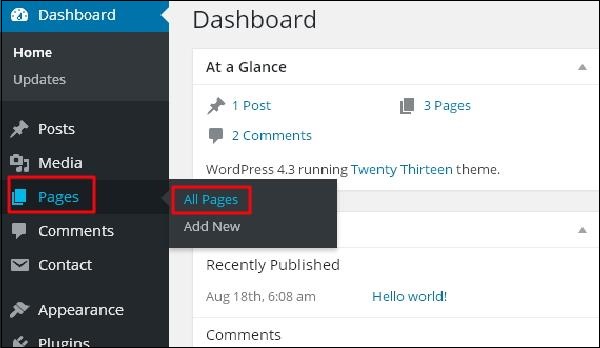
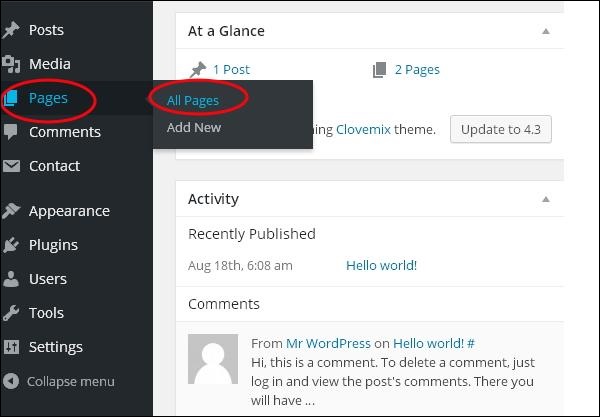
Step (1) − Click on Pages → All Pages in WordPress.

WordPress Add Comments

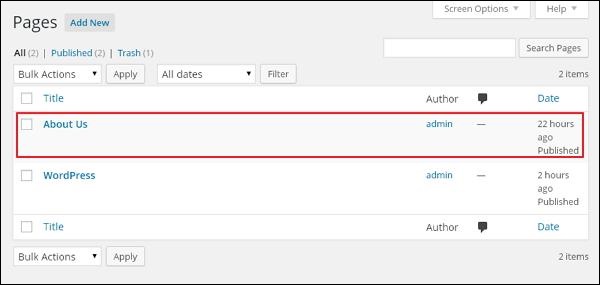
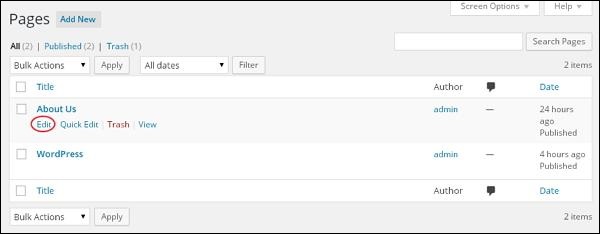
Step (2) − The list of pages created in WordPress will get displayed as seen in the following screen. Select any of the pages you want to add comments to. Here, we are going to add comment in About Us page. Click on About Us.

WordPress Add Comments

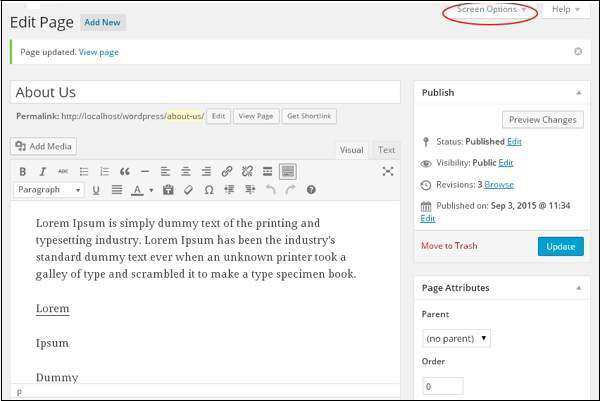
Step (3) − To add a comment on this page, click on Screen options present at the top right hand corner.

WordPress Add Comments

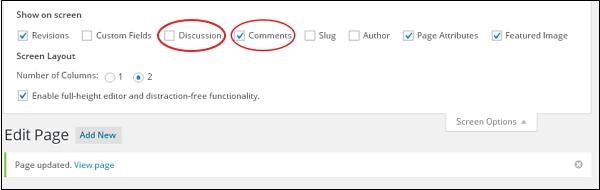
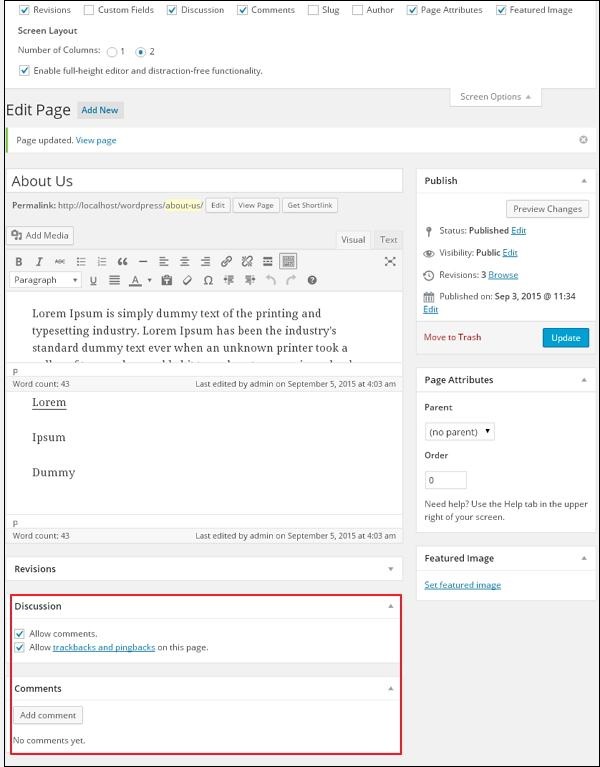
Step (4) − The dropdown list of Screen Option gets displayed. Check the Discussion and Comments box as shown in the following screen.

WordPress Add Comments

Step (5) − You can now view the Discussion and Comments box at the bottom of your page.

WordPress Add Comments

In the Discussion section, there are two options present −
  • Allow Comments − Allows visitors to comment on your blog posts and pages.
  • Allow trackbacks and pingbacks on this page − Allows visitors to give pings and trackbacks.
In the Comment section, you can add comments by clicking on Add Comment button.
Step (6) − Click on Update button after adding the comment box.

                                         <<<   Back to WordPress Home

wordpress delete links

In this chapter, we will learn to Delete links from WordPress. You can remove the unwanted links which you don’t need for your website or article.
Following are the steps to Delete Links in WordPress
Step (1) − Click on Pages → All Pages in WordPress.

WordPress Delete Links

Step (2) − You can view the list of pages. When the cursor hovers on the About Us page, then a few options gets displayed. Click on the Edit button as shown in the following screen.

WordPress Delete Links

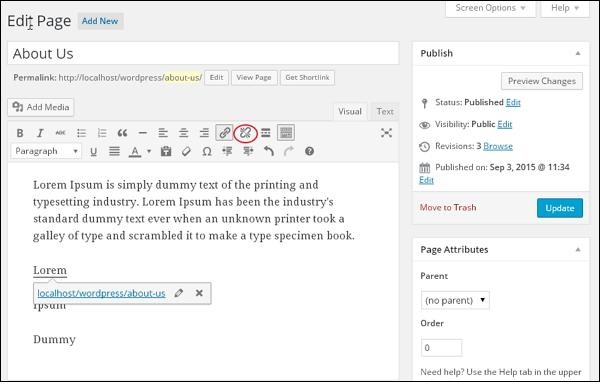
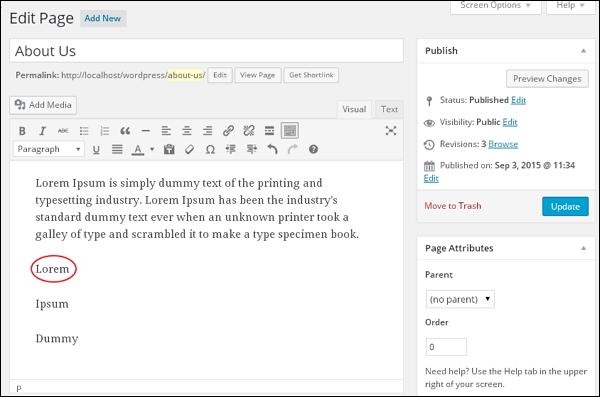
Step (3) − Select the word which you had already linked i.e. Lorem (Link for word Lorem was created in the chapter WordPress – Add Links), and click on the Remove Link Symbol as seen in the following screen.

WordPress Delete Links

Step (4) − When you hover on the word Lorem, there will be no tooltip of the existing URL. The following screenshot shows that the link has been deleted.

WordPress Delete Links

                                                   <<<   Back to WordPress Home