wordpress spam protection

In this chapter, we will learn how to protect your WordPress blog or website from spam. Make sure that your WordPress script is updated to the latest stable version. WordPress comes with a preinstalled antispam solution – Akismet.
You can activate Akismet, for which you should have a WordPress API key. You have to register at the official WordPress website. The key will be sent to your mail box.
Following are the steps to follow to enable Akismet Spam Protection plugin for your website or blog.
Step (1) − Go to your WordPress admin area → Plugins → Installed. The following screen will be displayed.
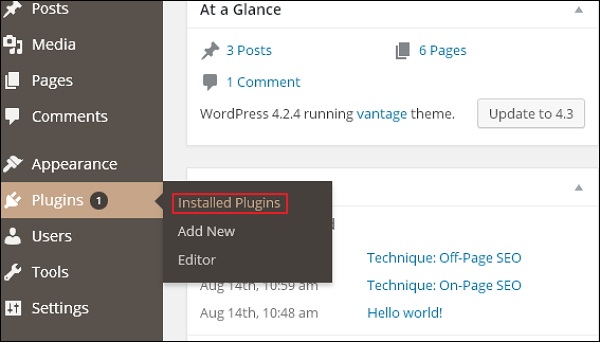
WordPress Spam Protection

Step (2) − Click on Activate button as shown in the following screen.
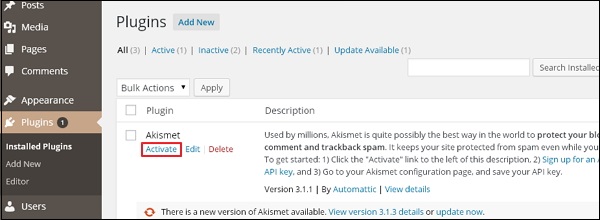
WordPress Spam Protection

Step (3) − The Akismet plugin will be activated and then Click on Activate your Akismet account button as shown in the following screen.
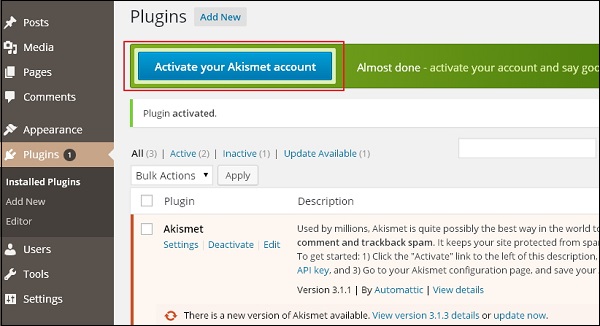
WordPress Spam Protection

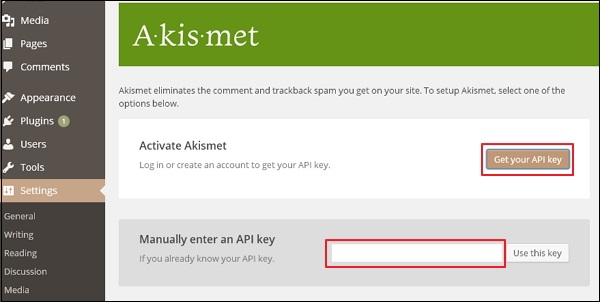
Step (4) − Click on Get your API key as seen in the following screen to get a new key or enter manually, if you already have API key.
WordPress Spam Protection

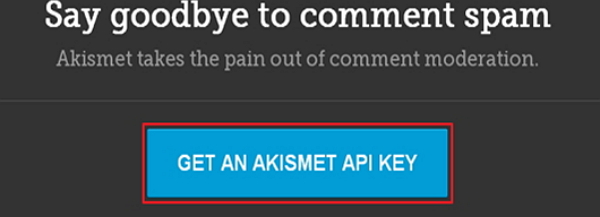
Step (5) − If you don’t have API key then, click on GET AN AKISMET API KEY tab to move further.
WordPress Spam Protection

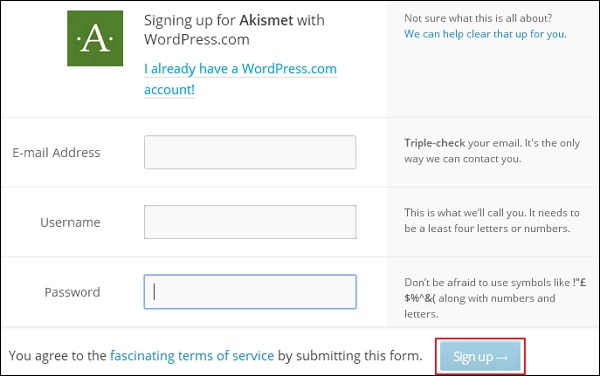
Step (6) − Fill up the required fields and click on Sign upbutton as shown in the following screen.
WordPress Spam Protection

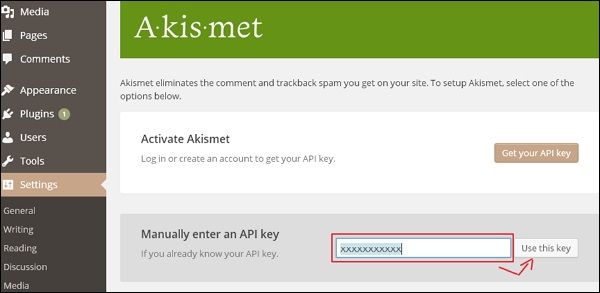
Step (7) − Once you complete with signup process. You will get an API key in your registered e-mail id. Enter API key manually and click on Use this key button as seen in the following screen.
WordPress Spam Protection

Step (8) − If you have entered a correct API key, it will be verified and you will get a confirmation message as reflected in the following screen.
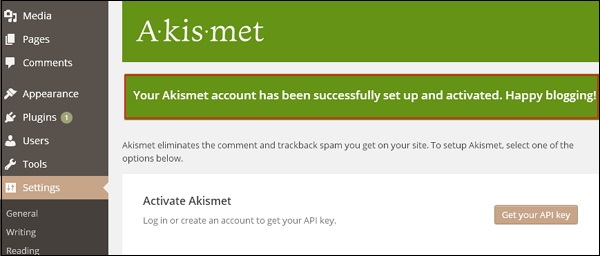
WordPress Spam Protection

Step (9) − Now your blog will be protected from spam by Akismet. You will be able to check the comments in your blog for spam, as well as manually mark comments as spam from the blog admin area → Comments.
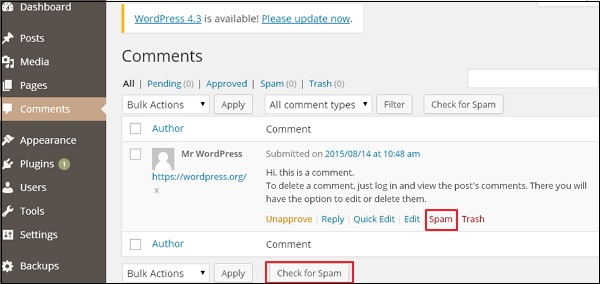
WordPress Spam Protection

You can keep a track of how many spam posts have been stopped by Akismet and you can secure your posts, blogs, comments, etc. Furthermore, you can prevent your website from spammers, who can harm your site.
                                  <<<   Back to WordPress Home

wordpress version update

In this chapter, we will study how to update version in WordPress. Here, we will upgrade WordPress to the latest version through the admin panel.
Following are a few simple steps to update the version in WordPress.
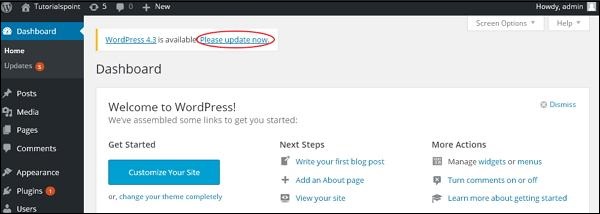
Step (1) − Click on Please Update Now as shown in the following screen.

WordPress Version Update

You will get notifications in WordPress admin panel when there is a newer version available for WordPress. Before updating, it is advised to keep WordPress backup.
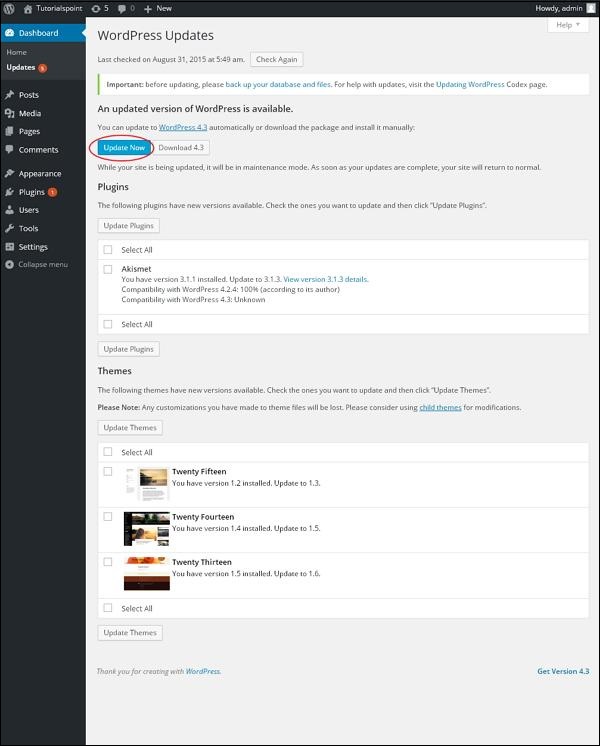
Step (2) − After clicking on the update link, the following page gets displayed. Click on Update Now button.

WordPress Version Update

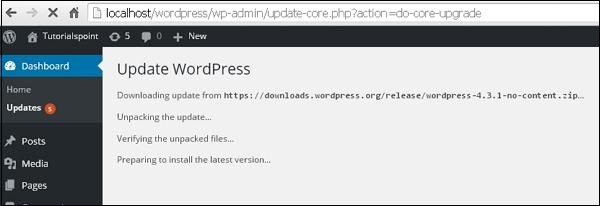
Step (3) − The following message gets displayed during the upgradation of WordPress.

WordPress Version Update

Note − While updating the version, if you get an error as

Fatal error: Maximum execution time of 30 seconds exceeded in C:\your wordpress folder\wp-includes\class-http.php on line 1597

then you need to take the following actions −
  • Open your WordPress folder → wp-includes folder
  • Open class-http.php file and add the following line at the beginning − set_time_limit (0);
  • Save the file.
Now your WordPress is successfully upgraded.

                                  <<<   Back to WordPress Home

wordpress host transfer

In this chapter, we will study how to transfer WordPress to a new hosting platform.
Here, we have used Hostinger web hosting to transfer the WordPress site to another host.
Just follow the simple steps given below to transfer your WordPress site to another host.
Step (1) − Keep the backup of WordPress files and export the database. We will study about this in detail in the chapter WordPress – Backup & Restore
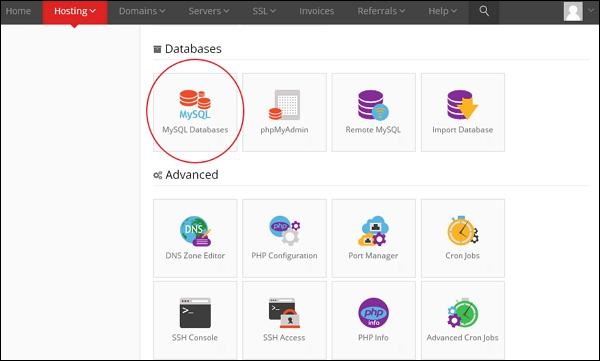
Step (2) − Login to your cPanel and click on MySQL Databases as shown in the following screen.

WordPress Host Transfer

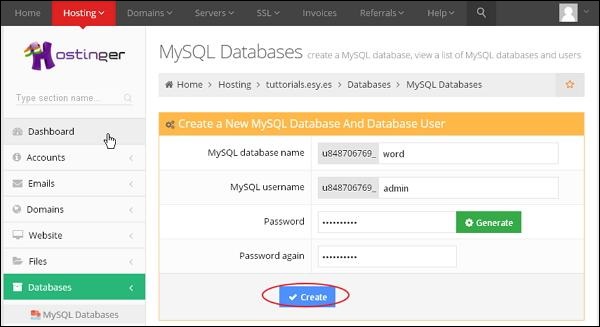
Step (3) − Create a new database and MySQL user as shown in the following screen. The page has the following fields −

WordPress Host Transfer

  • MySQL Database Name − Enter your database name.
  • MySQL Username − Enter your username.
  • Password − Set password for your database.
  • Password again − Once again set the same password as previous for authentication.
After filling all the fields, Click on Create button.
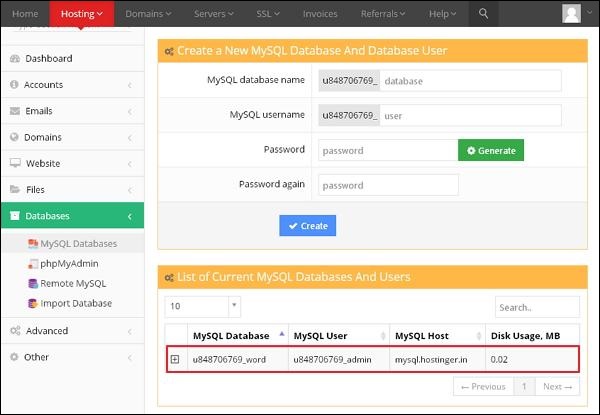
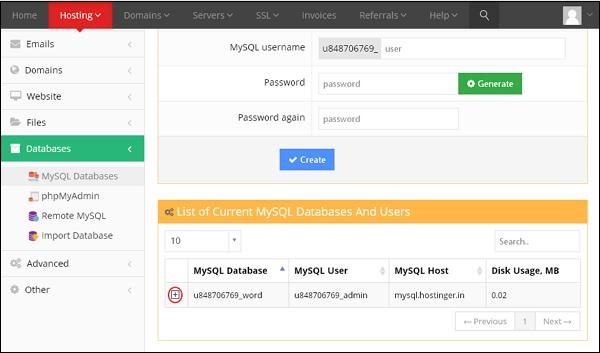
Step (4) − You can view your created MySQL database, Userand Host as shown in the following screen.

WordPress Host Transfer

Step (5) − Click on + symbol.

WordPress Host Transfer

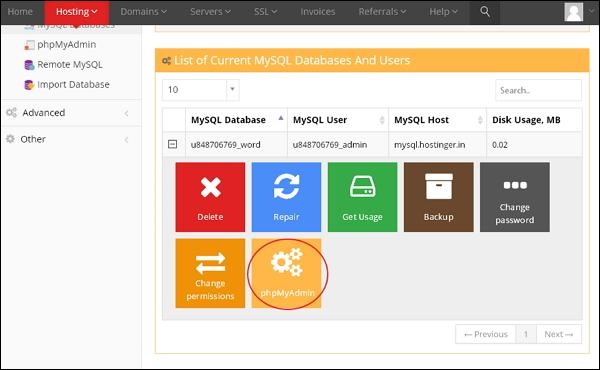
Step (6) − Click on phpMyAdmin.

WordPress Host Transfer

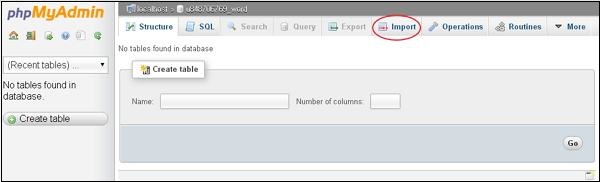
Step (7) − Click on Import tab on the phpMyAdmin page.

WordPress Host Transfer

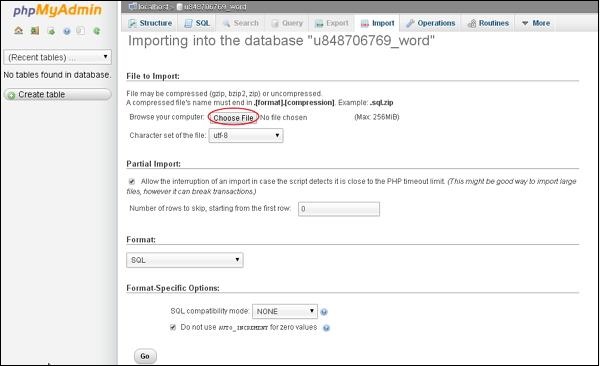
Step (8) − Click on Choose File button to select the backup file from your system and click on Go button.

WordPress Host Transfer

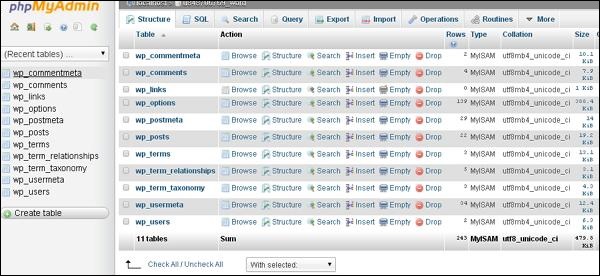
Step (9) − You can view the tables of database uploaded as shown in the following screen.

WordPress Host Transfer

Step (10) − Upload your WordPress files by using file transfer protocol(FileZilla) as shown in the chapter WordPress – Backup & Restore in Restoring WordPress Files section.
Step (11) − Edit wp-config.php file as mentioned in the Restoring WordPress Files section in chapter WordPress – Backup & Restore.
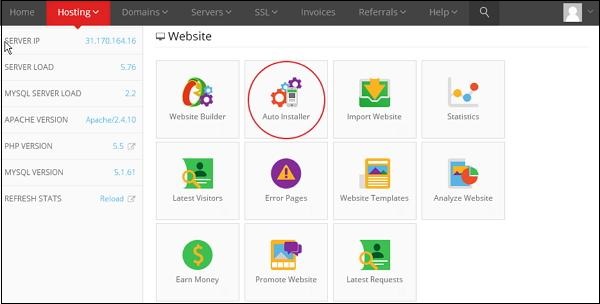
Step (12) − Inside the Website section of hostinger, Click on Auto Installer.

WordPress Host Transfer

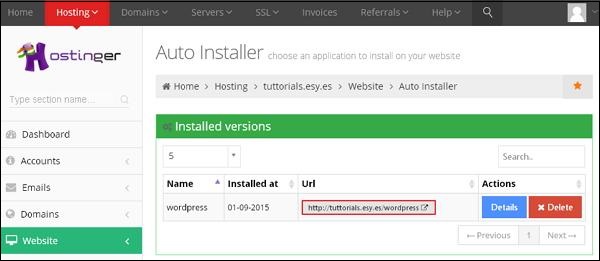
Step (13) − You can view the uploaded file of the WordPress. Click on the URL link as shown in the following screen.

WordPress Host Transfer

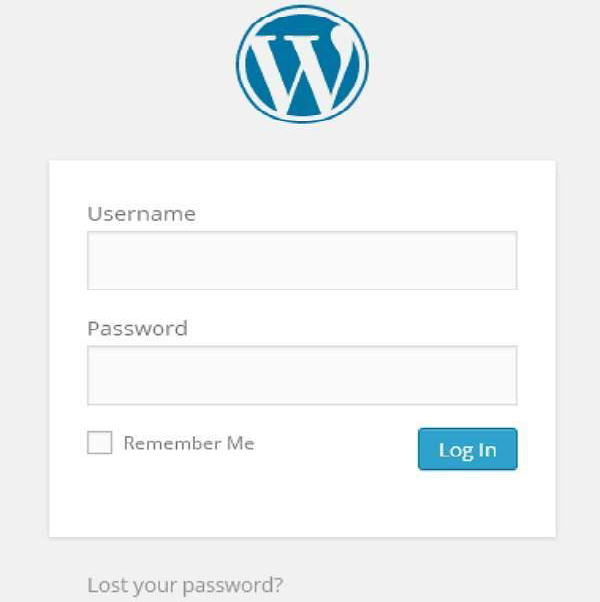
Step (14) − You can view the login page of WordPress.

WordPress Host Transfer


                                  <<<   Back to WordPress Home

wordpress background

In this chapter, we will study about background images, background colors and background opacity.
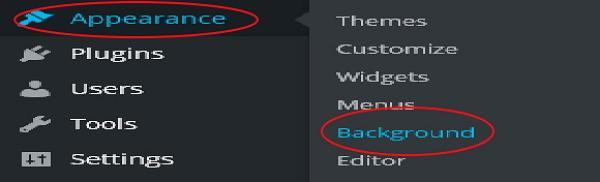
Step (1) − Click on Appearance → Background.

WordPress Background

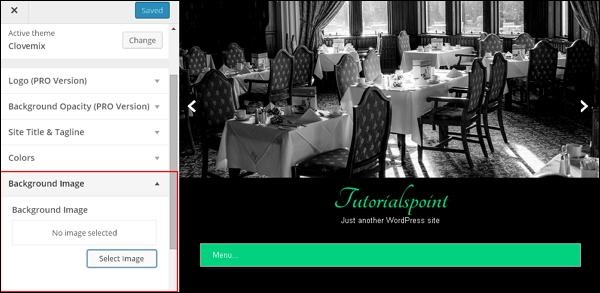
Step (2) − The following page appears where the Background Image section shows up.

WordPress Background

Step (3) − There’s no image selected for background. If you want to do so, then click on Select Image. You get the following page.

WordPress Background

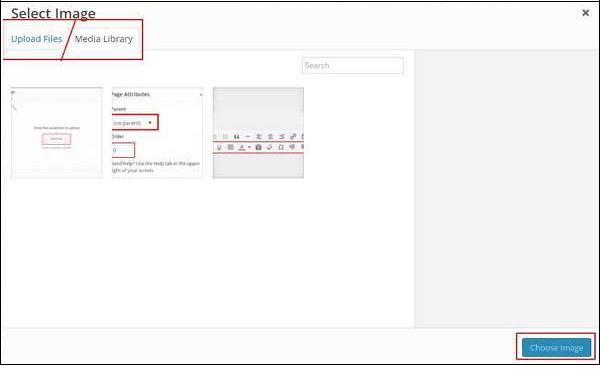
Here you can upload images using two options.
  • Upload Files
  • Media Library
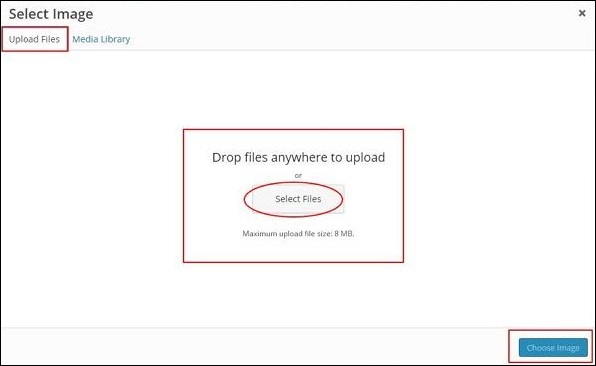
Step (4) − Upload Files − When you click on Upload files the following screen is displayed. Select files from your desktop and then click on Choose Image if satisfied with the image.

WordPress Background

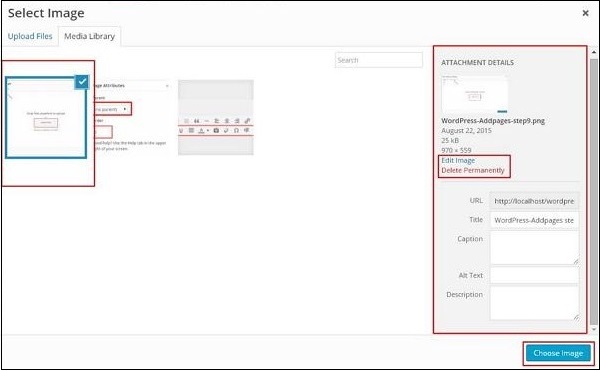
Step (5) − Media Library − When you click on Media Library the following page appears. Select files from the WordPress media library, which means, if you already have images updated then you can select any of them directly.

WordPress Background

After selecting an image, on the right side you will get a few options −
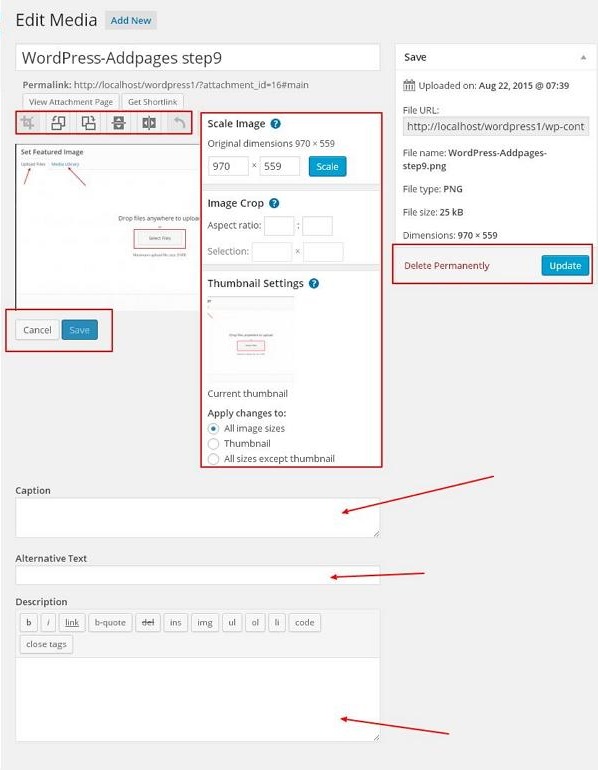
  • Edit Image − When you click on this you are taken to another page where you can edit the scale image, dimensions, crop image, and thumbnail settings, etc. As shown in the following image, make the required changes, click on Save and then click on Update.

WordPress Background

  • Delete Permanently − If you want your image off the library then click on this button.
  • URL − Enter your image URL into this box.
  • Title − If you want to make any changes in the title of the image you can do it right here.
  • Caption − You can explain briefly about your image in this section.
  • Alt text − Give an alternative text to your image so that it is easily available for the users during search.
  • Description − A little description about your image.
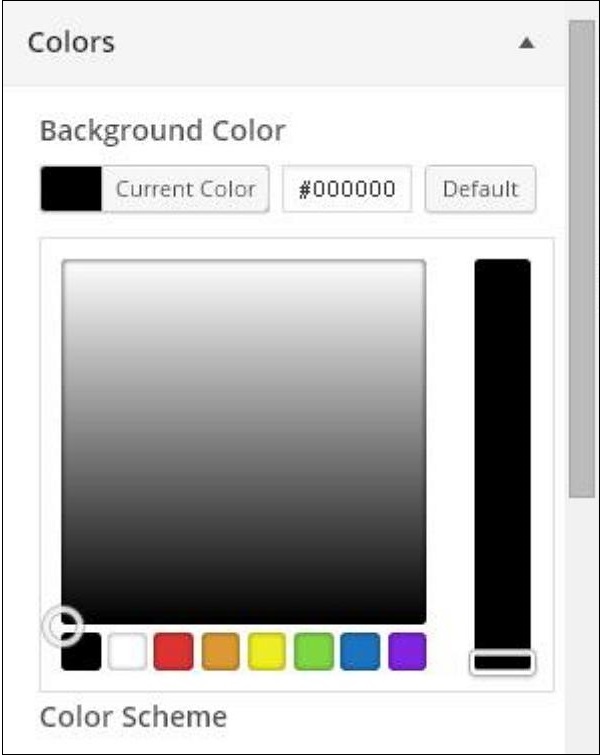
Step (6) − Click on Colors → Background Color on the same page. Change your background color accordingly. Background Opacity is not used for all themes. Theme customization is not same for every theme we use. It changes from theme to theme.

WordPress Background


                                  <<<   Back to WordPress Home

wordpress widget management

In this chapter, we will study about Widget Management. Widgets are small blocks that perform specific functions. These give design and structure control to the WordPress theme. Some specific features of a widget are −
  • They help you add content and features.
  • They can be easily dragged and dropped in widget area.
  • They vary from theme to theme. They are not same for every theme.
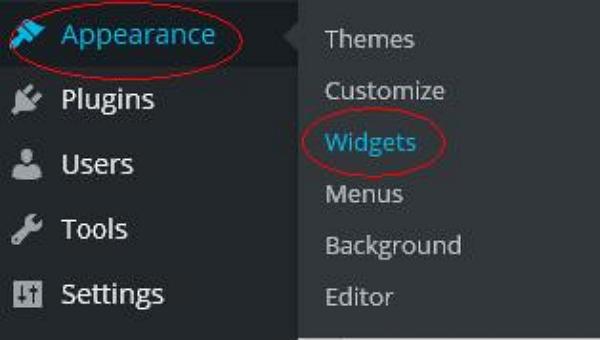
Step (1) − Click on Appearance → Widgets.

WordPress Widget Management

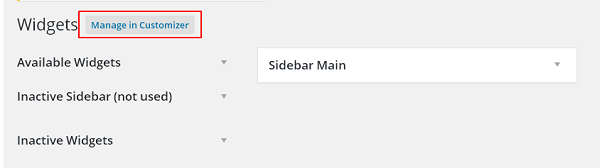
Step (2) − The following screen showing available widgets appear.

WordPress Widget Management

The following functions appear on the page −
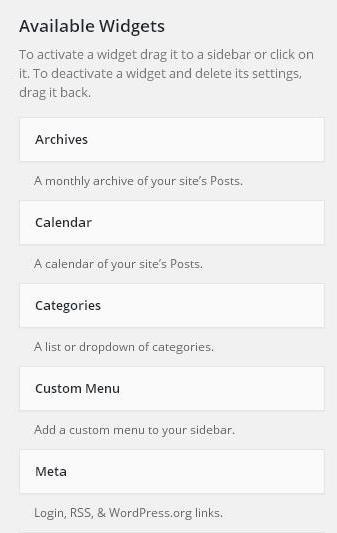
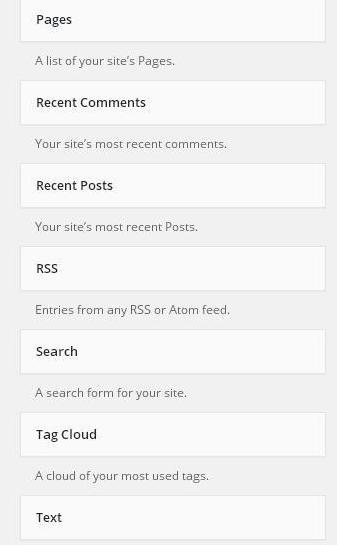
  • Available Widgets − You can use these to add into your sidebar main.
  • Inactive Sidebar (not used) − These are not used and can be removed permanently from the widget list.
  • Inactive Widgets − Removes the widgets from sidebar but keep it in the settings.
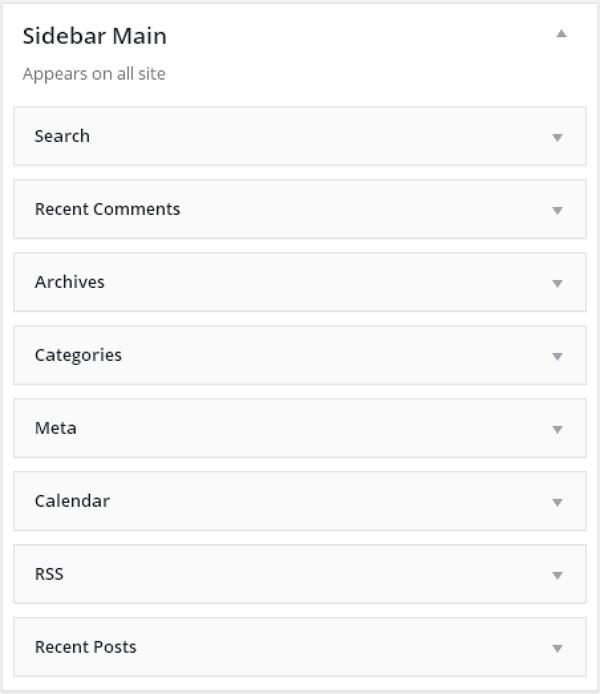
  • Sidebar Main − Any widget you add here will appear on your site.
  • Manage in Customizer − Takes you back to customization page.

WordPress Widget Management

WordPress Widget Management

Step (3) − Drag and drop in the Sidebar Main. Any widget you add here, shows up on your site.
WordPress Widget Management

               
                                          <<<   Back to WordPress Home

wordpress customize theme

In this chapter, we will learn how to customize themes. Customizing themes help you to give a new look to your website. Here you can change background images/colors, add titles, and do much more.
Following are the steps of Customize theme.
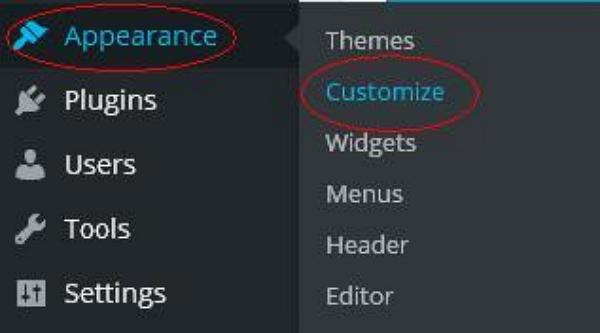
Step (1) − Click on Appearance → Customize.

WordPress Customize Theme

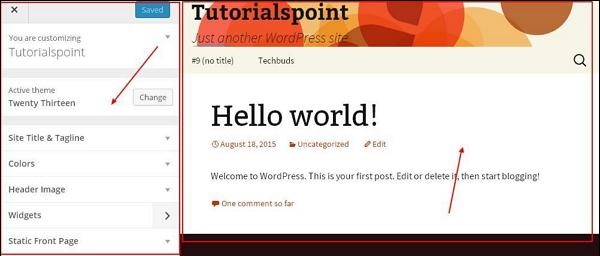
Step (2) − The following screen will be displayed.

WordPress Customize Theme

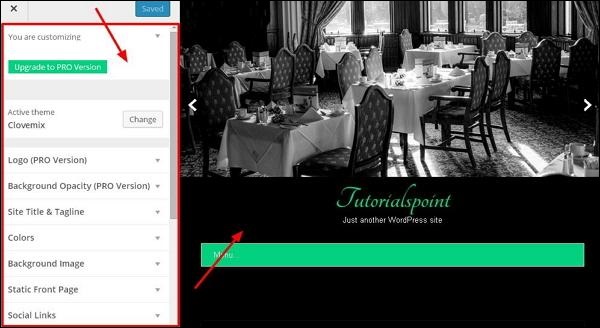
As can be seen, on the left side we have the customizing section, and on the right side we have the theme you have chosen. So any changes you make on the left side will be displayed on the right side of the page. Here are a few options you must know −
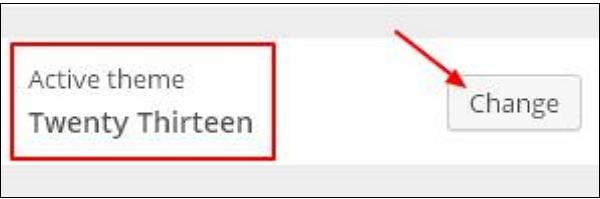
Active theme − In this section, you can change the current theme just by clicking on ‘Change’.

WordPress Customize Theme

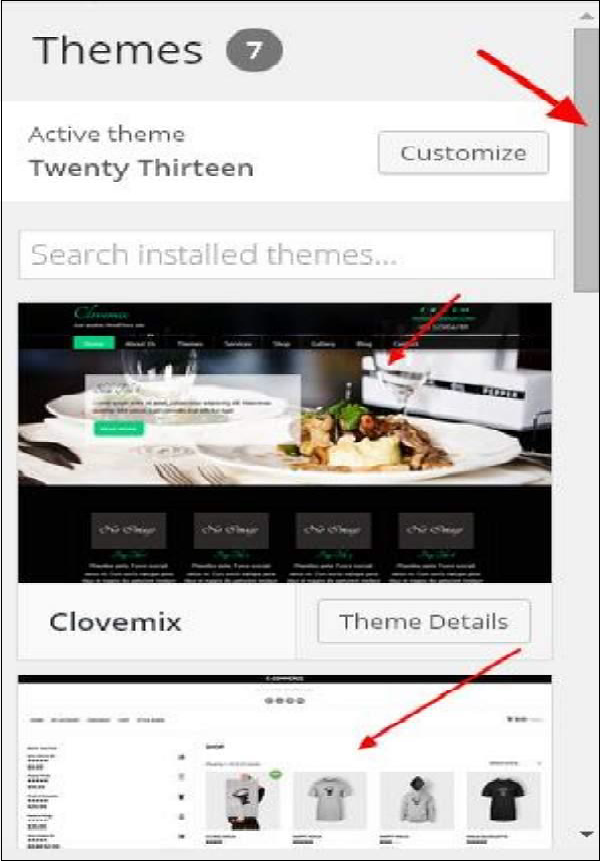
When you click on ‘Change’ you get a list of themes, click on any of the themes, and then click ‘Save & Continue’. Your theme will be saved.

WordPress Customize Theme

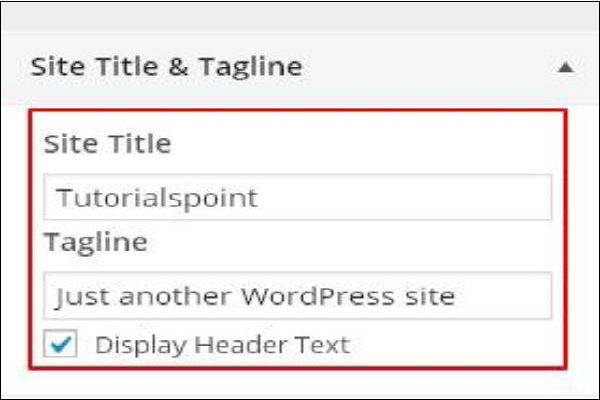
Site Title & Tagline − In this section, you can add the site title and tagline you want to add to your website.

WordPress Customize Theme

Add your title name in the ‘Site Title’ section. And your tagline in the ‘Tagline’ box.
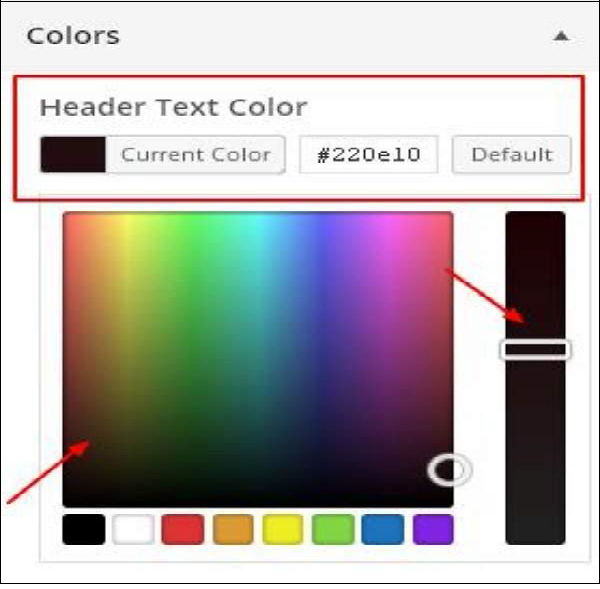
Colors − You can change your header text color using this section. As you scroll through the colors you find changes happening on the right side of your page. You can even add a color of your own into the box that is situated in between ‘Current color’ and ‘Default’.

WordPress Customize Theme

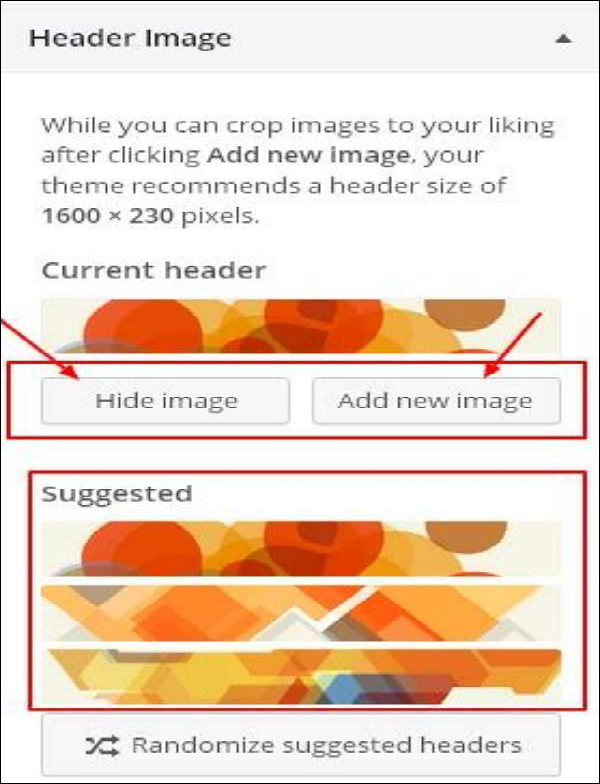
Header Image − Add a header image either by selecting from the suggestions or you can add an image of your own by clicking on ‘Add new image’.

WordPress Customize Theme

Widgets − Add widgets to your site from here.

WordPress Customize Theme

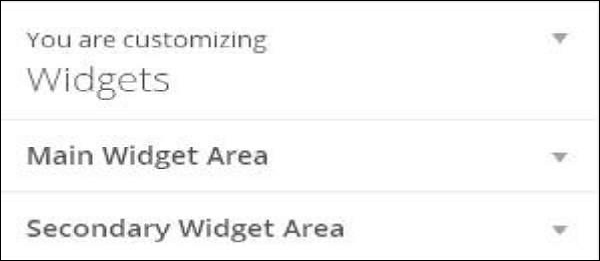
When you click on the arrow mark the following image appears.

WordPress Customize Theme

Here, there are two options −
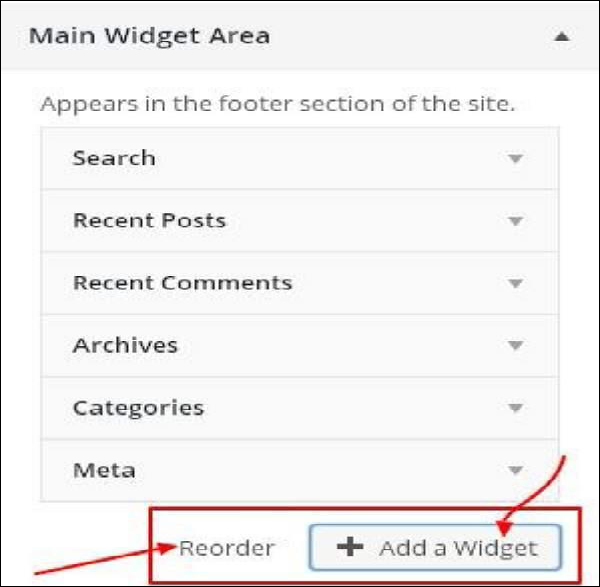
First is the ‘Main Widget Area’, when you click on this you get another list of widgets that are to be displayed in the footer area.

WordPress Customize Theme

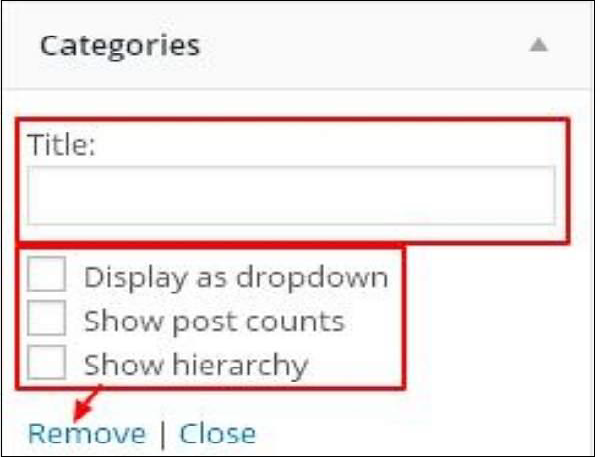
When you click on any of the widgets a dropdown appears where you can edit more or add more. For example − If you want to add categories then the following image appears.

WordPress Customize Theme

In this image, as you can see, you can add your category in the ‘Title’ section. Check any of the required boxes. If you do not want to add any, then say ‘Remove’. Same goes for other widgets too.
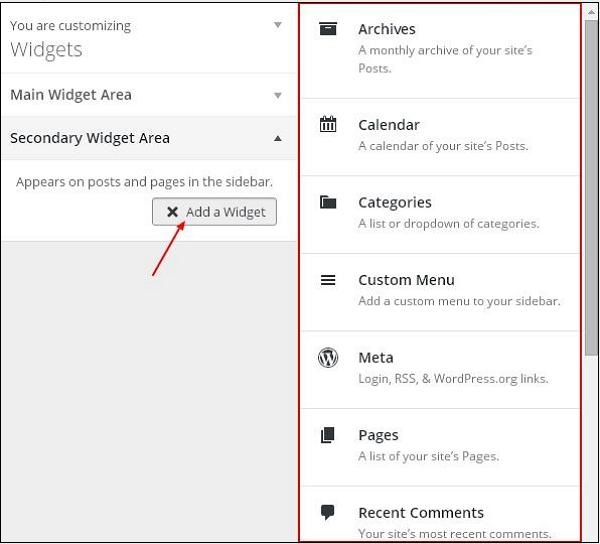
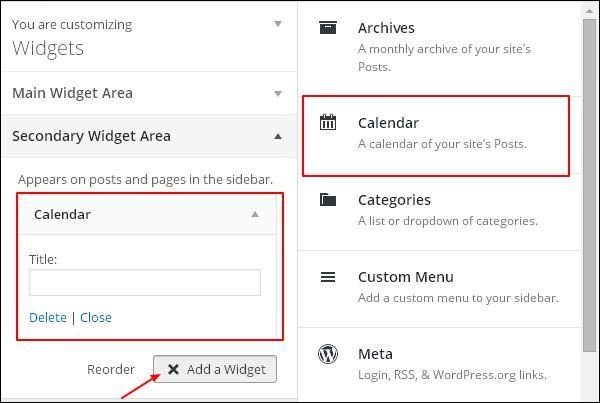
Secondary Widget − Here you must click on ‘Add a widget’and you get a side bar with a list of different widgets. Click on any and it adds up to your widget list.

WordPress Customize Theme

If you want to add more widgets then click on ‘Add a widget’again and you can add as many widgets as you want.

WordPress Customize Theme

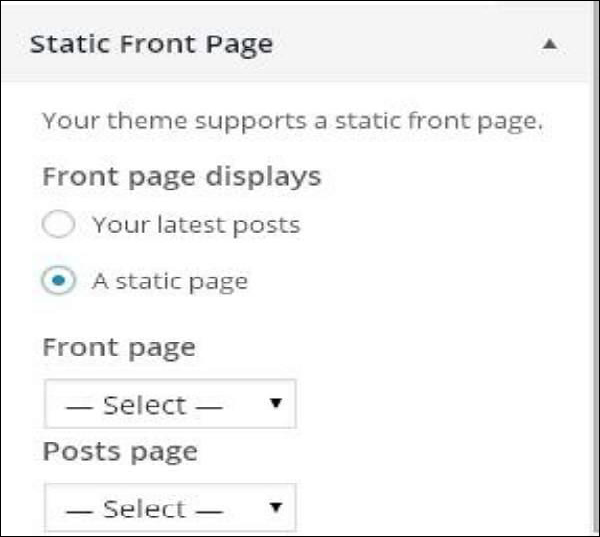
Static Front − Select either latest posts or static front page for your site.
WordPress Customize Theme


                                  <<<   Back to WordPress Home

wordpress theme management

In this chapter, we will learn about Theme management. It includes image files, templates, CSS stylesheets, etc. that can help to make your website look great. This chapter discusses how to install, add new, or customize themes in WordPress.
Following are the steps for Theme Management.
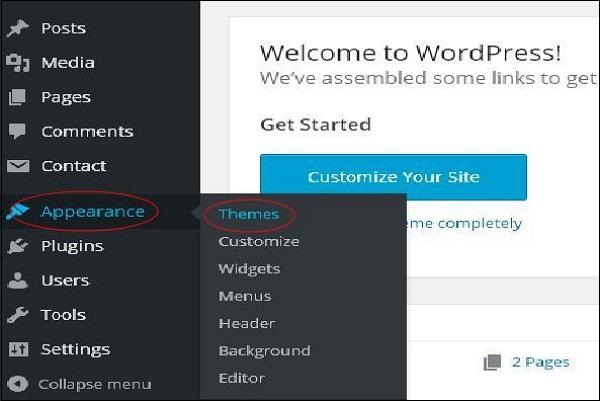
Step (1) − Select Appearance → Themes from the dashboard.

WordPress Theme Manegement

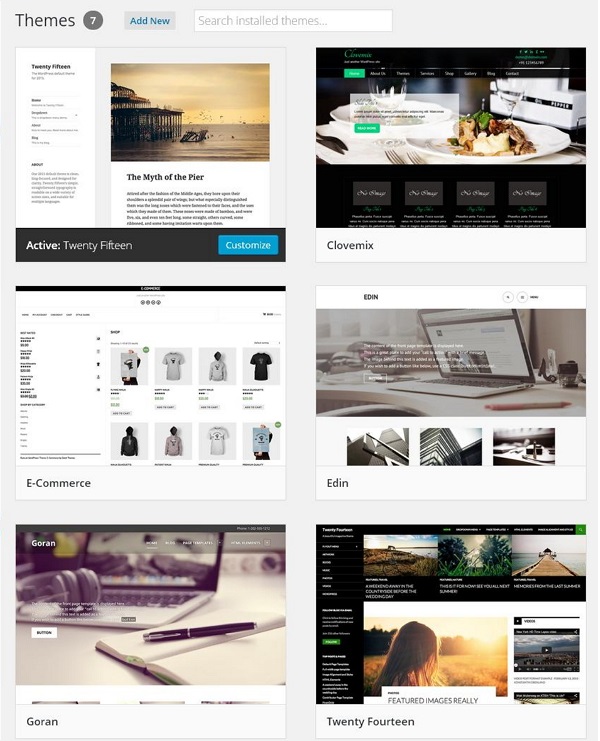
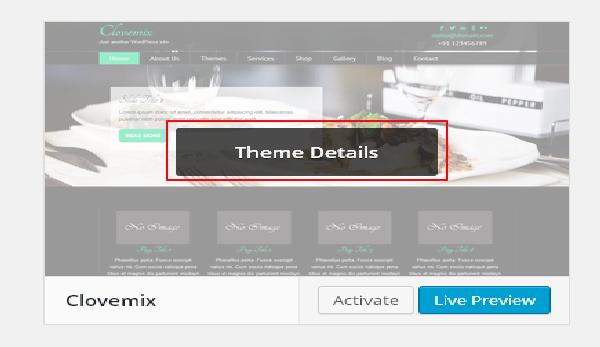
Step (2) − The following screen will be displayed. Hover over any theme and click on Theme Details.

WordPress Theme Management

WordPress Theme Management

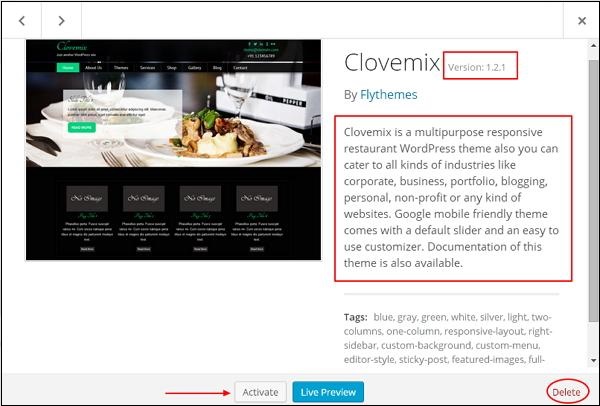
Step (3) − When you click on Theme Detail the following page appears. It consists of details related to the theme. Details like version, description, tags etc.

WordPress Theme Management

If you want to add this theme to your page/website then click on Activate, and if you want to just check the theme, then click on Live preview.
If you click on activate then you get a pop-up message as −

WordPress Theme Management

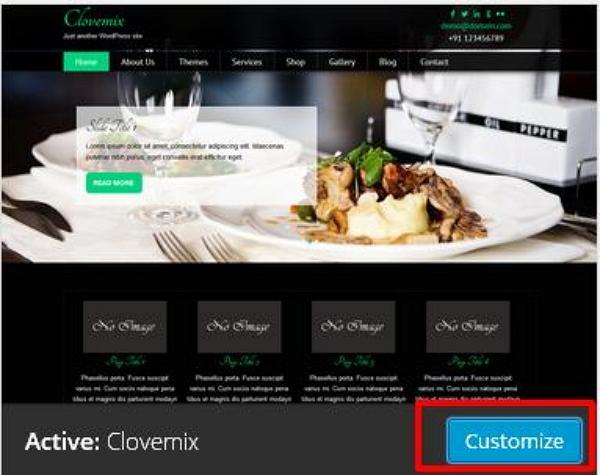
Step (4) − Click on Customize.

WordPress Theme Management

Step (5) − On the left side of the page, you can customize your theme. Any changes you make or anything new you add is displayed on the right side of the page.

WordPress Theme Management

We will learn about customizing the appearance of the themes in the next chapter i.e.; WordPress Customize Theme.


                                                      <<<   Back to WordPress Home

wordpress personal profile

In this chapter, we will learn how to create a Personal profile in WordPress.
Following are the steps to Personal Profile.
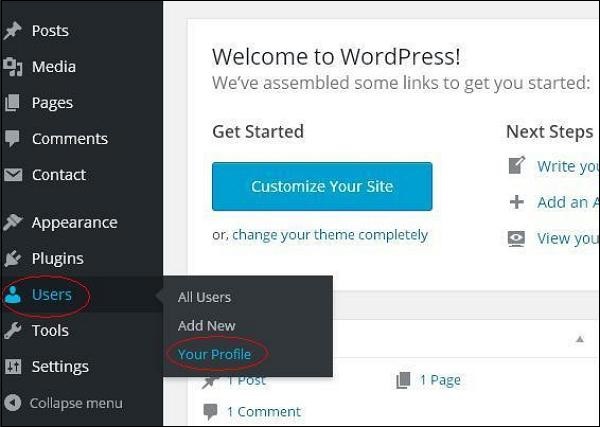
Step(1) − Click on Users → Your Profile from the left navigation bar.

WordPress Personal Profile

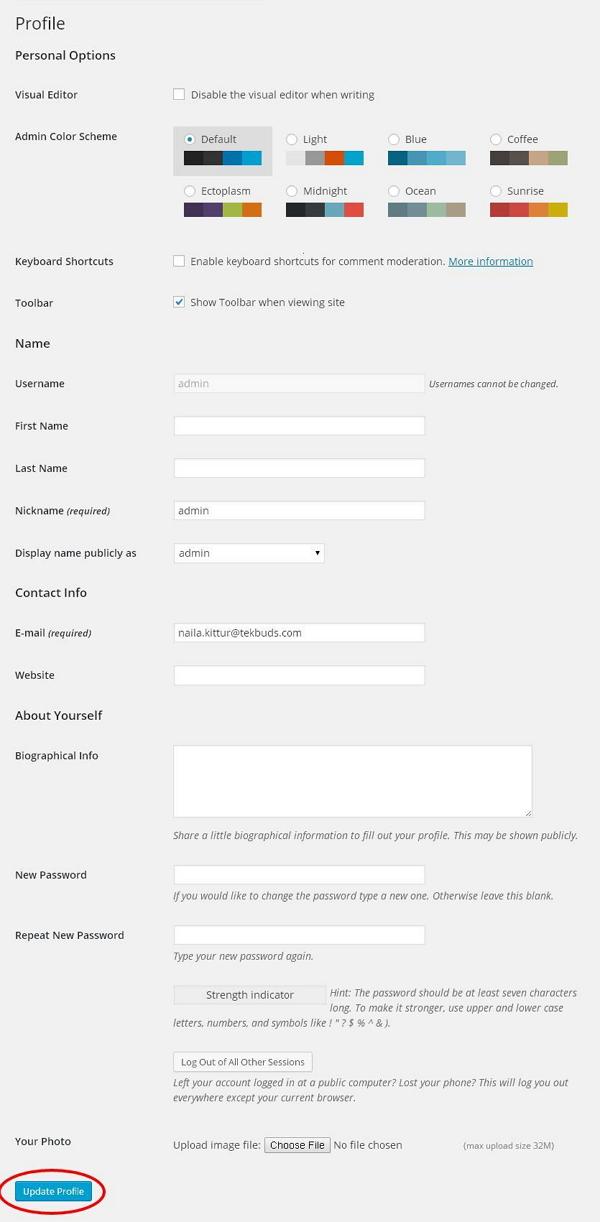
Step (2) − When you click on ‘Your profile’ the following screen will be displayed.

WordPress Personal Profile

The following Personal options appear on the screen −
  • Visual editor − While you are adding posts/pages to your site you can enable this setting if you wish to create, format, or edit your post. If you disable this setting, you won’t be able to use this option.
  • Admin color scheme − You can change the color of your WordPress site by selecting any of the following.
  • Keyboard Shortcuts − If you are too fast at getting your work done and need keyboard shortcuts then you can check this box.
  • Toolbar − If you check this box, you can view the toolbar while using WordPress.
Name
  • Username − Enter your user name.
  • First Name/ Last Name − Enter your first name and last name.
  • Nick name − Enter nick names if any.
  • Display name publicly as − Check the box if you want your name to be displayed publicly.
Contact Info
  • E-mail − Enter a valid e-mail address.
  • Website − Type in your web address.
About yourself
  • Biographical Info − Some details about you.
  • New password − Enter a password of your choice.
  • Repeat password − Re-enter the password for authentication. Password must contain 7 characters.
  • Your photo − You can upload an image of your own from your computer. This will be your profile picture.
Step (3) − After you have updated all the changes, click on Update Profile.

                                     <<<   Back to WordPress Home

wordpress delete users

In this chapter, we will learn how to delete users in WordPress.
Following are the steps to Delete Users.
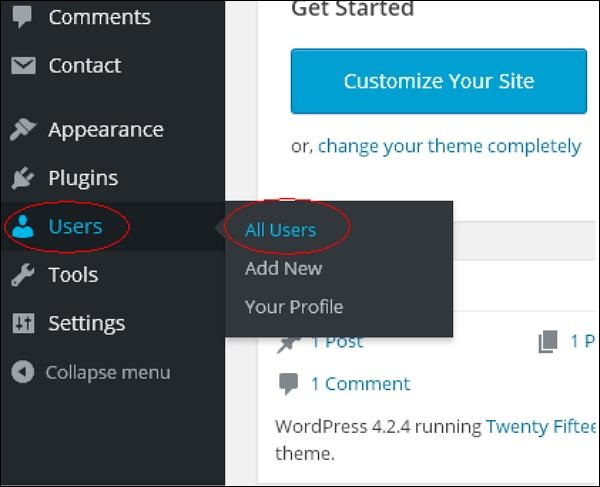
Step (1) − Click on Users → All Users.

WordPress Delete User

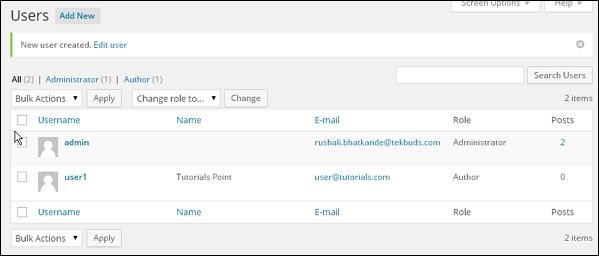
Step (2) − List of Users gets displayed as shown in the following screen.

WordPress Delete User

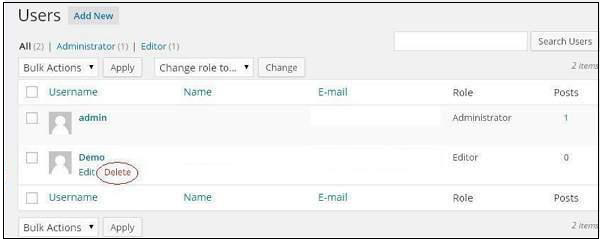
Step (3) − Select the one you want to delete. And click on Delete.

WordPress Delete Pages

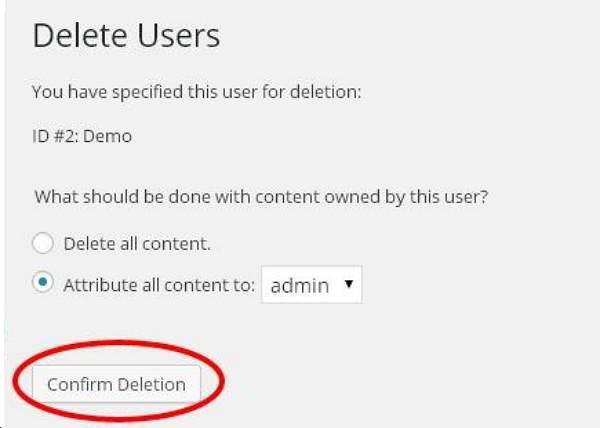
Step (4) − When you click on Delete you get the following page.

WordPress delete User

Step (5) − Select options as required and click on Confirm Deletion. Your user will be deleted.
Step (6) − We have another method of deleting users. A screen as shown in the following shot appears.
Here you can select the users to delete, check the boxes and click on Delete from the dropdown list and click on Apply.
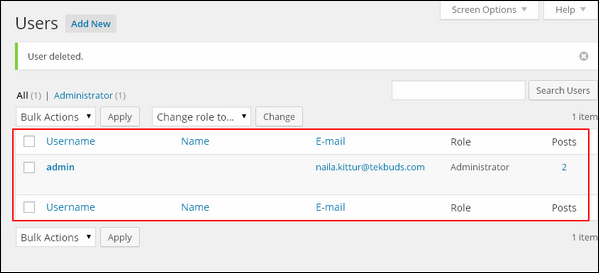
Step (7) − Once you click on Apply, the users selected will be deleted.

WordPress Delete User


                                             <<<   Back to WordPress Home

wordpress edit users

In this chapter, we will study how to Edit Users in WordPress.
Following are the simple steps to Edit Users in WordPress.
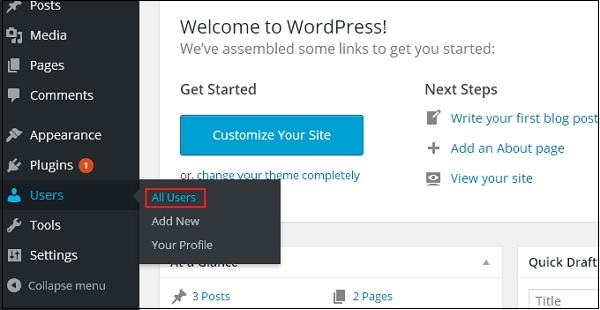
Step (1) − Click on Users → All Users.

WordPress Edit Users

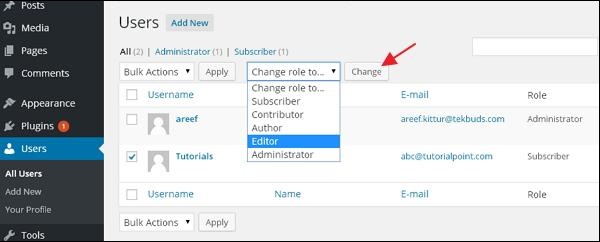
Step (2) − You will see a list of users.

WordPress Edit Users

There are two more tabs seen on the toolbar −
  • Administrator − List of administrators will be displayed.
  • Subscriber − List of subscribers will be displayed.
When we click on the Change role to box, a dropdown list appears as seen in the preceding screenshot.
  • Subscriber − A person who can only manage his profile.
  • Contributor − A person who can write and supervise own posts, but cannot publish them.
  • Author − A person who can publish and manage his own posts.
  • Editor − A person who can publish and manage posts, including the posts of other users.
  • Administrator − A person who has access to all the administration features within a single website.
Click on the check box of the user name to change the role of the user. Then, click on change button and the user’s role will be changed accordingly.
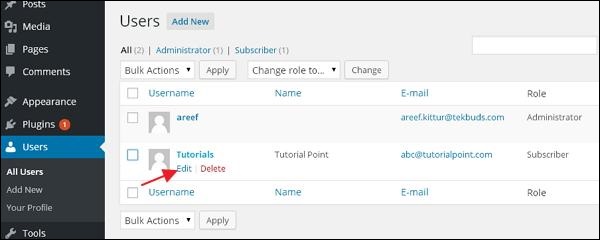
Step (3) − Click on Edit option as shown in the following screen to edit the user.

WordPress Edit Users

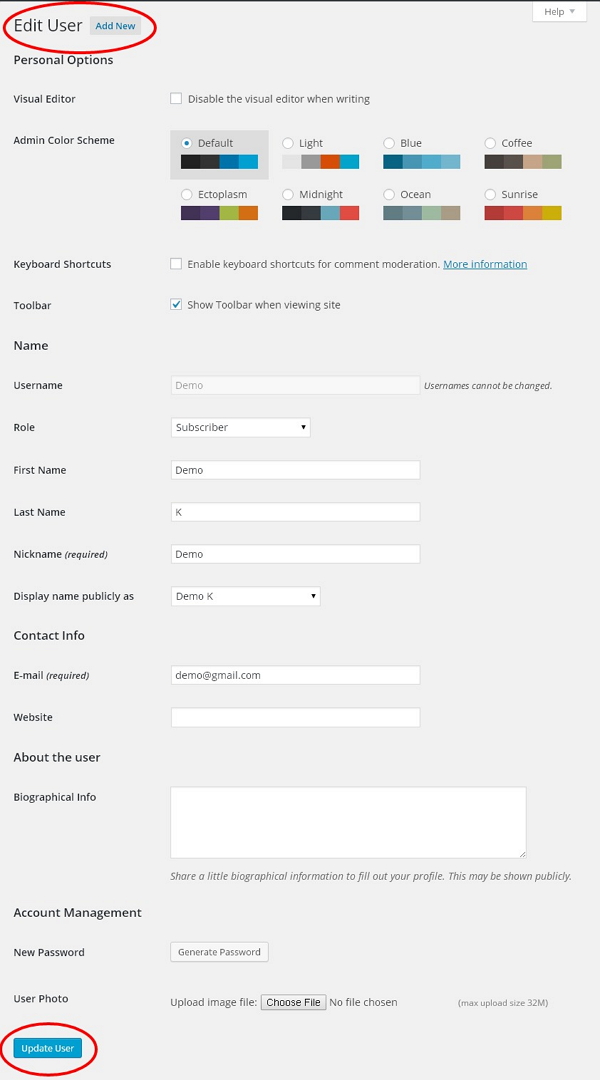
Step (4) − The Edit User page is displayed. Here you can edit or modify all the fields as per your need and click on Update User to save the changes.

WordPress Edit Users


                                                   <<<   Back to WordPress Home